How to Adapt a Product Spec Template to Your Own Product: 6 Practical Tips
Learn how to adapt a product spec template to your own product, review company-specific policies, and identify related features and requirements before making changes.
Hi, we're the Manyfast team.
When you sit down to write a product spec, there's plenty to figure out: what you're building and why, what belongs in the first version, who your core customers are, and how you'll measure success. It helps to have somewhere to put those answers.
In Manyfast, the product requirements document (PRD) starts with sections, and the feature spec is organized into requirements, features, and detailed specs. You can also start with an idea and answer a few questions to get a first draft.
Once the sections are in place, the hard part is figuring out which decisions your product actually needs.
Take a mobile gaming community and a booking service for restaurants, cafés, and bars. Both need sign-up and notifications. Look below those feature names, though, and the specs go in different directions.
For the gaming community, how many reports should hide a post? Should members be allowed to trade accounts or in-game items? The team also needs to decide how often to send new-post notifications on patch day, when to ask for push permission, whether to require an app update, and what the app stores will check in review.
For the booking service, the questions are about deposits and no-show fees. What if six people show up for a table booked for four? Can staff give a table to the next party if someone is ten minutes late? A café might put a time limit on a table, while a bar might have separate rules for group bookings and last orders.
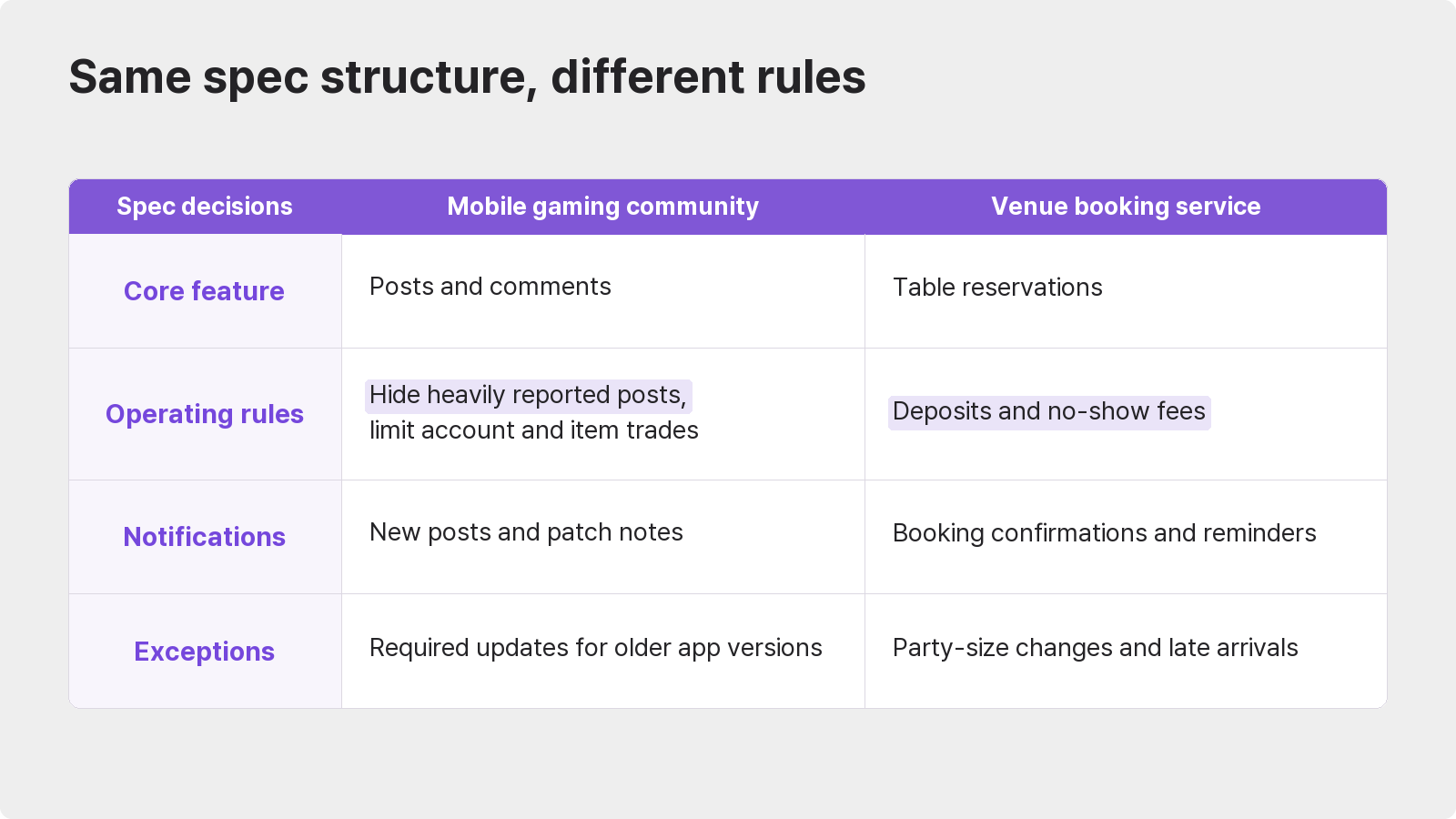
Of course a booking service shouldn't follow the same rules as a gaming app. The work is figuring out what you need to decide in the first place.
Asking AI to summarize other apps' terms and policies can give you a list, but you still have to decide what applies to your product and where it belongs in the spec.
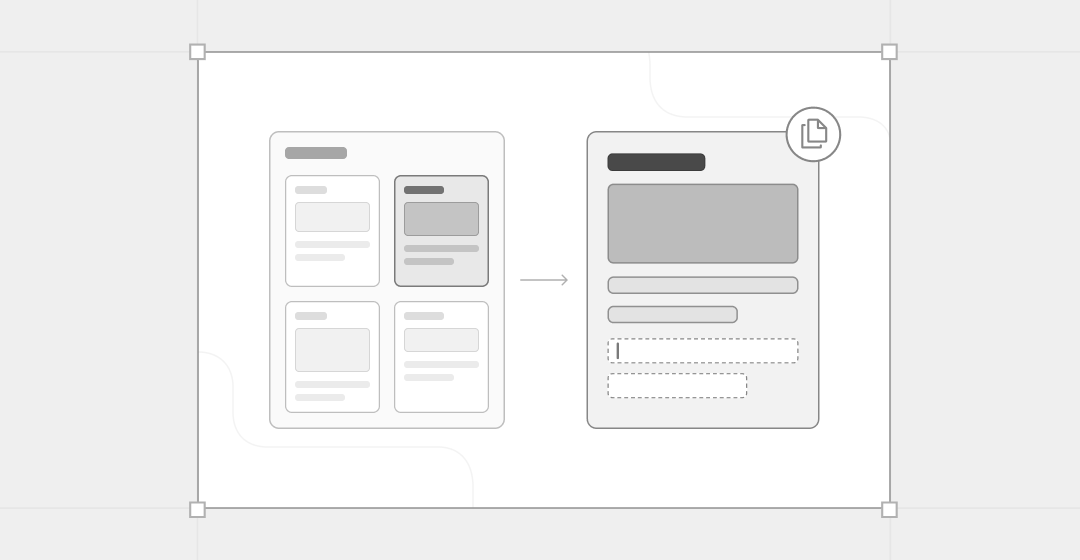
Manyfast's templates let you skip drawing up that list from scratch. The catalog has nine worked examples with a PRD, a feature spec, and product policies.
The neighborhood meetup app covers push permissions and required updates. The local booking example covers deposits, no-show fees, and waitlists. Make a copy to review and edit those rules in your own project.
Those rules still belong to the example. A leave policy that treats a manager's approval as final doesn't fit a company where HR has to sign off, too.
For this walkthrough, we copied the In-house Leave Management Tool Spec and added an approval step. Here's how we spotted the rule that didn't fit and found the other parts of the spec it would affect.
Tip 1. Open the policy before you make a copy
In the sidebar, go to Explore → Templates. Use Included documents, Industry, or Business model to narrow the list.
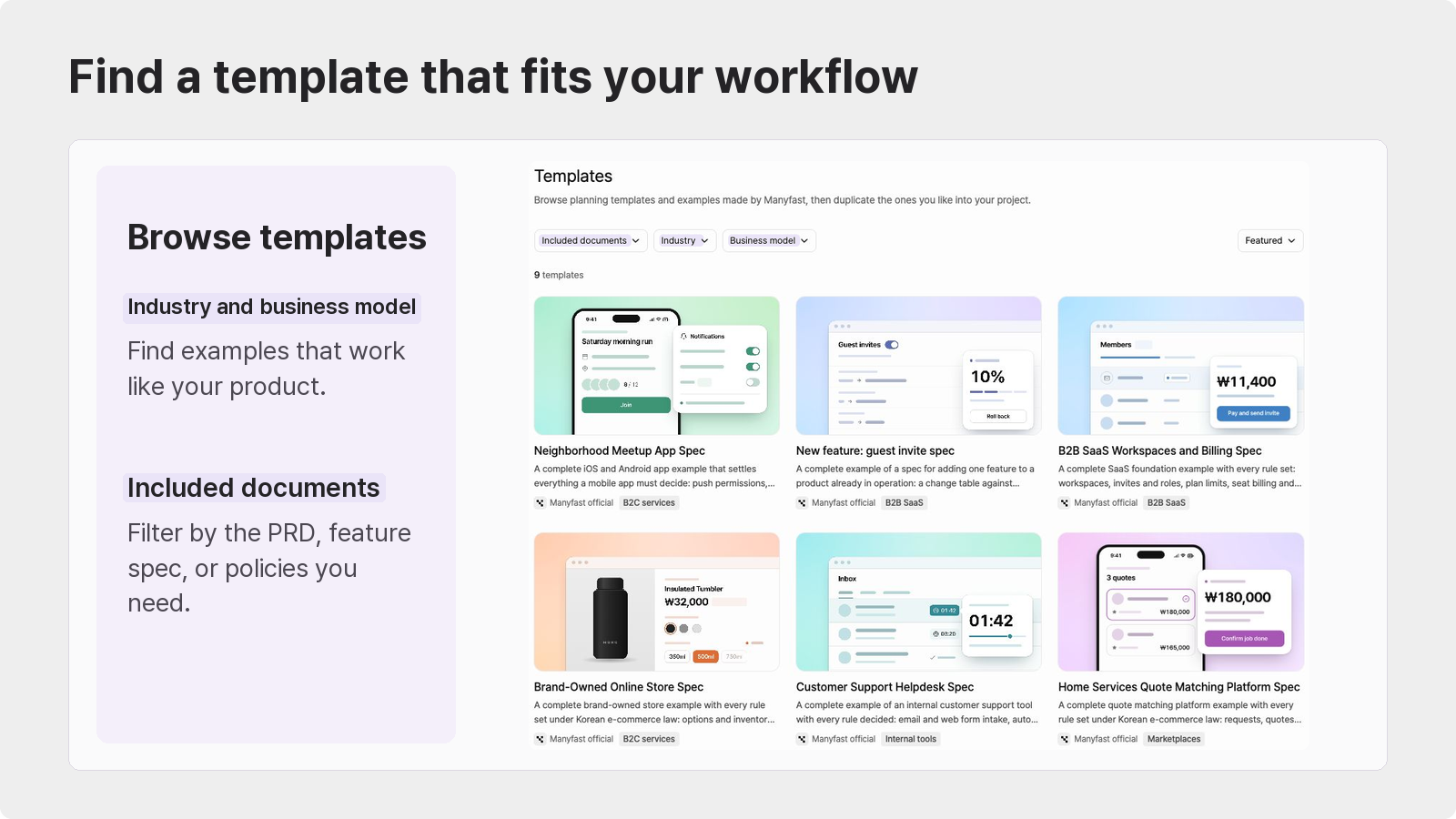
Look for a similar workflow, even if the industry is different. If you're building bookings for a Pilates studio, the local booking example is still worth a look for its rules on deposits and no-shows.
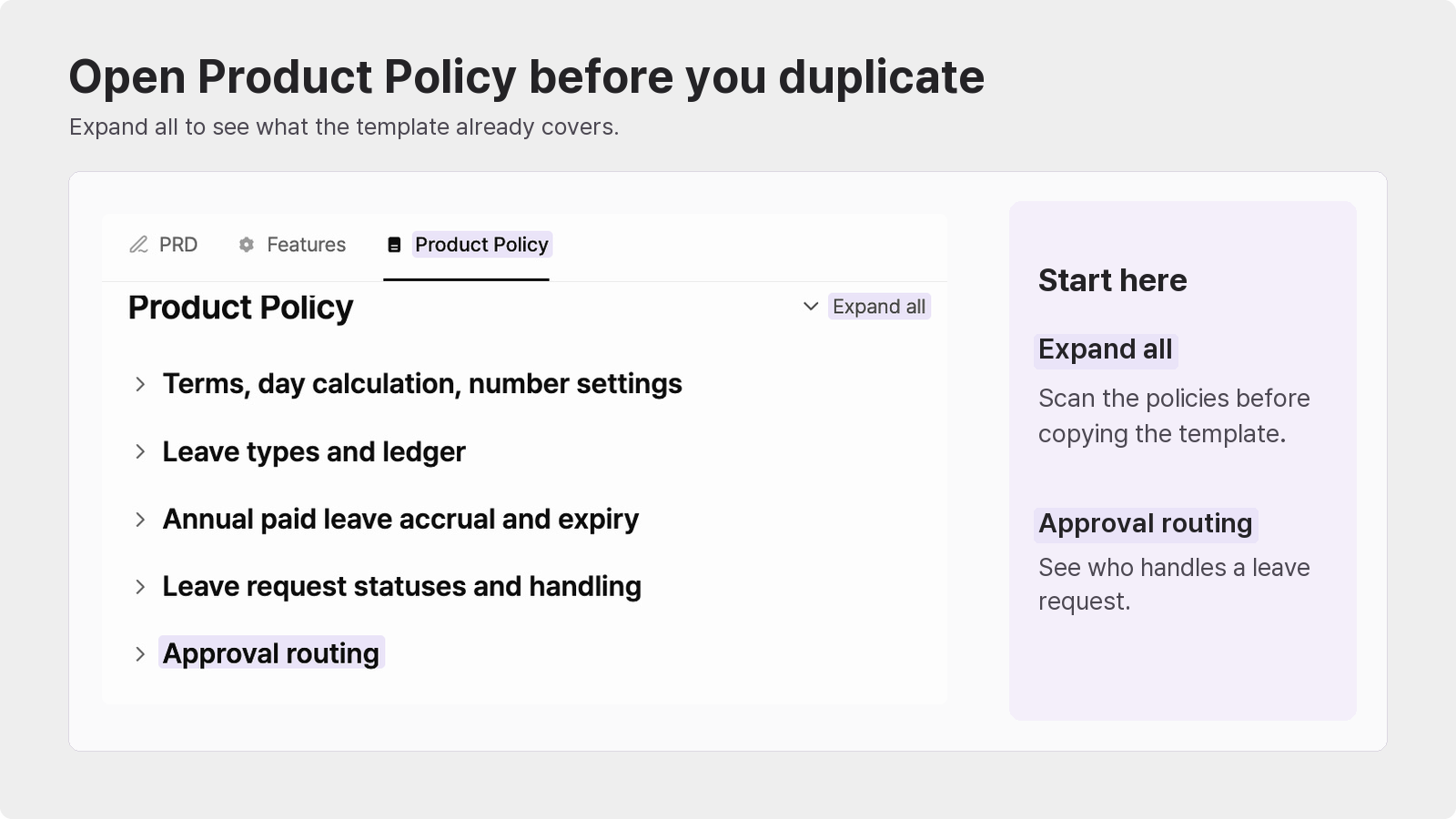
For our example, we opened In-house Leave Management Tool Spec. Before duplicating it, we went to Product Policy and selected Expand all to see what the template had already worked out.
Tip 2. Find the decisions your team needs to make
The Approval routing section has a table labeled Company choice. It shows who handles a request in the example, including what happens when a team has no assigned approver.
Start with labels like this to find decisions you can revisit. If a rule is tagged Statutory, check which requirements apply to your team before reusing it.
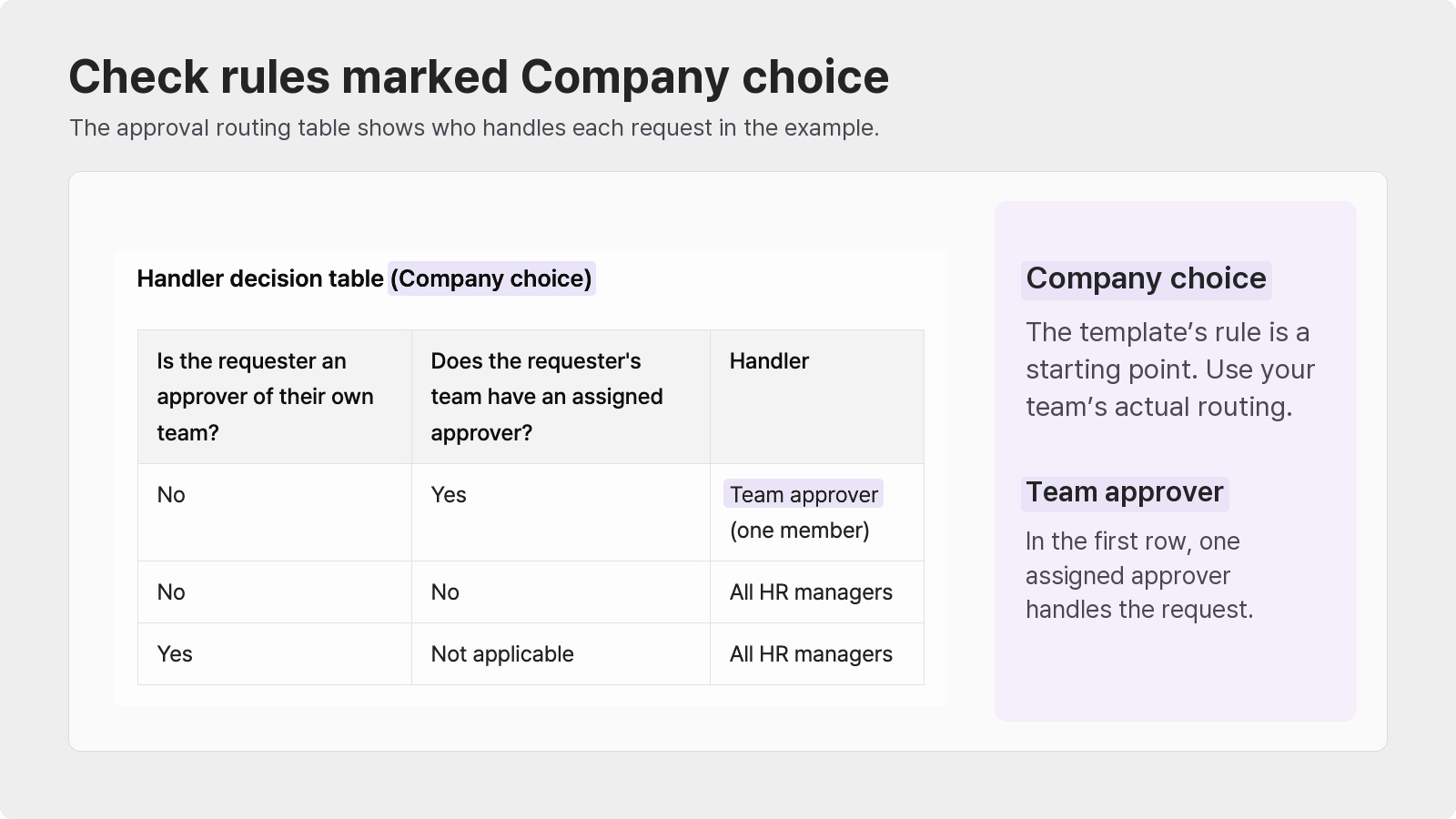
Then read the reason behind the rule. Does it apply to your company, too? If you decide to change it, check What else to change for the policies and detailed specs that depend on it.
Tip 3. Check who the first version is for
Select Duplicate to use, choose a language and a destination group, then select Duplicate. What you'll get shows which documents will be included. For the leave template, that's a PRD, a feature spec, and product policies.
When the copy opens, Completeness 100% means the example's fields are filled in. It doesn't mean the rules match your team.
Before sharing the spec, check who will use the first version. If you're piloting it with headquarters staff, flag sentences that read as though all employees will have access.
If the rollout group isn't settled, write “Confirm who’s in the pilot” next to the relevant section. That keeps an example assumption from turning into a promise.
Tip 4. Start with one rule that works differently
In the copy, open Product Policy from the feature spec. We started with Approval routing. In the template's usual single-approver path, the assigned team approver can confirm the request. In our example, HR has to sign off after the team does.
Say an employee asks to take Friday off. If they get a message saying “Approved” as soon as their team lead signs off, they'll probably make plans for Friday.
With an HR step still pending, the app shouldn't tell them the request is final. Write down when the employee can actually treat the time off as confirmed. That gives the people building the status and the notification the same rule to follow.
Tip 5. Ask what else will change before editing
It looked like we could add a line to Approval routing and move on. Before making an edit, we asked in the project chat:
I want to switch this example to two-step leave approval: the team approver signs off first, then HR gives final approval. In this spec, what needs to change, and what should I decide before editing? Don't edit any documents.
The AI came back with five decisions we'd need to make before editing:
Which types of leave need two approvals?
What status should employees see after team approval but before HR approval?
Who can reject, withdraw, or handle a request on someone else's behalf?
If HR hasn't acted, should the app send a reminder or approve the request automatically?
Should requests that are already pending follow the old process or the new one?
The first question caught us out. The template already has leave types that are approved on submission. We had to decide which type should get the extra review before touching the approval rules.
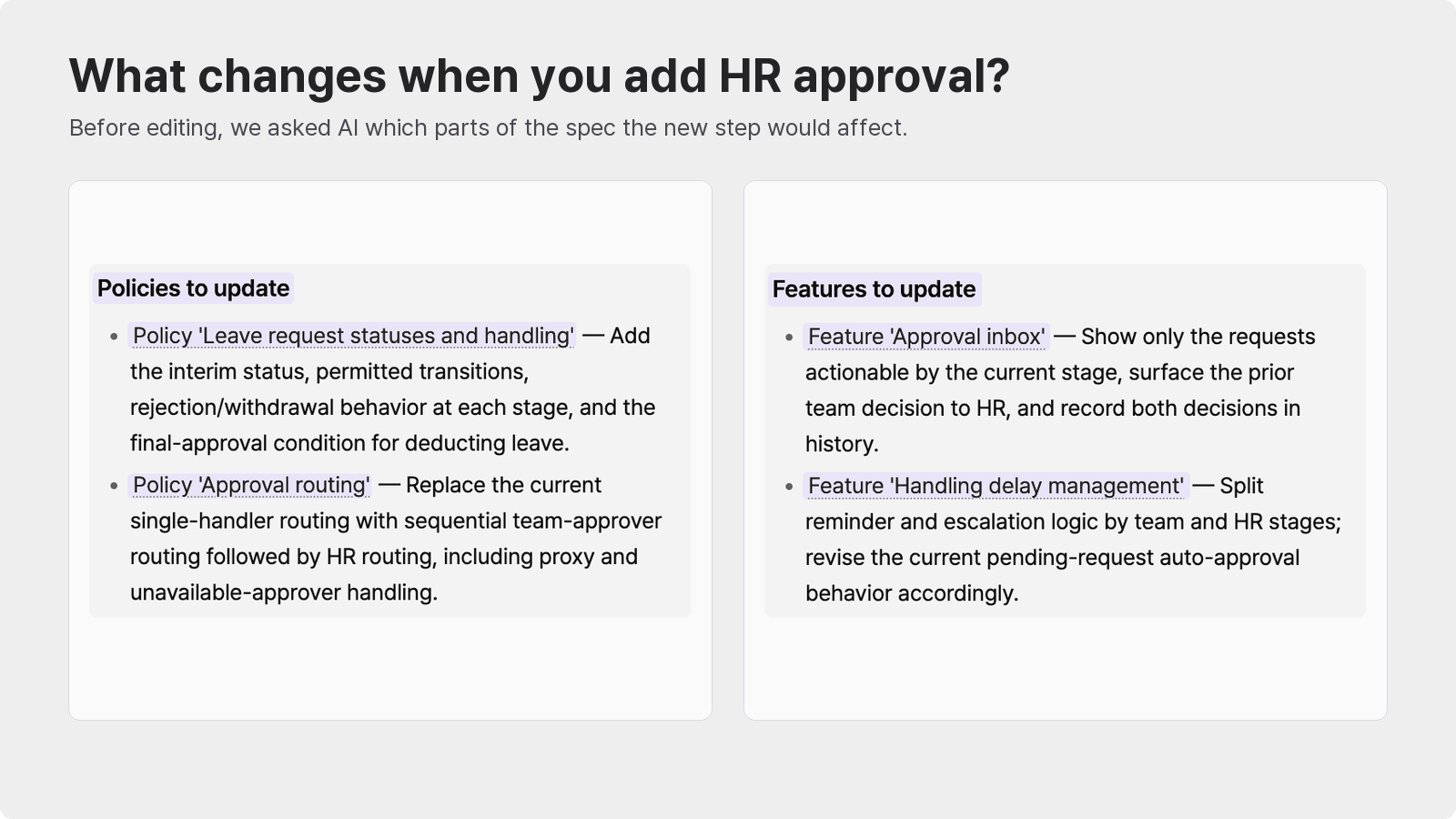
The answer also pointed to Leave request statuses and handling and Approval routing, along with the Approval inbox and Handling delay management features. The status tells employees what they're waiting for. The inbox and reminders determine who needs to act next.
Tip 6. Check the dependencies and update the spec
We compared the AI's suggestions with What else to change in the template. For a new approval status, Leave request statuses and handling points back to Approval routing, Notifications, and Roles and permissions.
It also names the detailed specs to check: submitting a request, the pending approval list, approving and rejecting requests, reminders, and start-date auto-approval. We left the team calendar and the PRD for a separate decision rather than assuming they needed edits.
Here's what we decided in this example:
Scope: Only company-granted refresh leave requires two approvals. Annual paid leave keeps its existing process.
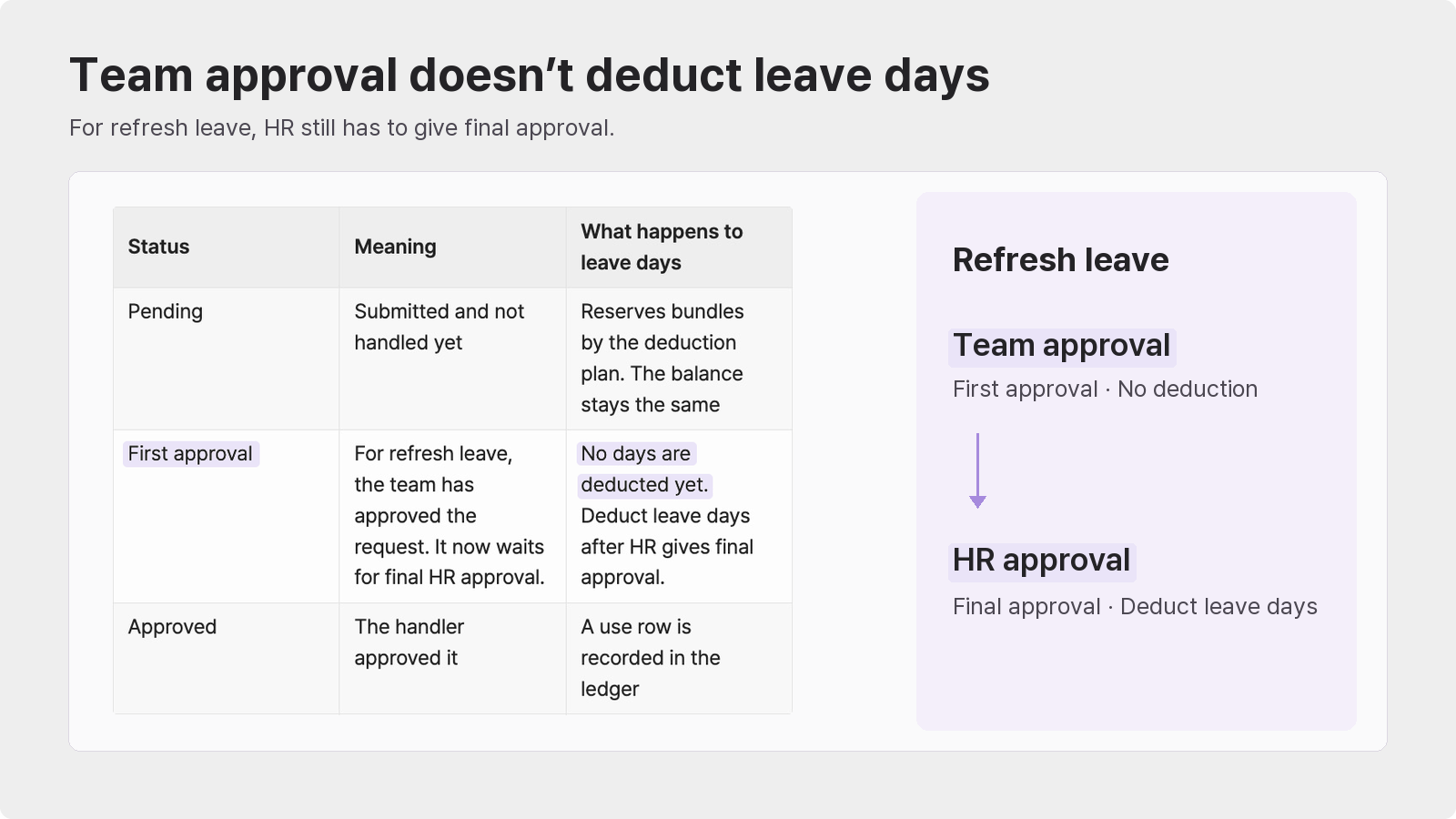
Status and balance: After team approval, show First approval and wait for HR. Deduct leave days only after HR gives final approval.
Rejection and withdrawal: HR can reject a request, and employees can withdraw it before final approval.
Delays: Remind HR about pending requests. Don't auto-approve them at this stage.
Existing requests: Requests already submitted stay on the old process.
We started with Leave request statuses and handling. Under the old rule, the team approver's sign-off could confirm the request.
Under the new rule, refresh leave shows First approval after team sign-off, and only HR's approval confirms the time off and deducts the days.
Leave a sentence next to the new rule explaining why HR signs off. That way the next person to change the approval flow doesn't have to reconstruct the decision.
Try it on one rule
Adding one approval step sent us back to the pending approval list and the reminder rules. The template gave us somewhere to look instead of making us map those dependencies from scratch.
Open a template with a workflow close to yours. Pick one Company choice rule that works differently in your team, then see what else would have to change before rewriting it.