Make wireframe handoffs clearer with Storyboard
Add numbered descriptions to your wireframes, check them against the screen and feature specifications, and share a reviewed storyboard with your team.
Hi, we're the Manyfast team.
We've added Storyboard to Manyfast's wireframes.
First, a quick refresher: a wireframe is an early sketch of a screen. Simple shapes show where the main buttons, text, and input fields will go.
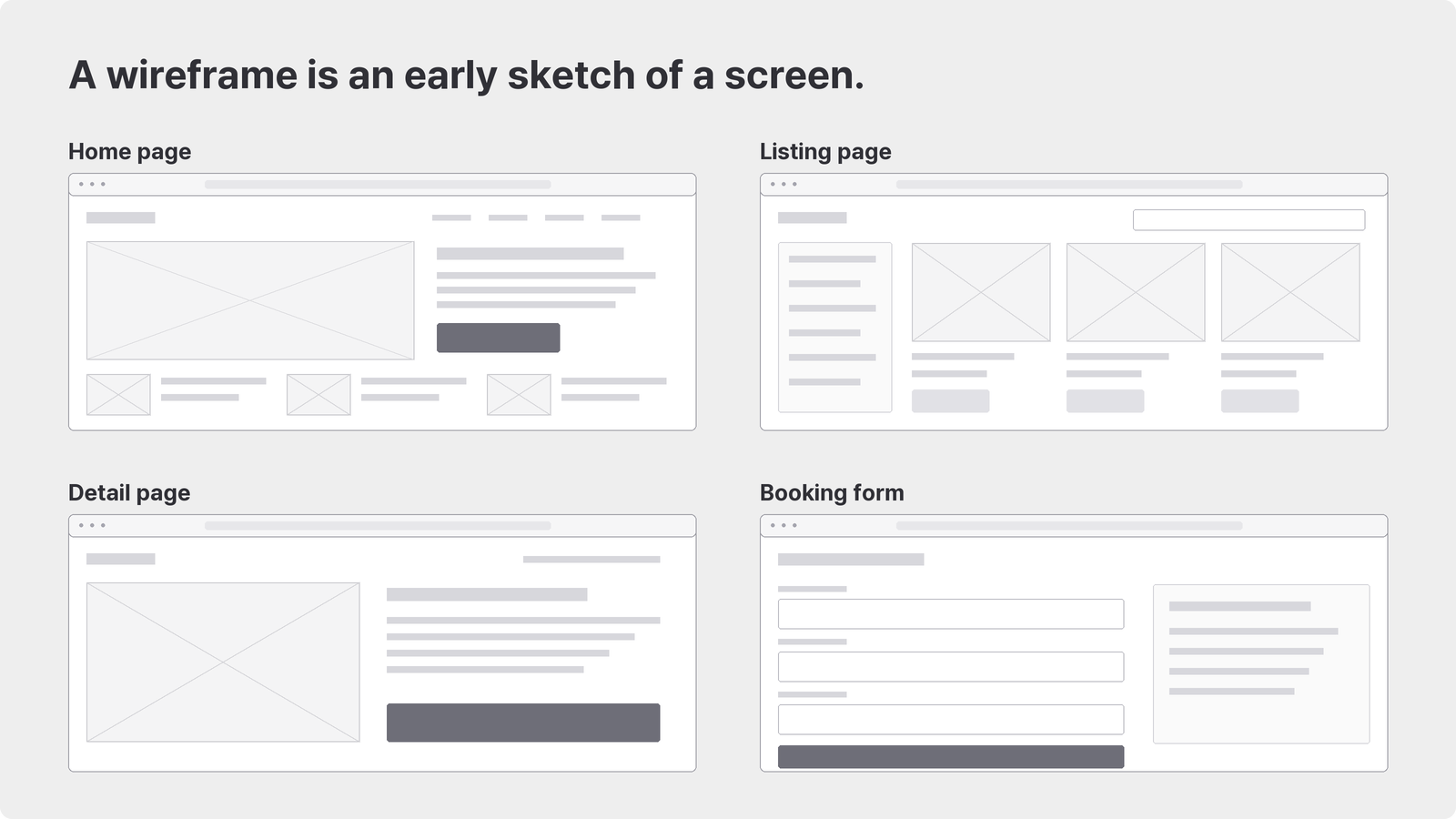
In Manyfast, wireframes are generated from the pages defined in your user flow. You can also click through the prototype to try the navigation between screens.
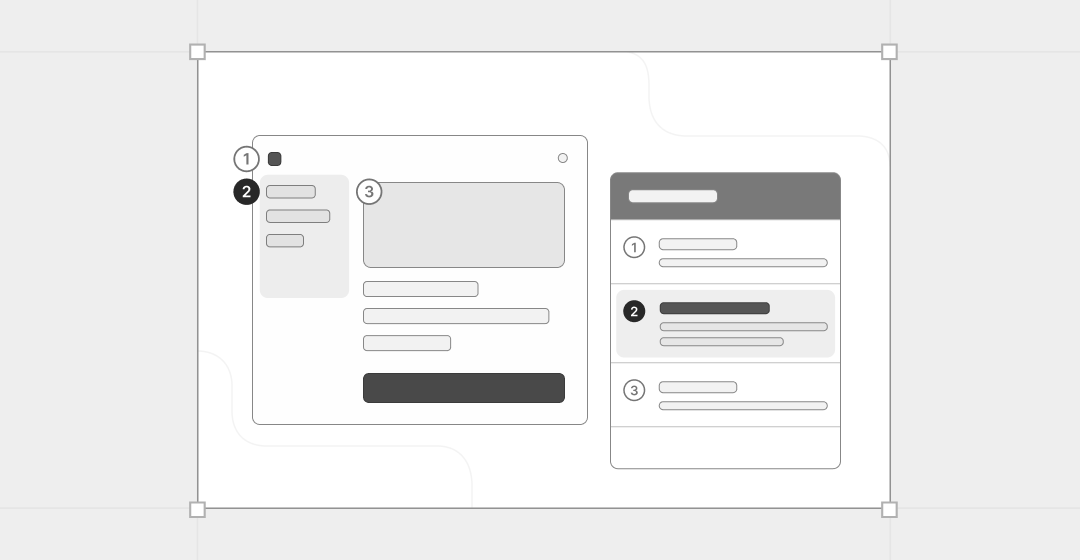
Storyboard adds numbered regions to those screens, with a table beside them explaining what each region contains and how it behaves.
Why add descriptions when you already have a clickable prototype?
If you've shared wireframes with a team, you've probably heard questions like these:
Does Confirm reservation book it immediately, or is there another confirmation step?
If I cancel, does that also trigger a refund?
A prototype can show where a button leads. It doesn't necessarily explain what happens behind it, or which conditions prevent the action.
The screen shows the button. Its full behavior may be somewhere else.
That's why product teams have long built annotated screen specifications by numbering screenshots and writing a description for each region. Even describing that process gives you a sense of the work involved.
Storyboard puts that description table right beside the wireframe. Developers and designers can read the screen and its behavior together instead of clicking every button and guessing what it means.
They can identify the relevant region, see the destination of an action, and try the parts that need a closer look. It can also reduce the questions that go back to the person who made the screen.
Our main concern wasn't how much AI could write. It was whether you could immediately see which part of the screen a description referred to, then check and approve it yourself.
Here are five tips for adding a storyboard to an existing wireframe, checking it against the screen, and handing it off.
Tip 1 Start with the screen that keeps raising questions
Storyboard generation and editing are available on Pro plans and above. The credit cost for generating descriptions is shown before you start.
Open Storyboard beside Canvas at the top of the wireframe view.
Rather than reviewing every page from start to finish, begin with one that needs an explanation. A screen with several destinations or conditional actions is a good candidate.
Our example is Table & Thyme, a fictional neighborhood restaurant reservation website. We'll look at the booking form and reservation details, where guests can check a booking, copy a share link, or cancel it.
Avoid: Scanning every page in order and missing the interactions that matter.
Try: Starting where your team has the most questions, and spending review time on those interactions.
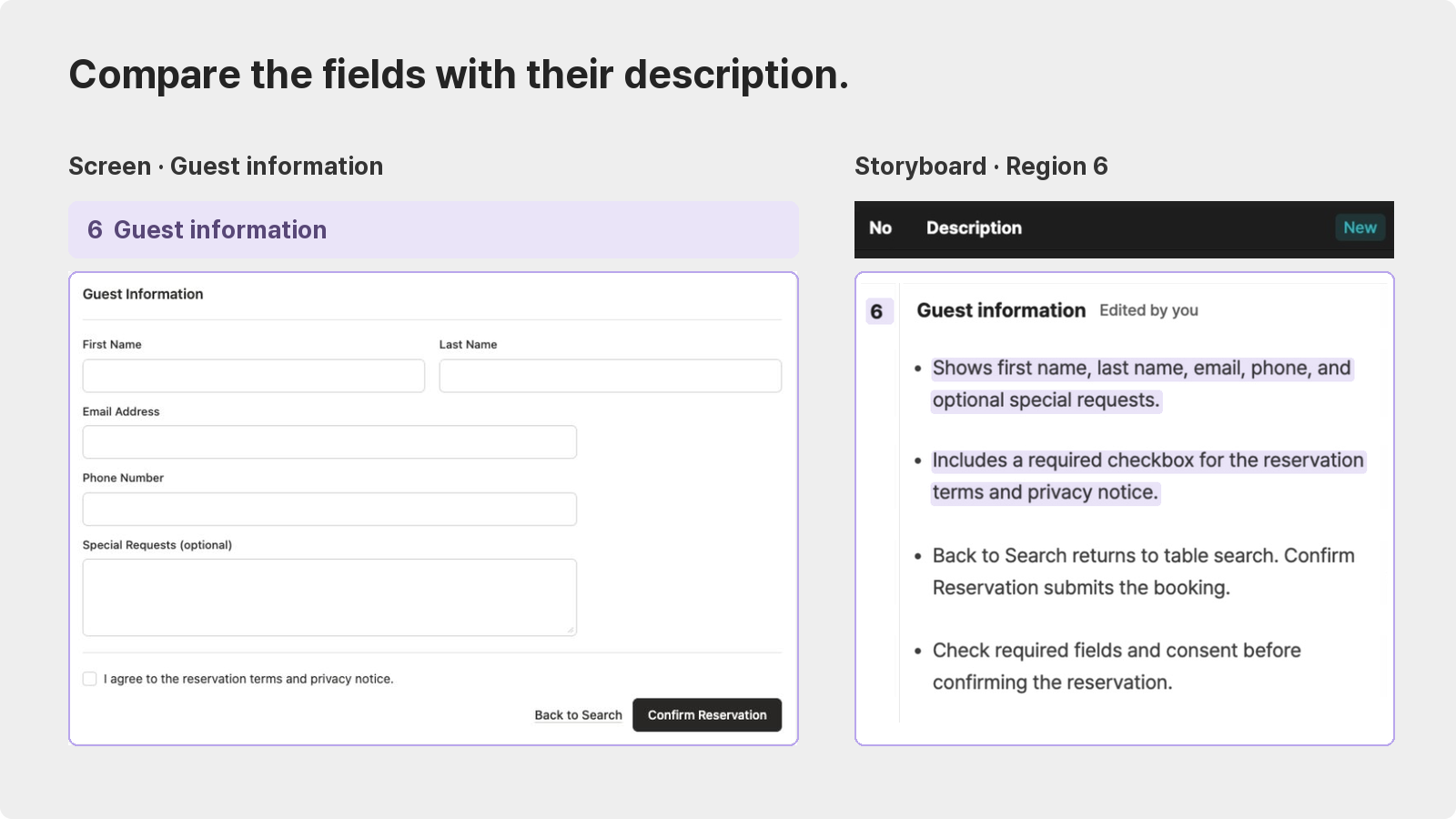
Once generation finishes, numbered screen regions appear alongside the table describing them. This is still an AI-written draft. The next step is the most important one.
Tip 2 Check what each description points to
AI-generated descriptions can sound convincing when you read straight through. We check them by pointing to the screen instead.
Hover over or select a table item to highlight the corresponding region. You can compare the description and the region as a pair, without hunting around for the button it refers to.
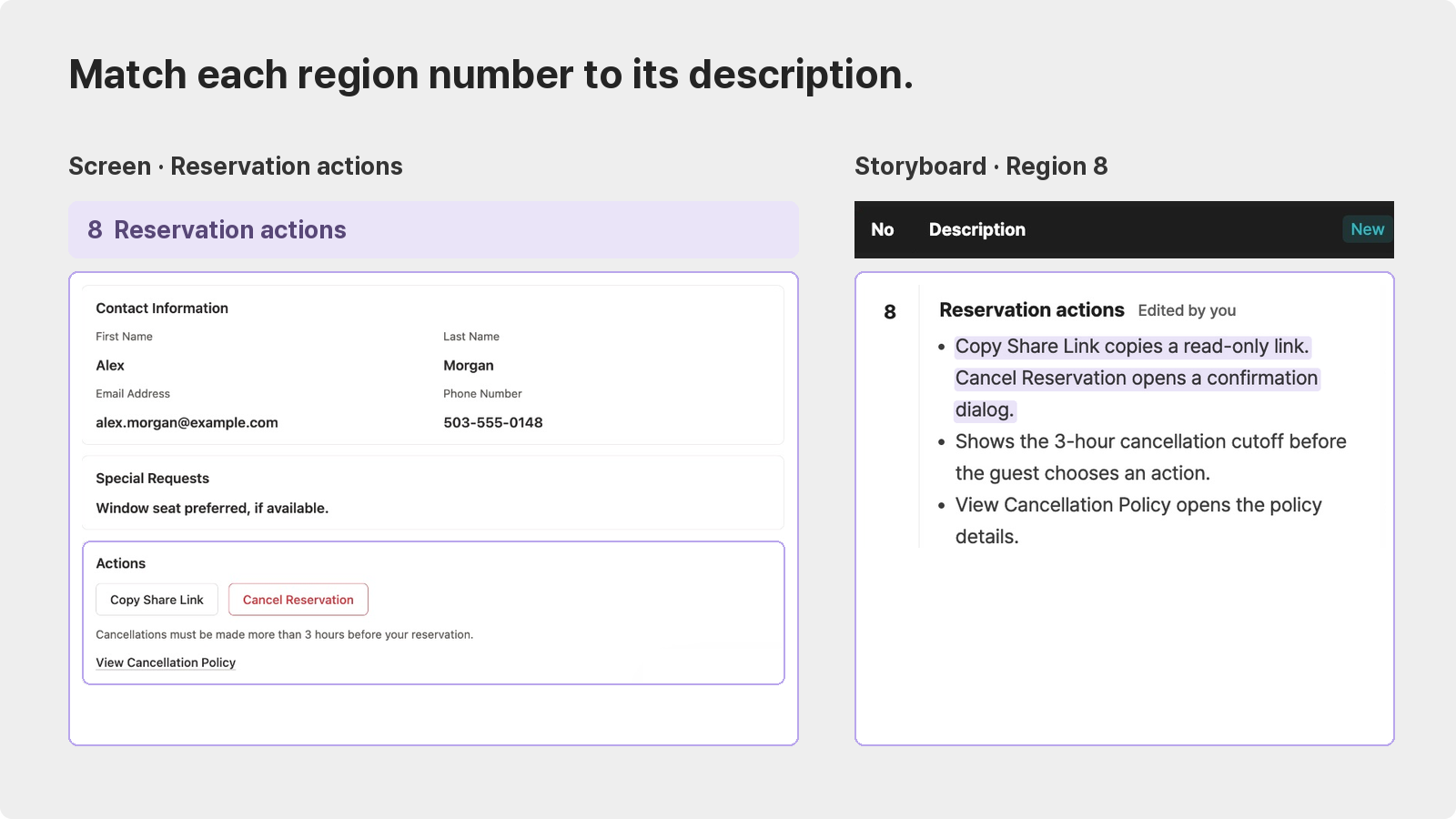
Use two references as you review. First, check the screen: does the description match what's actually there? Then check the feature specifications: does the behavior match the conditions you've defined?
Don't rely on Storyboard alone for rules that aren't visible on the screen, such as cancellation deadlines or refund conditions. Use the feature specifications as the reference for those rules. In the storyboard, check how the screen's wording and actions express them.
Send both documents when those details matter. The recipient can then distinguish the screen description from the underlying conditions.
For example, a cancellation dialog might say, “Canceled reservations can't be restored.” Describing it as “Cancellation unavailable” would change the meaning: someone could read it as saying that cancellation is blocked.
A clearer description is, “Explains that the reservation can't be restored after cancellation.” Spell out the button actions too: Keep reservation closes the dialog without canceling, while Cancel reservation confirms the cancellation.
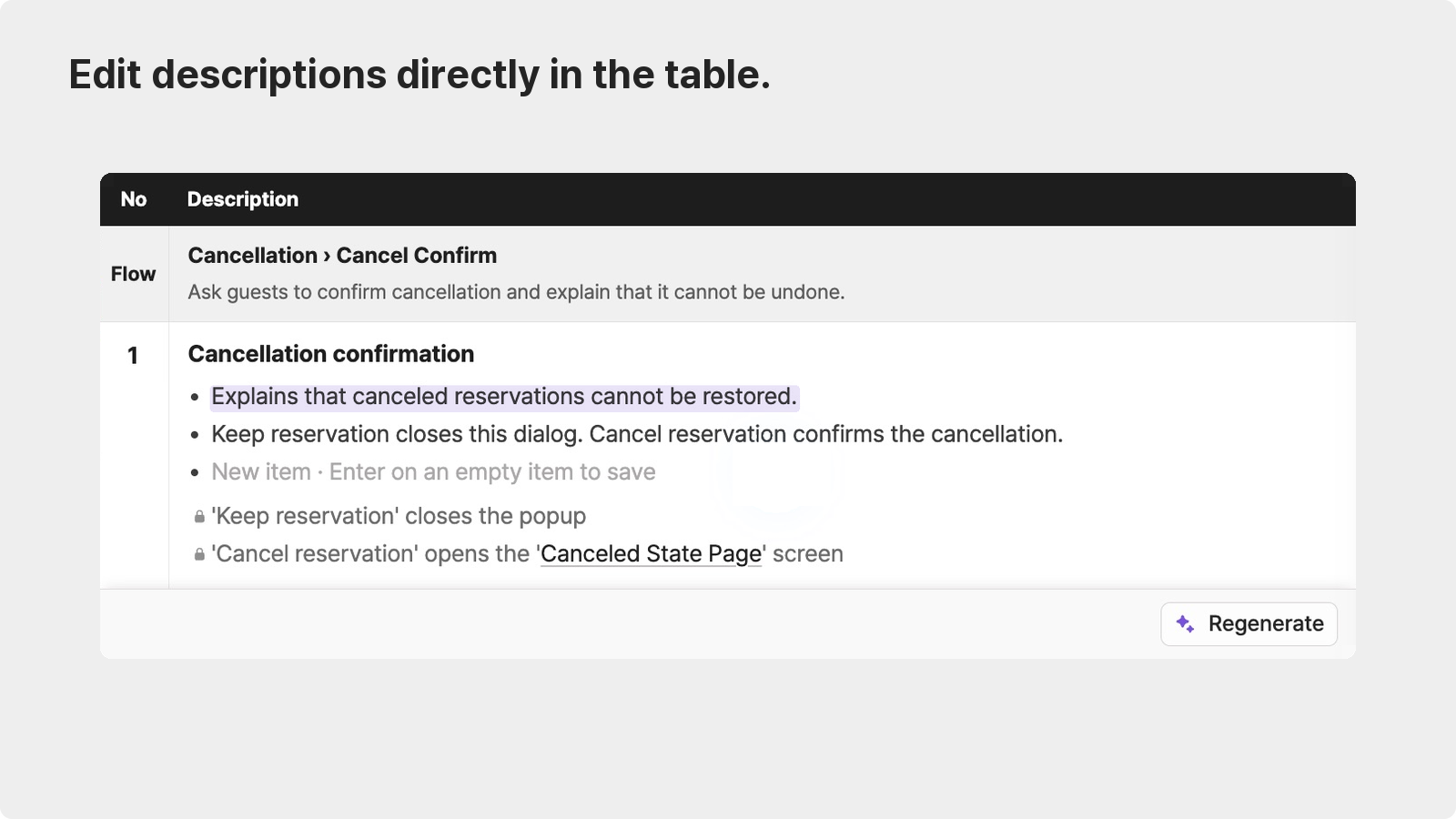
Comparing the wording and the screen together helps you catch interpretations that could otherwise reach the next person.
Avoid: Reading the table, deciding it sounds fine, and passing along a plausible but misleading sentence.
Try: Matching each item to its region and checking its behavior against the feature specifications before approval.
AI writes the draft. A person checks which region it describes, whether it's accurate, and whether it's ready to use. That review is what makes approval meaningful.
Tip 3 Approve by page and share approved descriptions
After editing, approve or reject the descriptions for the page. Changing a single line doesn't approve that line on its own. You're reviewing the page as a whole and deciding that its descriptions are ready.
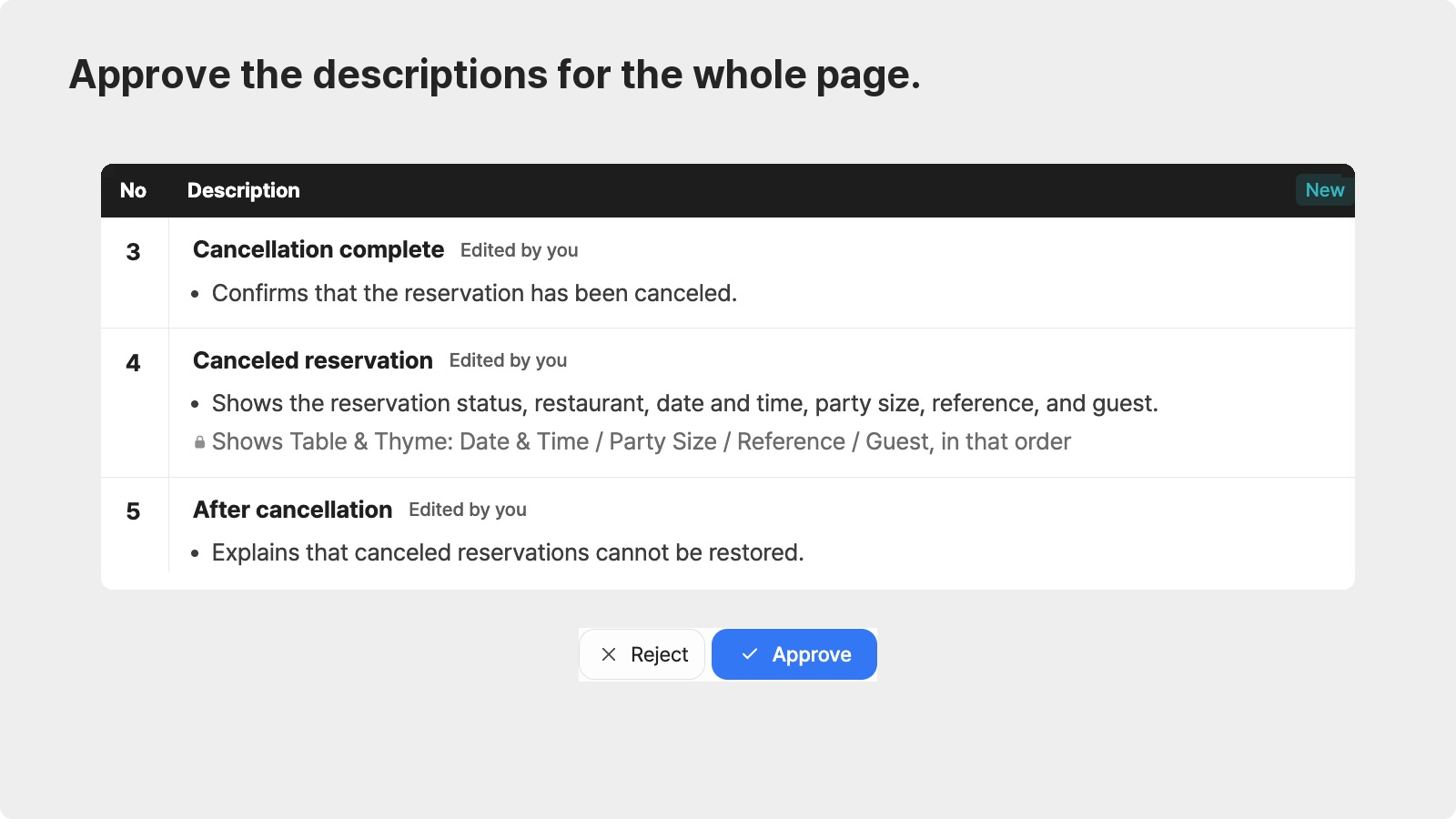
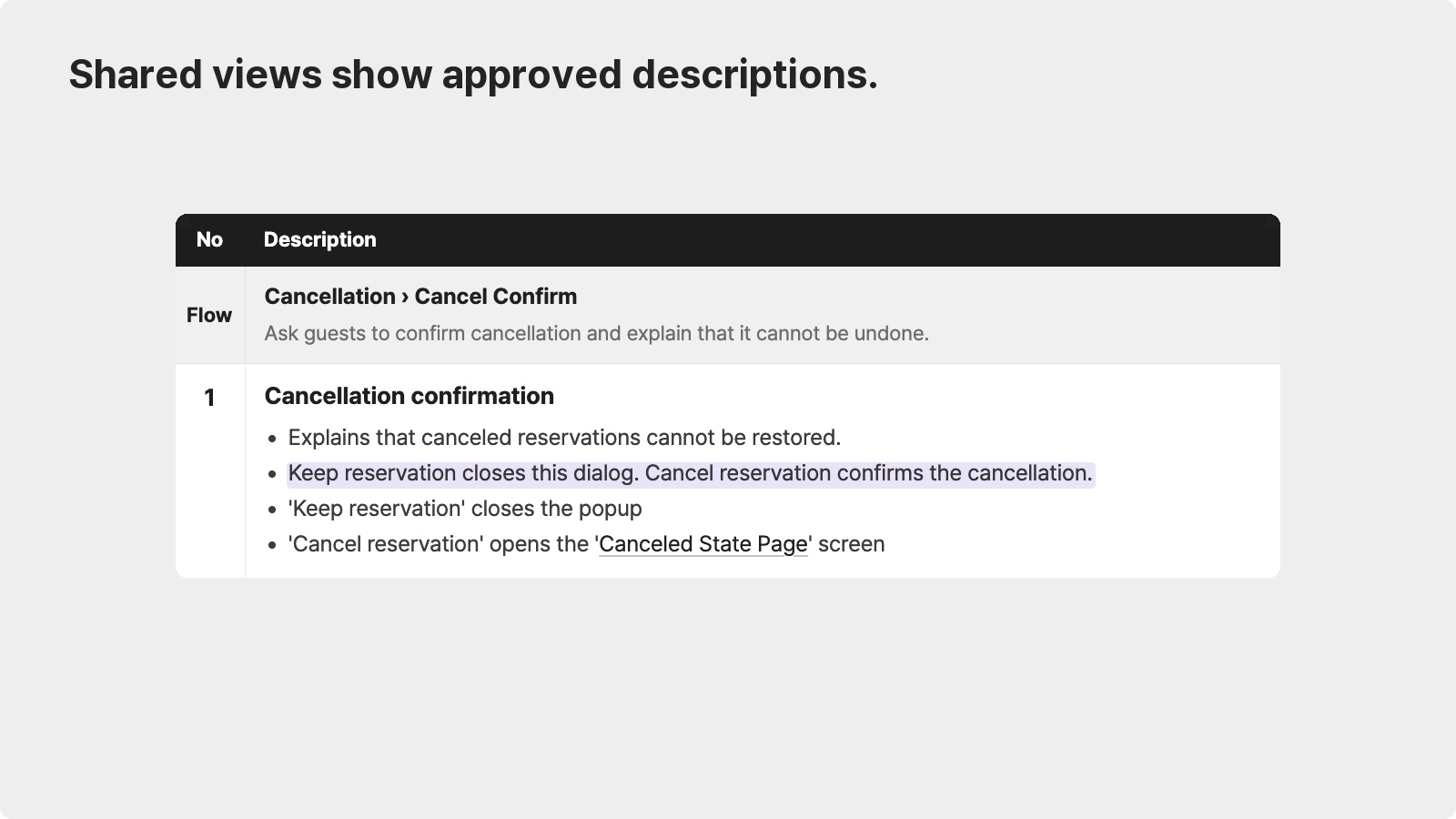
Approval matters because viewers and shared links show approved descriptions. Drafts you're still editing don't appear in the recipient's view.
The editor is where you review and revise the AI draft. The viewer is where the team reads the agreed screen and its descriptions together.
That question from earlier, “Does this confirm immediately, or is there another step?”, can now be answered in the table. Screen links in the descriptions take readers to the destination page, and the back button lets them return.
Tip 4 Recheck descriptions when the screen changes
It would be nice if approval meant the work was finished. In practice, wireframes keep changing. A button can move or a new region can appear the very next day.
What you want to avoid is an explanation quietly becoming out of date. When a wireframe region changes, Storyboard marks its description for review. The badge is a prompt to compare the description with the updated screen.
This does not mean that changes to conditions in the feature specifications are detected too. If you revise a policy, check the relevant screens and descriptions separately.
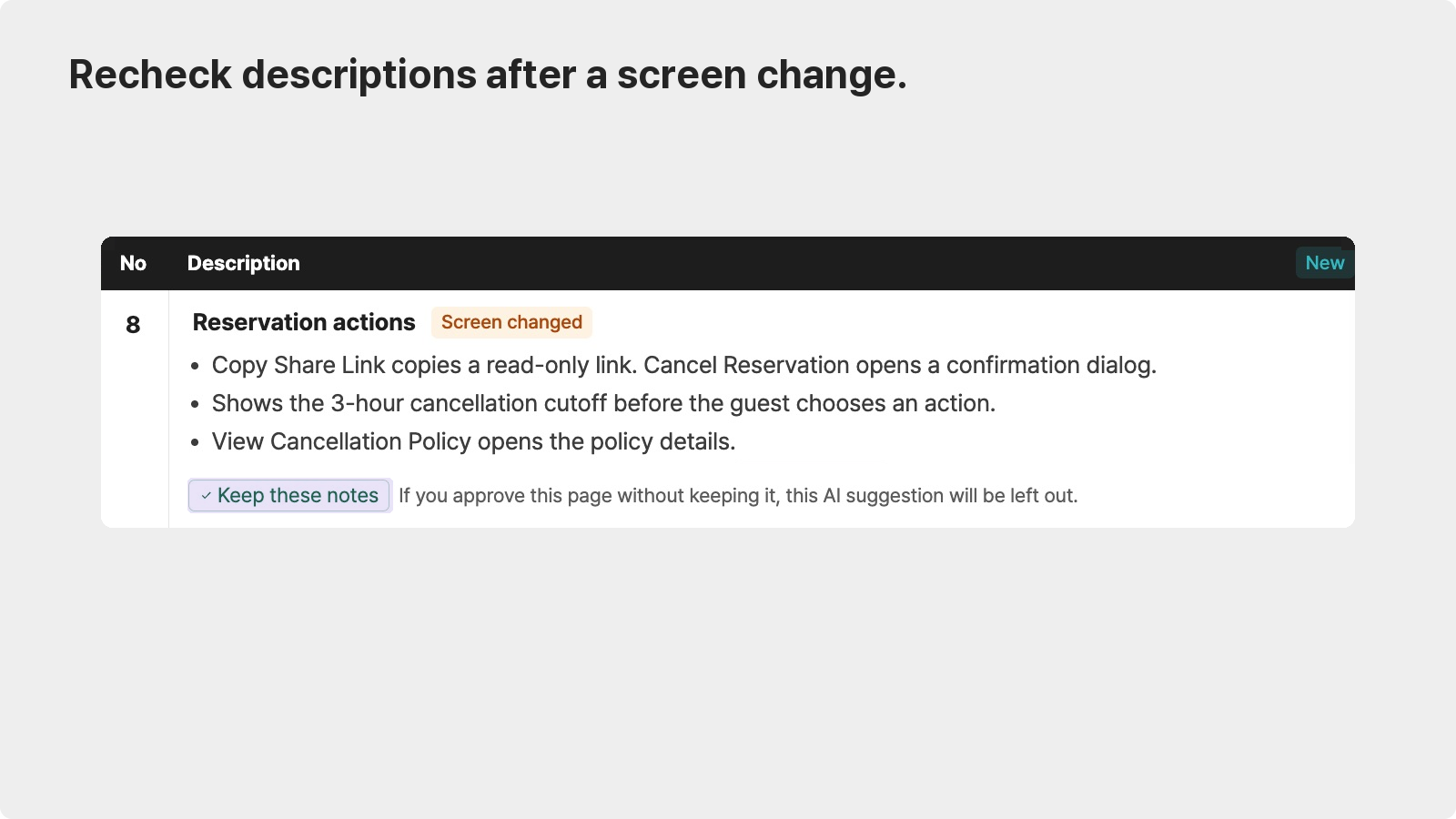
If the description is still accurate, choose the option to keep it. Moving a button may not change what it does. If the behavior has changed, revise the relevant sentence as in Tip 2, then approve the page again.
Avoid: Changing the screen and leaving its explanation unchecked.
Try: Starting with the marked items, so you know where to look without rereading everything.
Tip 5 Check the decision behind a rule and include Storyboard in your design handoff
In Tip 2, we used the feature specifications to check a condition. But the specifications don't always explain why the team chose it.
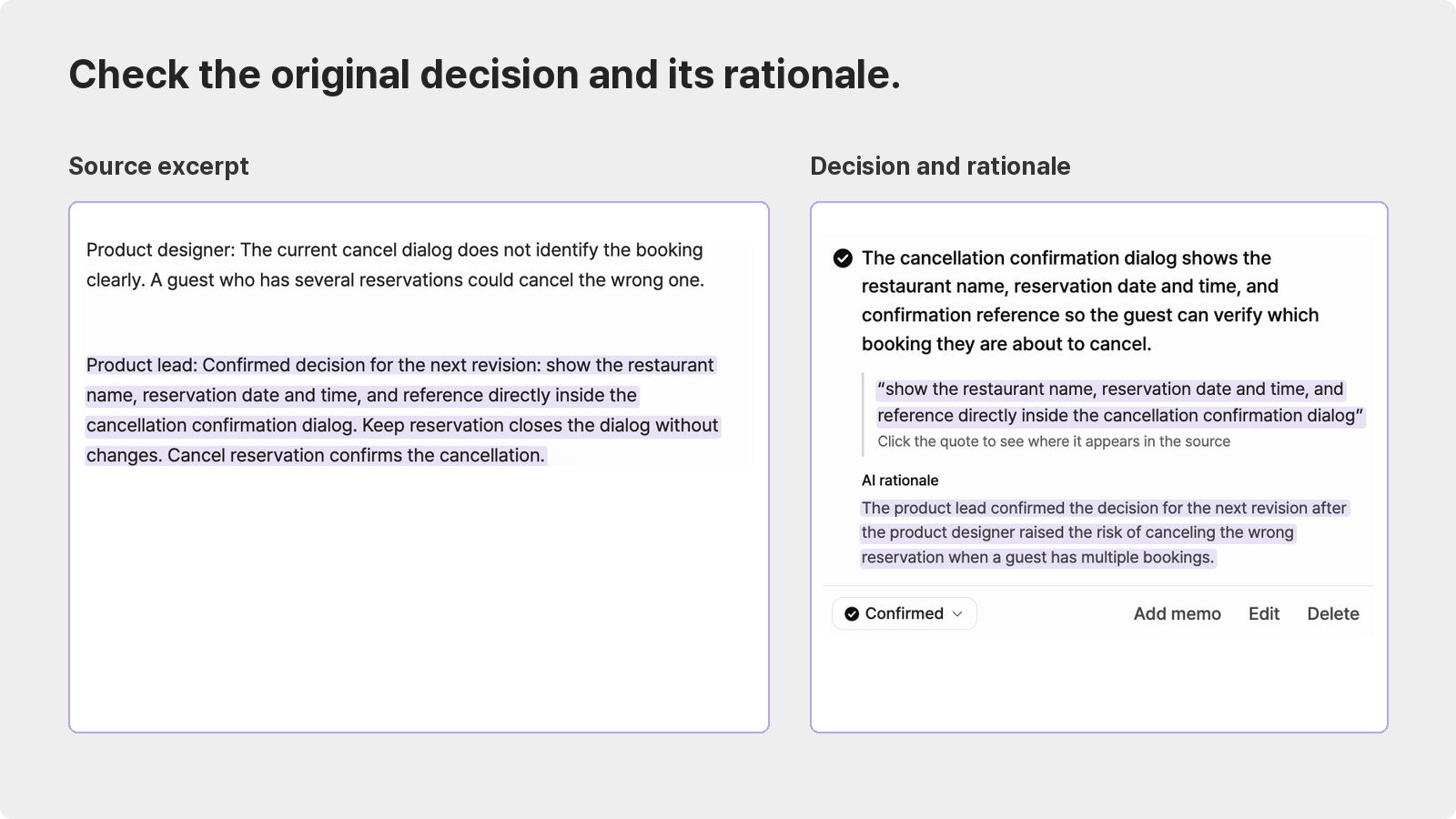
When that happens, open the decision in the related source. Its original quote and rationale can help you understand the reasoning. For example, a decision to identify the booking inside the cancellation dialog gives you something concrete to check: can the guest tell which reservation they're about to cancel?
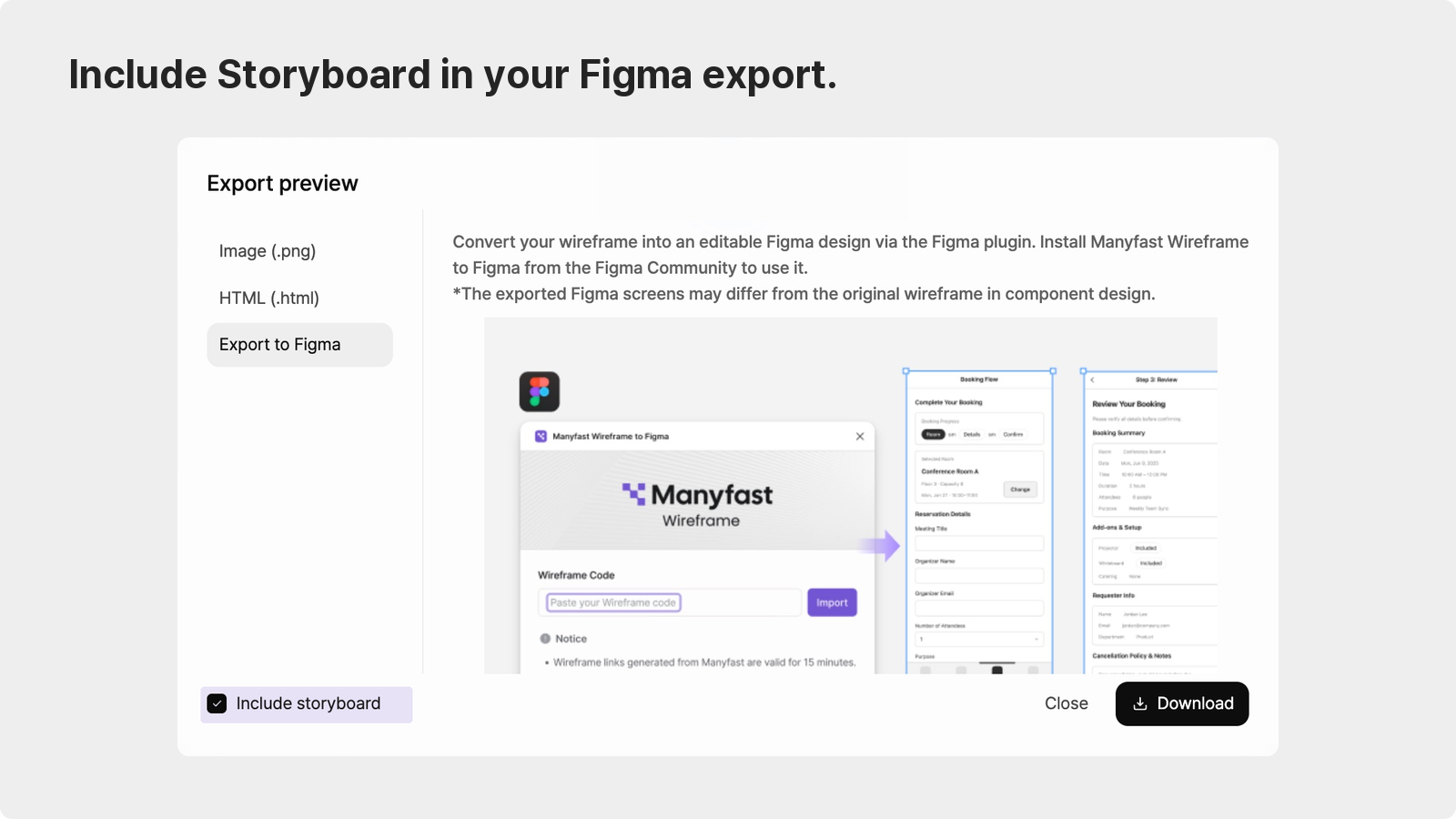
If the next step is design work, enable Include storyboard in the Figma export. The screens and descriptions travel together, so the designer doesn't need a separate annotated screen document.
Wrapping up
A wireframe shows what a screen looks like. A storyboard explains how it behaves.
AI writes the descriptions, but people check what they refer to and decide whether they're right. What the next person reads is an explanation someone has reviewed, not an unchecked draft.
Try it today
Pick one wireframe you've shared that keeps generating questions.
Generate its storyboard, then match the descriptions to the numbered screen regions.
Check the feature specifications, correct what needs changing, and approve the page.
Open the shared link to check the approved descriptions before sending it to your team.
See how your team reads a screen with its behavior written beside it. If something gets in the way, we'd love to hear about it.