Found Features in Your Code You Never Asked For? Fill In the Missing Conditions Before Development
AI coding tools decide unspecified conditions on their own. See how to spot those blanks as numbers and fill them in by answering questions — before a single line of code is written.
Use an AI coding tool and you can have a screen built in a few hours.
But dig into the code, and there are decisions in there you never asked for.
Retrying a failed payment three times, or allowing same-day cancellations with no conditions at all.
For every condition I didn't spell out, the AI just picked an answer on its own — without asking, leaning toward whatever seemed plausible.
This part is about deciding those conditions yourself, before the AI decides them for you.
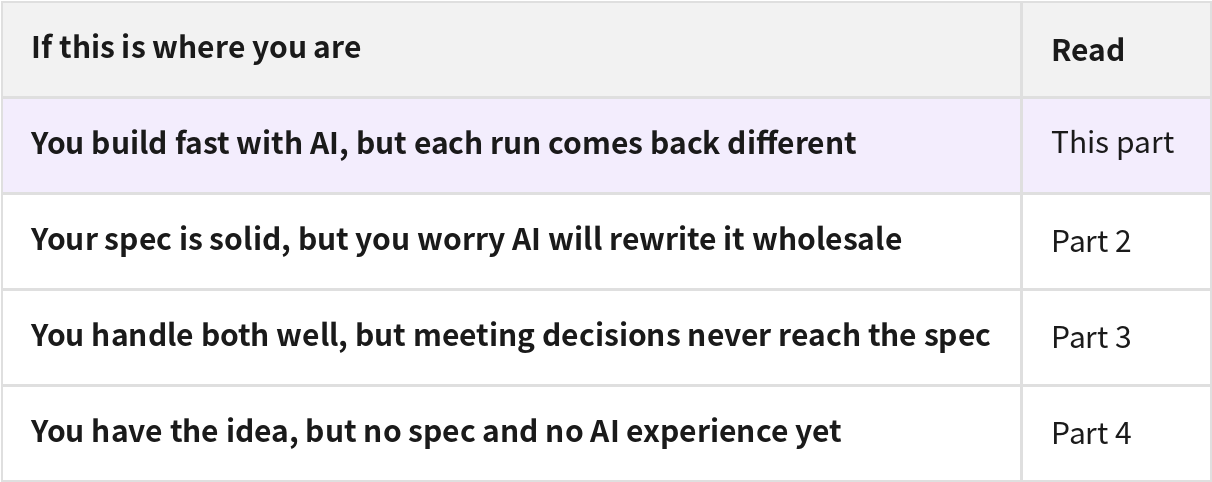
This case study series has four parts, one for each situation. Start with the one that matches where you are right now.
AI doesn't ask about the blanks
There's a good reason people start by prompting a screen into existence. Seeing something on screen is the fastest way to figure out what you actually want.
Hand the work to a developer and they come back with questions when a condition is missing. AI doesn't ask — it just builds. Ask it for a restaurant booking app and it goes something like this.
What if the payment fails? → Retry three times, tell the customer nothing
What if two people tap the same time slot? → Register both
What if someone cancels on the day? → Cancel, no conditions
For every part I never wrote down, the AI had already settled on an answer.
Fixing them isn't the hard part — once you spot one, you just ask again.
The hard part is spotting them.
Missing conditions only surface when someone reads all the code or trips over them in use.
And if you've never written a planning document, you don't even have a list of what should have been decided in the first place.
Let me show you, with one real project, what happens when a document holds that list for you.
There are two key scenes in this part. In Step 2, a list where missing conditions show up as numbers. In Step 3, a screen where you fill those blanks by answering questions.
The service we're building in this case
We're building "BookNearby" a reservation management service for owners who run a nail salon or craft studio alone.
Let's assume bookings come in scattered across WhatsApp, phone calls, and DMs, so double bookings keep happening, and plenty of customers book and never show up.
Before starting, we wrote the goals down as numbers: cut the no-show rate by 30%, keep the double-booking rate under 1%, keep the reminder delivery rate above 90%.
Whenever we're torn later about whether to add a feature, these are the criteria we come back to.
Step 1. Describe what you want to build in one paragraph
I created a project in Manyfast and wrote what I wanted to build, the way I'd say it out loud.
"I want to build a booking app for places where the owner takes reservations alone, like a neighborhood hair salon or a craft studio.
Right now bookings come in through Instagram DMs and phone calls, so overlaps happen a lot, and customers who should show up often don't."
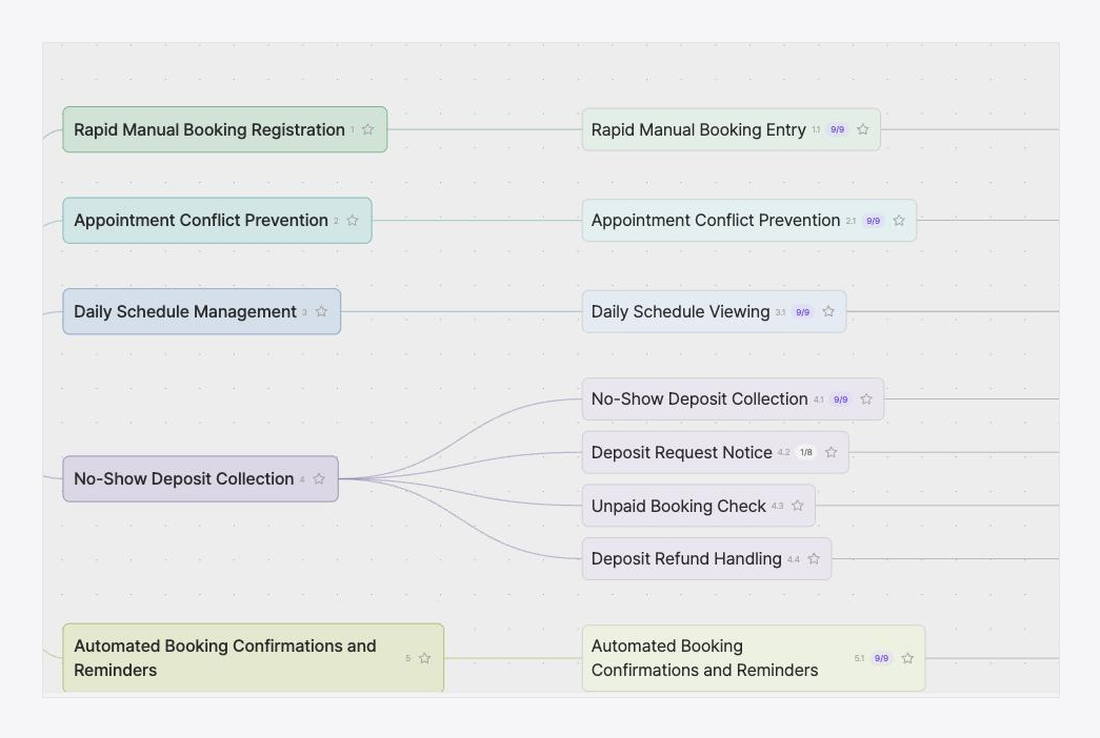
That one paragraph produced a PRD, and a feature specification followed. Six top-level requirements and 18 detailed features, from booking intake to reminder notifications.
You can get this far with other AI tools too. The difference starts when you open the feature list it created.
Step 2. Start with the features whose conditions are empty
Open the feature list and there's a number next to each feature name.
It counts how many items need to be decided before this feature can go to development, and how many of them have been decided so far.
When you write your instructions in an md file or Notion, you never see this. Only what you wrote stays, and there's no marker for the conditions you never decided.
Booking entry has 9 out of 9 filled in. But deposit request notices (a heads-up about the deposit collected upfront to prevent no-shows),
unpaid booking checks, and deposit refund handling are still nearly empty.

The blanks you would have discovered one at a time while reading code show up in a list before anything gets built.
Experienced planners catch these blanks from experience; here, that slot list does that job instead.
Step 3. Answer the questions Manny asks
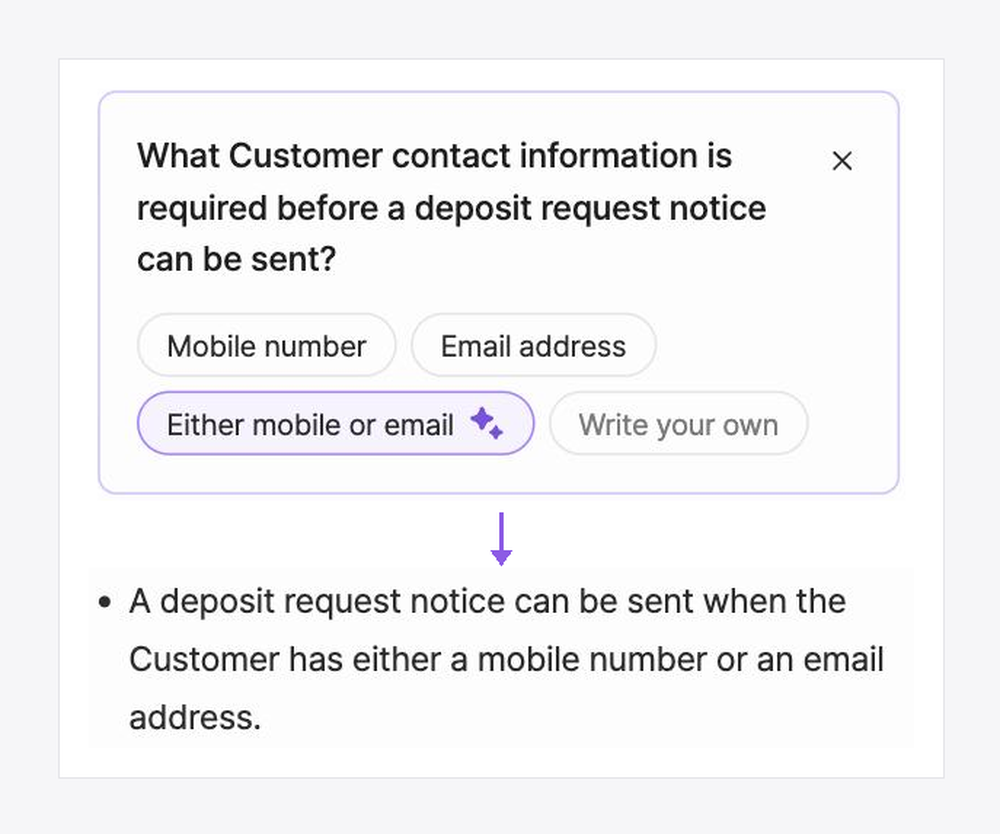
I opened the deposit request notice feature, which was still nearly empty. Manny, Manyfast's planning assistant, had left a question on each blank. One of them was this:
"What Customer contact information is required before a deposit request notice can be sent?"
The options were the booking detail screen, booking detail plus the unpaid list,
booking detail plus the calendar, or typing your own. An AI-recommended answer is displayed, but nothing is applied until you actually choose.
II picked "either mobile or email," and the document recorded it as:
"A deposit request notice can be sent when the Customer has either a mobile number or an email address."
After answering another question, the count on this feature ticked up again.
A coding AI would never have asked this question. It would have picked something plausible and built it. Here, I'm the one deciding, and every answer lands in the document as a sentence.
The remaining blanks have questions waiting the same way.
Step 4. Check the paths where users get stuck
With the conditions filled, next comes the sequence of screens a customer will actually tap through.
The user flow "customer booking confirmation" runs in one line, from the moment a customer opens the booking link to the confirmation screen.
Write that flow as text and it easily shrinks to a single line like "re-notify on payment failure."
Here, that one line branches in the diagram: when the desired time slot is already taken, and when the customer leaves without paying the deposit.

The alternative-schedule screen and the unpaid-notice screen are screens I never wrote down and never planned to build.
Yet before development starts, both are on the build list, and the same diagram shows how a blocked customer finds their way back to booking confirmation.
Step 5. It's on record who decided each condition
I wasn't the only one editing the document along the way.
Manny wrote the drafts, I answered the questions, and a friend who agreed to review the development side came in and reworked a few sentences.
Open the activity log on the right side of the project and every one of those changes is there, line by line.
Who changed which feature and when, in chronological order — and everything Manny did carries an AI badge.
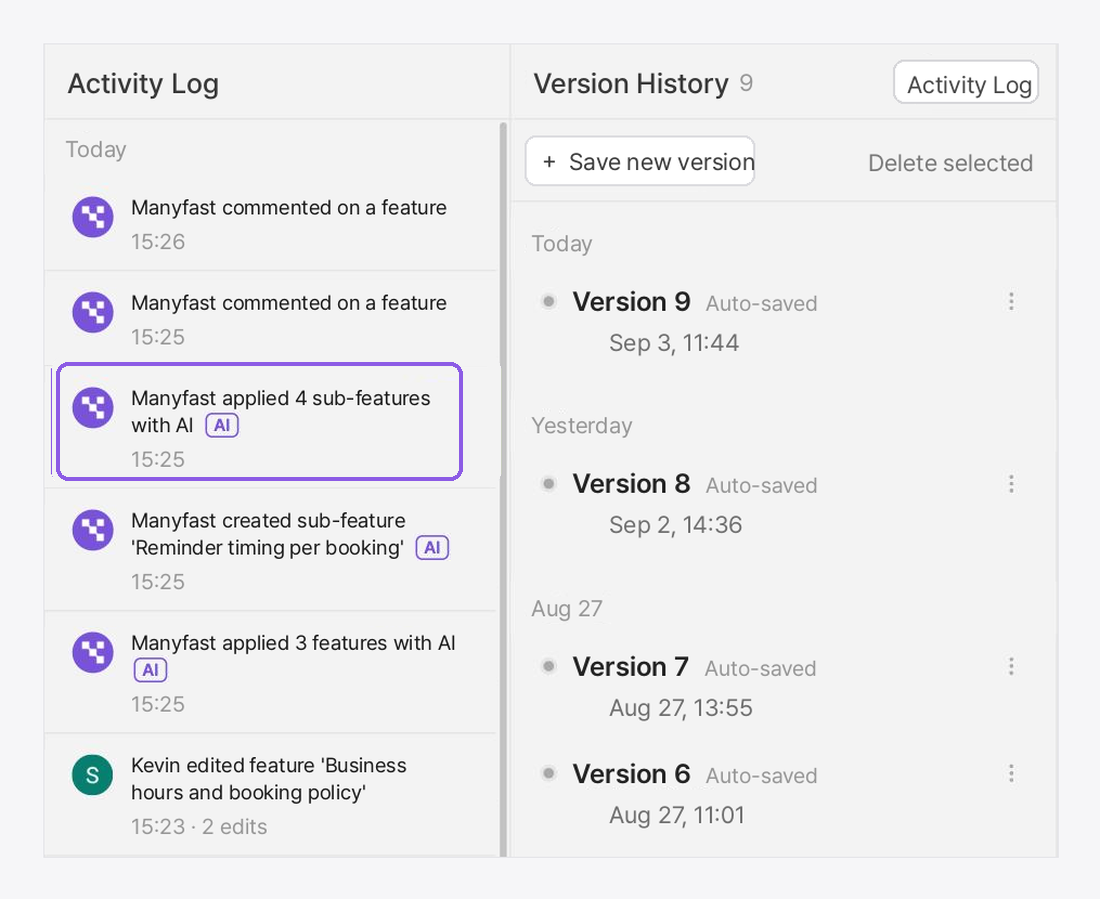
If you've ever stopped mid-edit wondering "wait, did I decide this condition, or did the AI?", here the answer is in the log.
Sentences the AI changed and sentences I changed stay clearly separated.
Next to it, version history saves a version automatically every time the document changes.
This project is up to version nine, so even if I accept an AI suggestion and change my mind, the earlier document is still there.
Comments attach to individual features too. The friend reviewing development left
The friend reviewing development left "For the customer profile lookup, let's verify with the customer's contact number first."
on the customer profile lookup feature, and I replied right underneath.
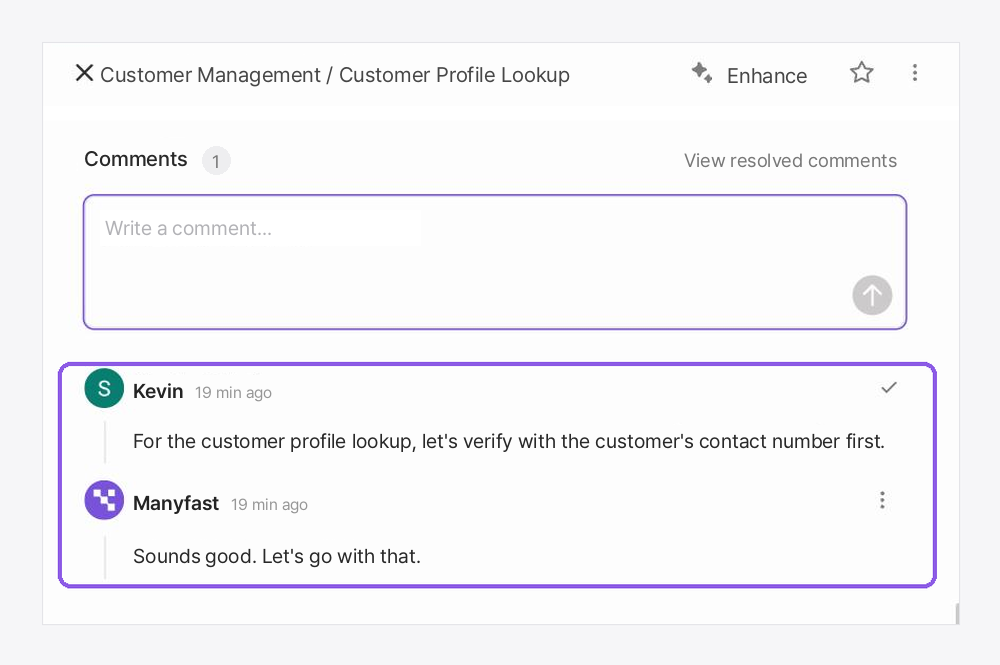
Because the decision sits right next to that feature, opening the feature later brings the conversation back with it. No more scrolling up through a messenger thread to find it.
The thing you miss most when building alone is review. Run a full document review and feedback comes in from six perspectives: development, business, UX, design, QA, and security.
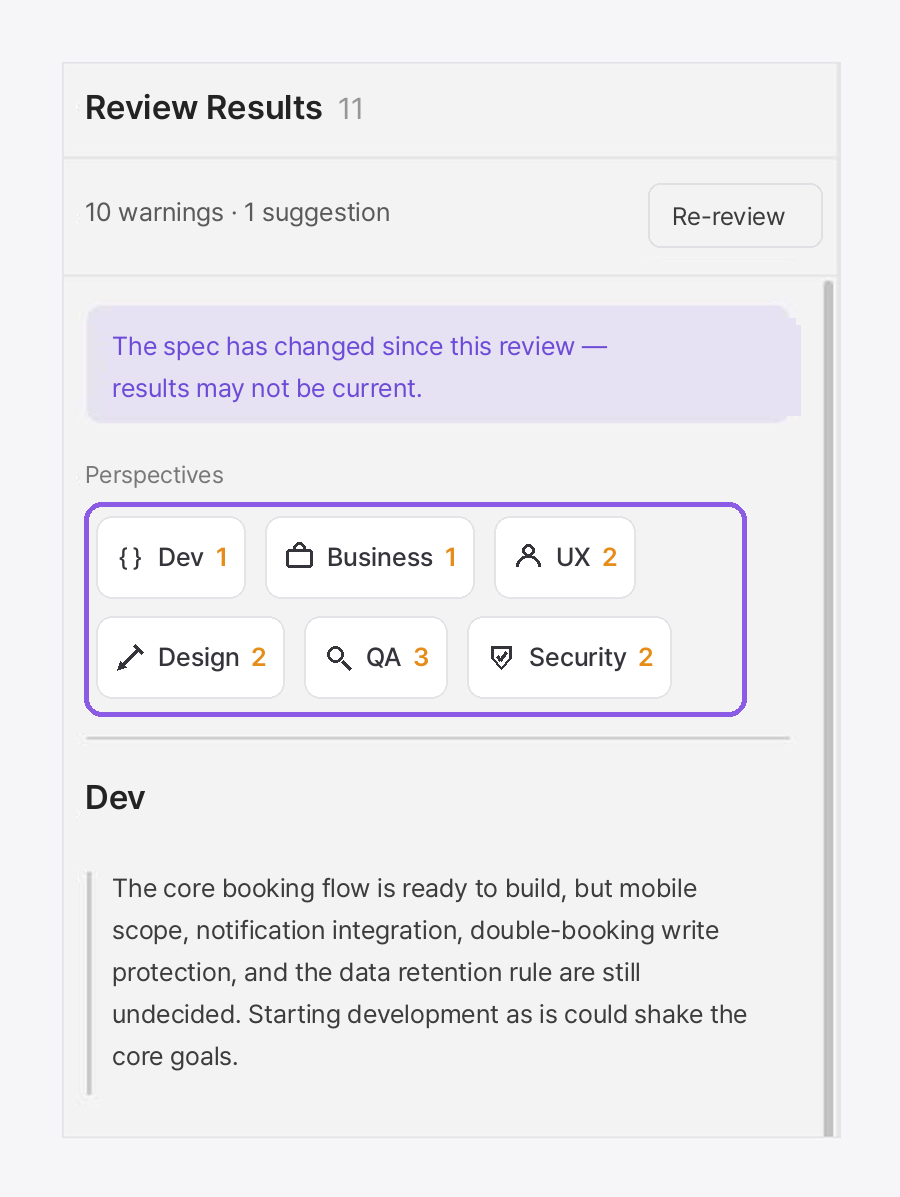
Right now the project shows 10 warnings and 1 suggestion.
The development perspective flagged that there's no rule yet to stop two double bookings from being saved at the same time — exactly the "what if two people tap the same slot?" condition from earlier.
After reading a piece of feedback, you choose from three ways to handle it.
Hold it to revisit later, resolve it once it's settled, and for feedback where you still need to work out the fix, there's "Resolve in chat."
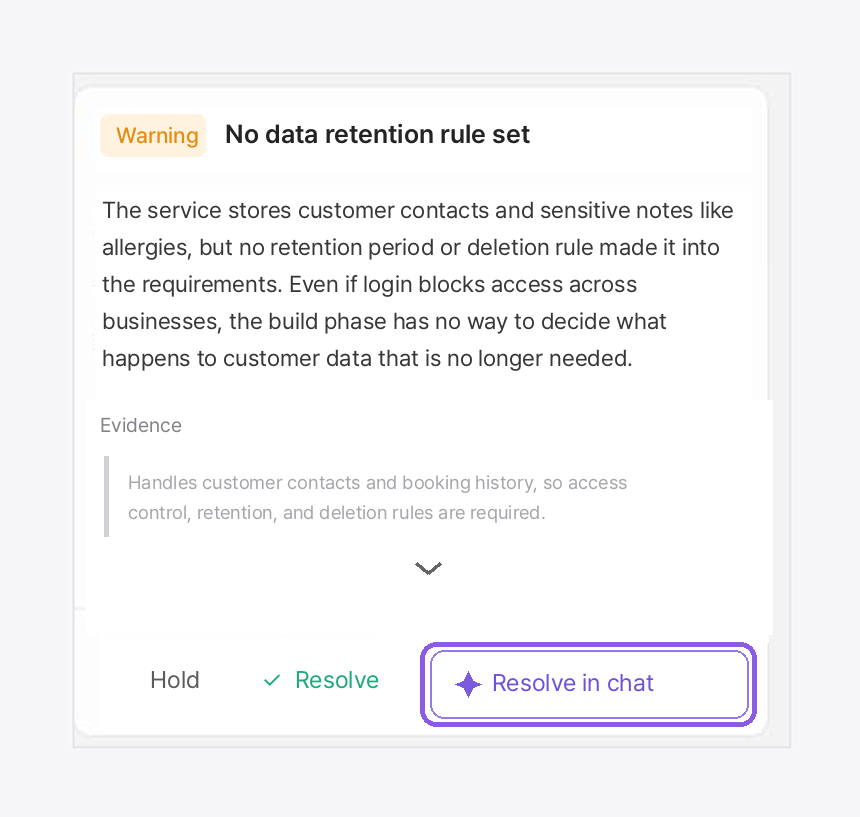
The retention policy for personal data was a question I couldn't settle alone on the spot. Press "Resolve in chat" and a chat with Manny opens straight from that comment. The screen where you read the critique and the discussion about fixing it sit in the same place.
So what changes the next time you hand work to AI?

Filling in the conditions first makes a bigger difference than polishing your prompt sentences.
A feature document with its conditions filled in becomes the input you hand straight to the AI.
Wrapping up
Back to the opening scene. Opening the code and finding decisions you never asked for —
like retrying a failed payment three times. This time, those decisions showed up in the document first, not the code.
Looking back, Manny stepped in three times.
It counted the nine items to decide per feature before development and showed the blanks as numbers, it hung a question on every blank,
and it put the exception screens where the flow branches into the diagram in advance. And who changed what along the way stayed in the activity log.
All three are mechanisms that pull the moment a condition gets decided to before the code.
You can keep building fast exactly the way you do now. You're just inserting one step where you answer a few questions.
Take the job of deciding conditions back from the AI.
The next time you open the code, every decision inside will be one you recognize.
What you can try today
Write out the features you're building right now as a list.
For each feature, mark the conditions the AI would have decided on its own (on failure, on simultaneous taps, on cancellation).
Find just two exception paths where a user could get stuck.
Hand it to the AI in that state. You'll notice visibly less to fix.
Manyfast finds the empty conditions, marks them, and fills them in one question at a time. Start by writing down the idea you already have.