Can You Trust an AI With the Planning Doc You've Perfected? Review Every Change Before It Lands
Worried an AI will rewrite your twenty-page document beyond recognition? Migrate it intact, see every proposed change marked in blue, and approve only what you choose.
Do you still write every planning document in Word or Notion?
And how many times have you put off handing that document over to an AI?
Whenever I meet people who've been doing product planning for years and bring up AI, the answer is almost always the same.
"I tried it. But it rewrote my twenty-page document from scratch.
There was no way to tell what had changed. So I just opened the original again and edited it myself."
And it's understandable. Every sentence in a planning document carries intent and history.
Even a single line in the refund policy holds the reason you hashed it out with a client.
So no matter how polished the new version is, if you don't know what changed, you have no choice but to reread the whole thing.
In this part, we flipped the order. We moved the existing document over intact, and received everything the AI wanted to change only as proposals, kept separate from the original.
You can see at a glance what would change, and you decide what gets applied.
Of course, if nothing changed at all, there'd be no reason to migrate.
Once it's moved, this document gets the conditions you missed while writing filled in, until it's something you can hand as-is to a developer or an AI.
We'll verify both with a real document.
This case study series has four parts, one for each situation. Start with the one that matches where you are right now.
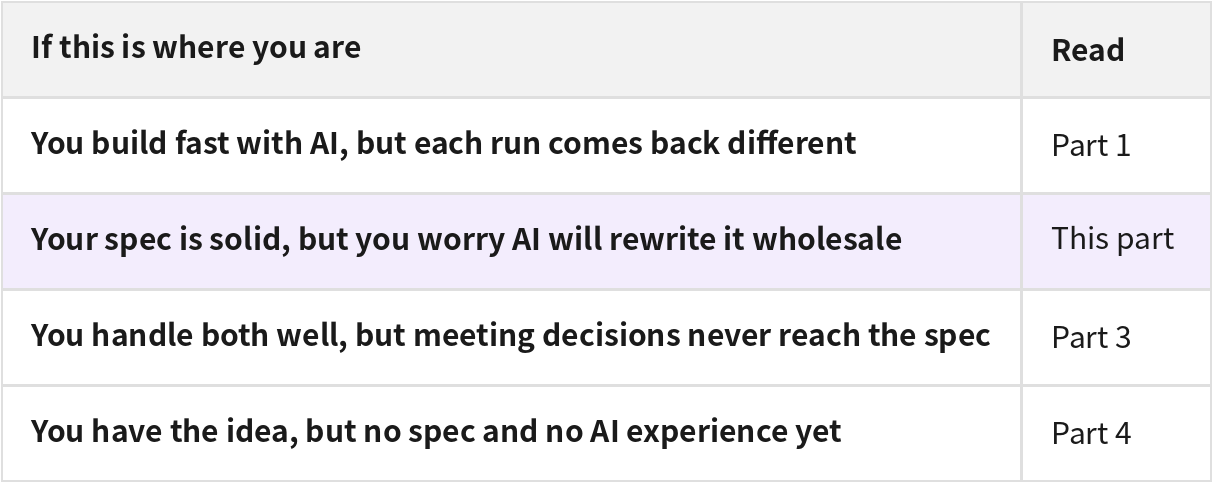
There are two key scenes in this part. In Step 2, a screen where the original stays untouched and only the parts that would change carry blue markers.
In Step 3, a screen where conditions missing from the original come up as questions.
The document we're migrating in this case
I brought a real document to try this on: the renewal planning document for the booking service "BookNearby" —
a four-page Word draft covering everything from booking intake to no-show deposits (a security deposit collected upfront at booking) and reminder notifications.
It's a draft from before internal review, so a few conditions that are easy to miss while writing are still blank.
Things like what happens when an employee without permission tries to change a setting.
Step 1. Paste the whole document in
I created a new project in Manyfast and pasted the Word document into the chat as-is. I added exactly one request:
"Below is an existing planning document written in Word. Don't apply or finalize anything right away — show me an organized set of proposed changes first, and wait for my confirmation."
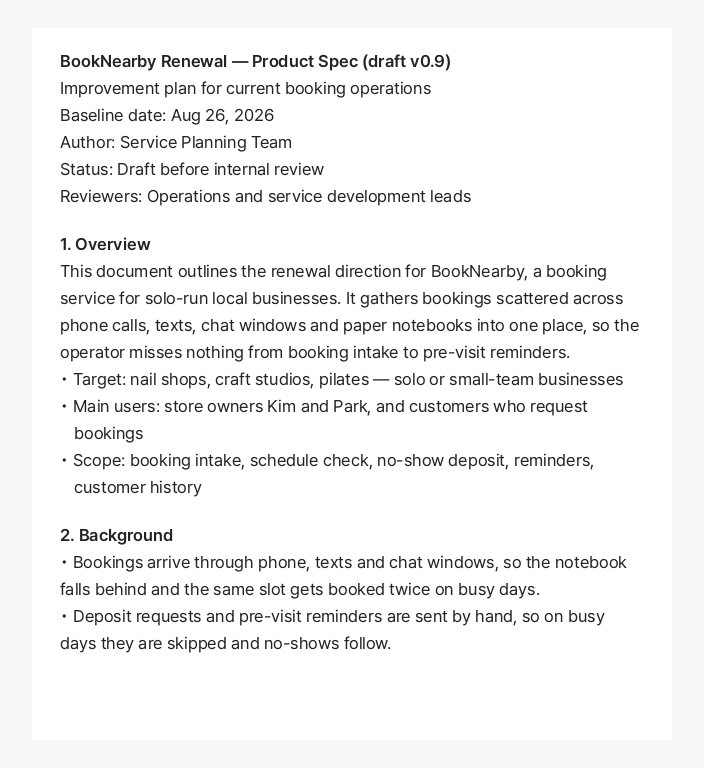
The pasted original stays in the chat, untouched. Manny reads it and organizes a PRD and feature specification draft — entirely as proposed changes.
Step 2. You can see what would change at a glance
Open the PRD and the progress bar reads 0%. Every organized section carries a blue marker, and each group has its own reject and approve buttons.
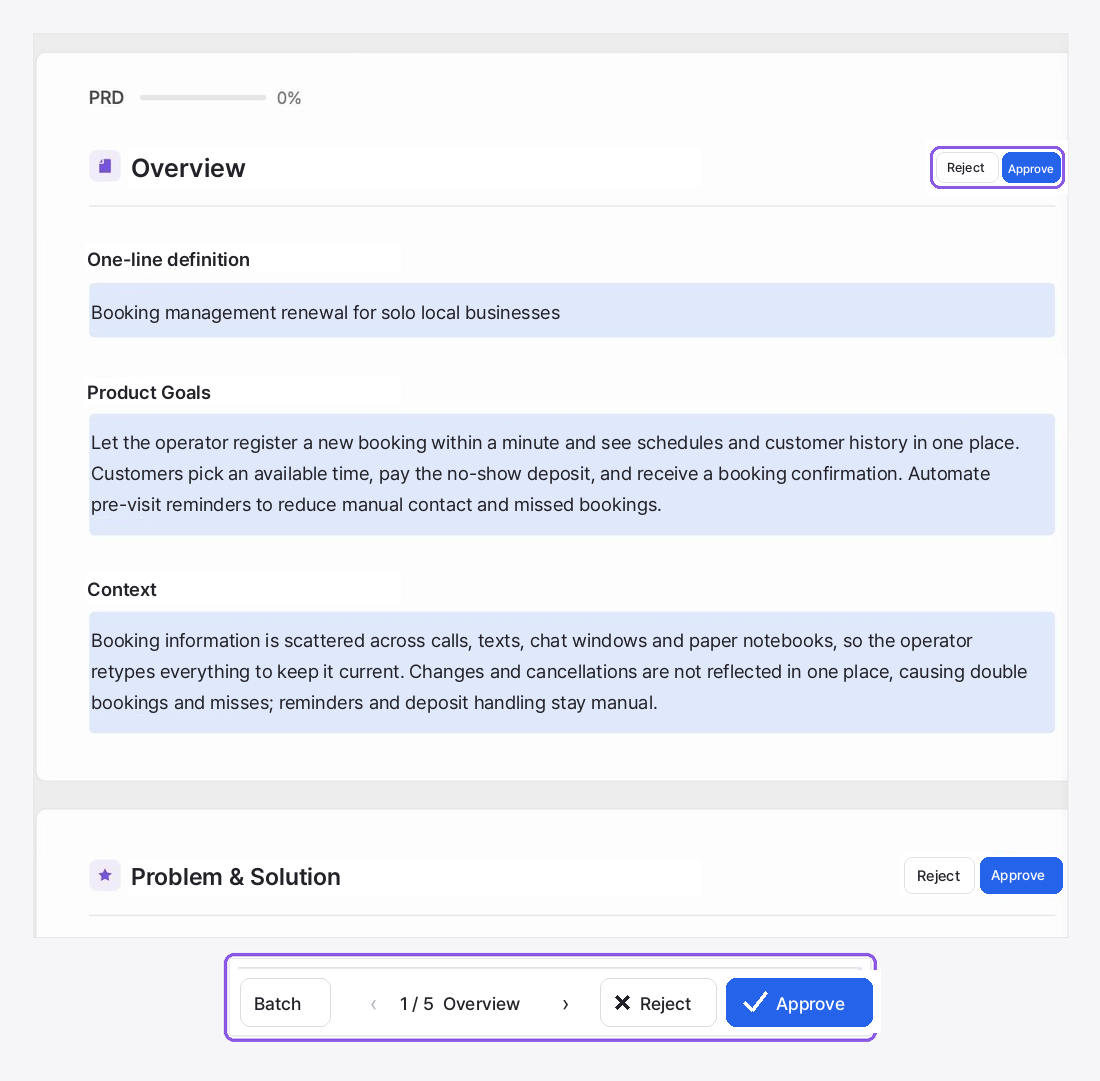
There are five groups of proposed changes. Skim through and reject only the groups you don't like, or if everything looks fine,
batch-process them at the bottom in one go. Either way, the original stays as it is until I decide.
That cuts the review work dramatically. My sentences — and the history behind them — are intact,
so instead of rereading twenty pages from the top, I only read the parts with blue markers.
Step 3. The gaps in my document come up as questions
Open the feature list and each feature has a number attached. These are the dev-ready slots —
Manyfast counts the nine items that should be decided before a feature goes to development —
and right now six slots are empty. Every one of them is a condition the original document never covered.
Each empty slot has a question attached. I opened the operations permissions feature and it asked:
"How should we handle it when a user without permission attempts to change settings?"
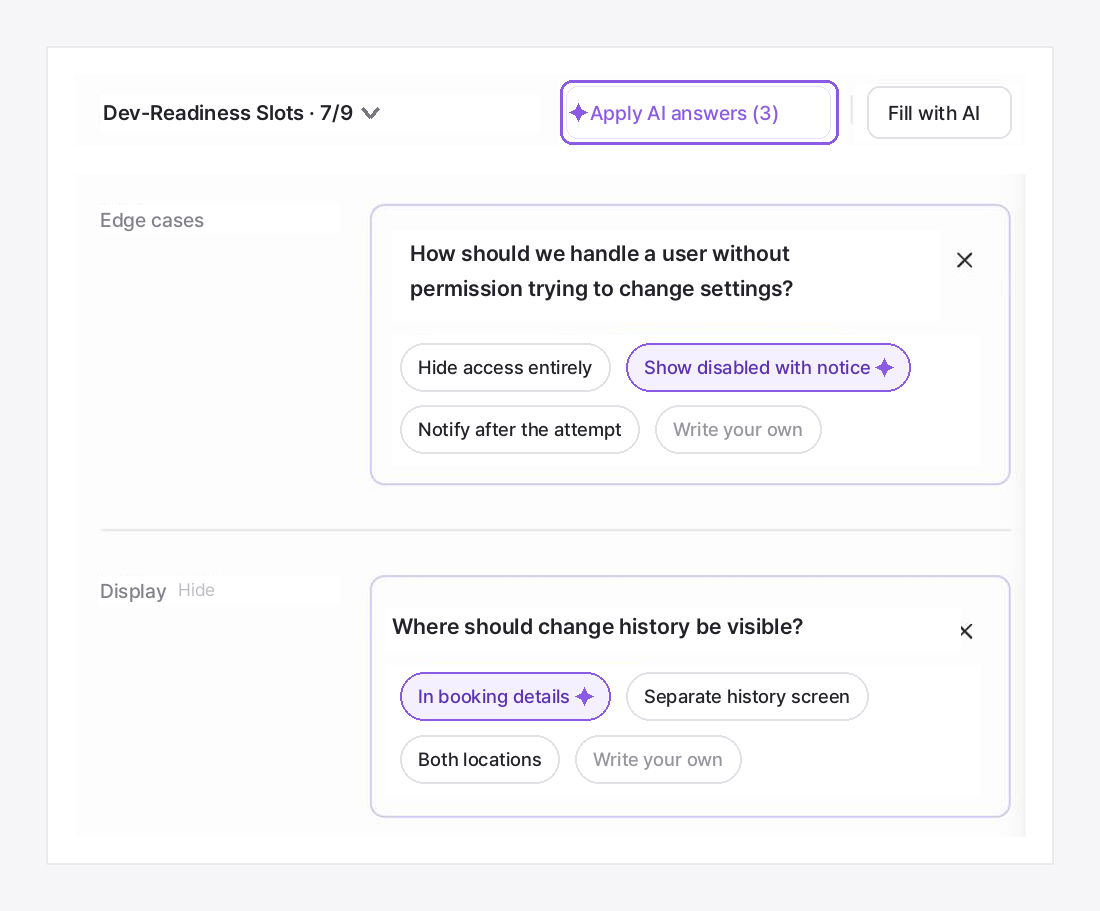
The original didn't contain this condition at all. It read the whole document, then asked only about what was missing.
There's a button to apply the AI-recommended answer, but here too, nothing changes until you press it.
If you've ever handed a planning document to a developer, these questions will feel familiar.
They're the ones that used to come out of the developer's mouth after development had already started.
Answer them here in advance, and that's that much less you'll get pulled into mid-development.
Step 4. Approve selectively
Of the five groups, I approved just one — the overview. Progress rose from 0% to 23%, and the blue marker and buttons on the overview disappeared.
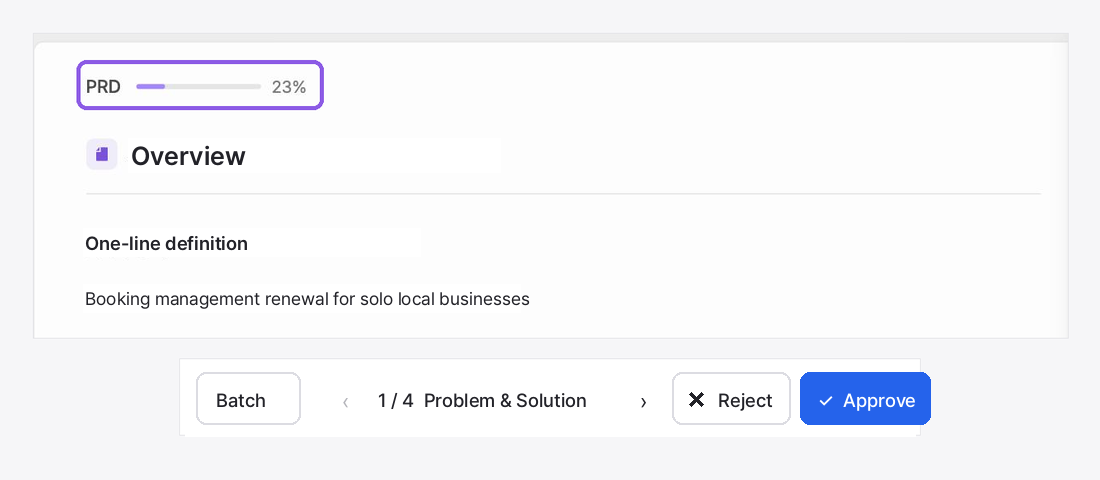
The count of remaining proposals at the bottom dropped from five to four.
The four untouched groups are still the original, word for word.
You can approve the urgent parts first and review the rest later.
Step 5. It's on record who touched what, and when
People who've been guarding a planning document for years always ask the same thing:
"So who changed this?"
When documents travel as Word files, you answer that with v2, v3, and final tacked onto filenames.
Here, the activity log on the right side of the project answers instead.
The approval in Step 4 was recorded as "edited the PRD overview section."
It carries an AI badge because Manny organized the content, and a minute later, version 3 was saved automatically.
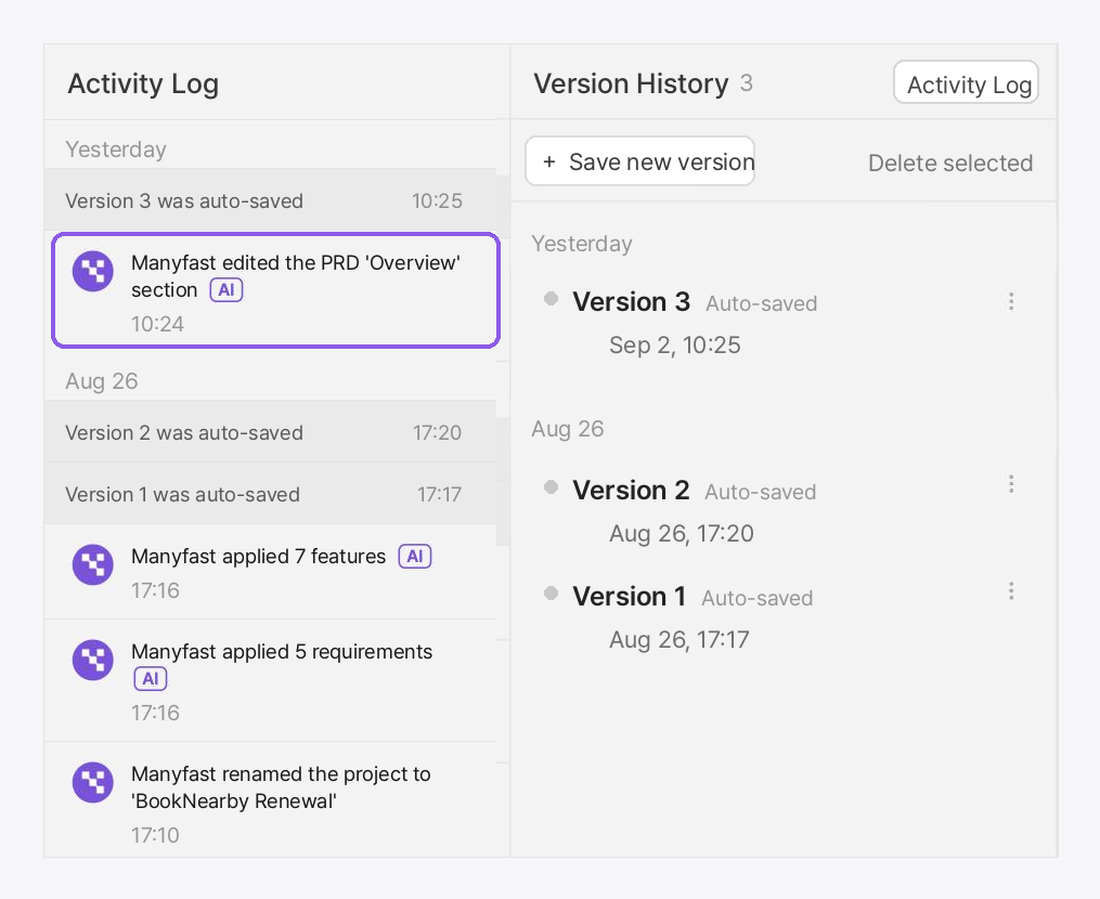
The pre-approval document is still there as version 2. That makes the approve button a lot less nerve-wracking to press.
When working with teammates, you use comments. I opened the operations permissions feature from Step 3 and left:
"Let's go with a system that requires secondary authentication for operations permissions and change history."
The teammate handling development replied right underneath.
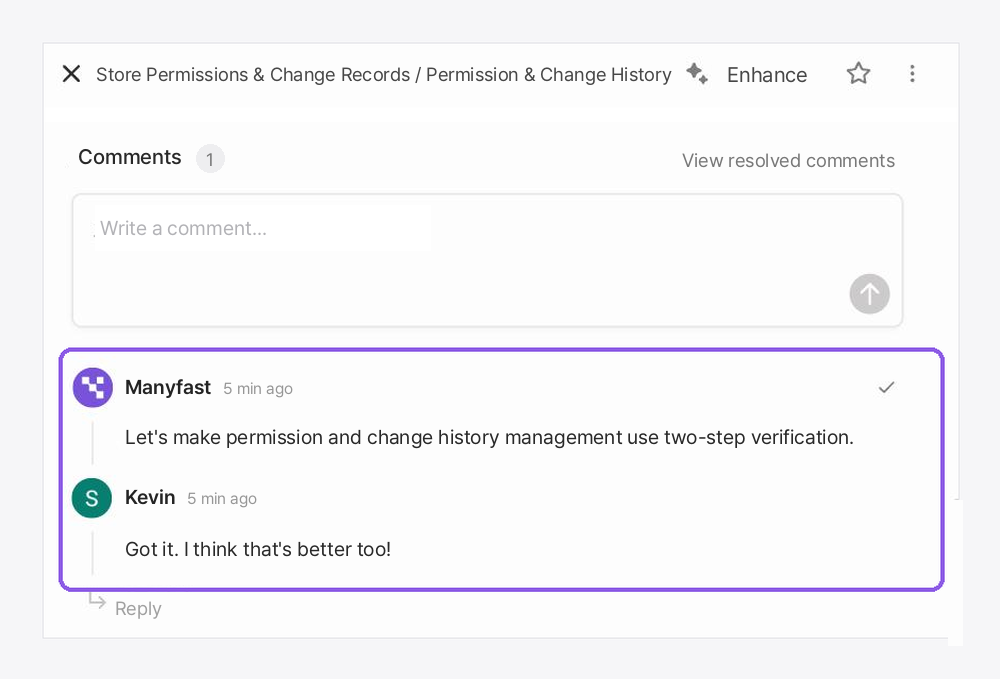
Because the decision sits next to the feature, the reason behind it stays inside the document.
No more copying decisions out of a messenger thread back into the planning doc.
So what's different after migrating?
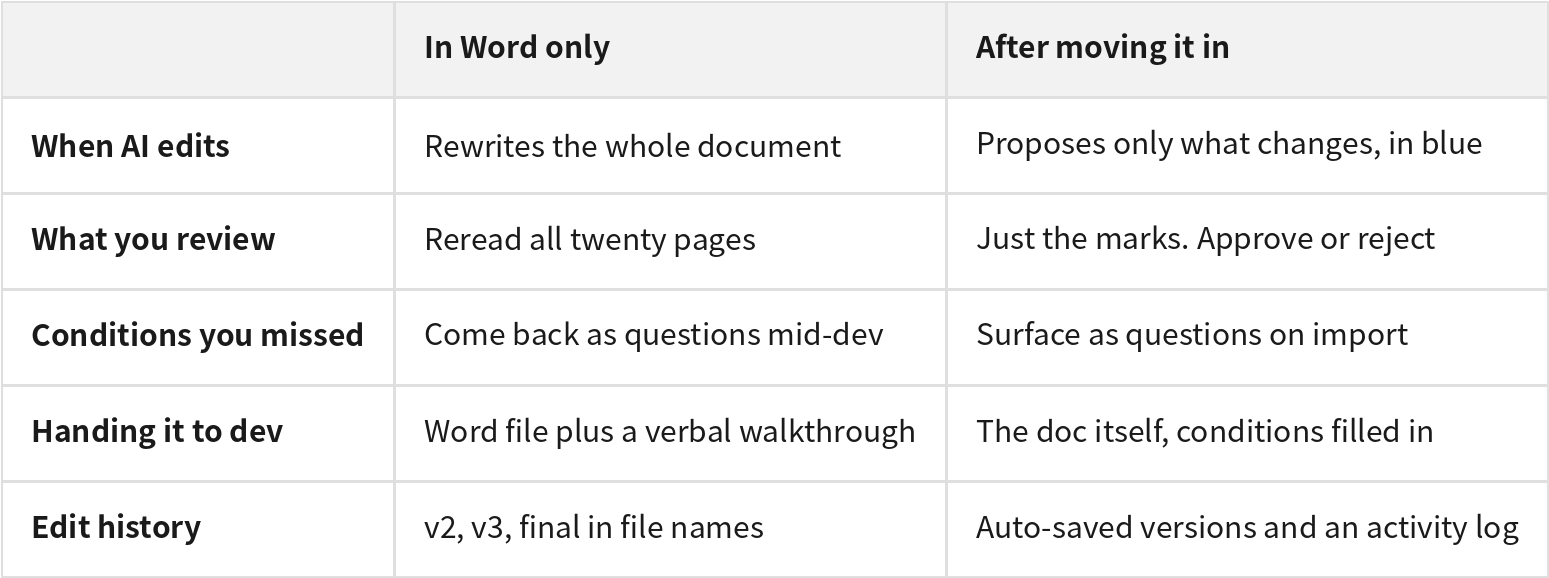
The content is exactly what was in Word. What changed is what the document can do.
It's still the planning document I've kept all along — and now it's a document you could take straight into development.
Change-proposal approval is what let me look only at what changed, and the dev-ready slot questions are what filled in the missing conditions.
With the conditions filled in, there are that many fewer questions waiting at the first meeting with a developer.
Wrapping up
Back to the original worry. Hand your planning document to an AI and it rewrites the whole thing, and you can't find what changed.
Doing it this way, that scene simply never happened.
Looking back at what Manny did: it organized everything from the pasted document strictly as proposals,
it hung the six conditions missing from the original as questions, and it attached approve buttons to each group separately. Who approved what, and when, went into the activity log.
All three are mechanisms that keep the decisions mine.
Which is why, at the end, the planning document was still exactly what I wrote — and at the same time, ready to hand to a developer or an AI.
Changes you don't approve never enter the document.
Once you've seen that one line proven on screen, handing your planning document to an AI takes a lot less resolve.
What you can try today
Paste in the planning document you're working on, as-is. Word or Notion — any text works.
Skim the proposed changes and approve just one group you're sure about.
Count how many of the questions that come up are conditions you had truly never decided.
The original is always preserved, so you can try approving just a couple of changes before deciding whether to keep going.