10 AI Tools Planners & PMs Actually Use — Sorted by Workflow, Not by Ranking
10 AI Tools Planners & PMs Actually Use — Sorted by Workflow, Not by Ranking

Think of a typical day for a planner who runs two or three projects simultaneously.
Client meeting notes are in Notepad, feature lists are in Excel, and screen ideas are somewhere in a KakaoTalk chat.
You are clearly using several AI tools as well, but strangely enough, you are still transferring documents manually.
This is especially true if you are an outsourced agency planner caught between clients and development companies.
This isn't because you lack tools.
It's because nobody has told you which tools to use at which stage.
There are so many posts recommending AI tools, right?
However, most of them just rank which tools are better,
so you had to figure out for yourself where those tools fit into your own workflow.
So, this article reverses that order. Instead of ranking tools by performance, we have organized them chronologically by planning tasks.
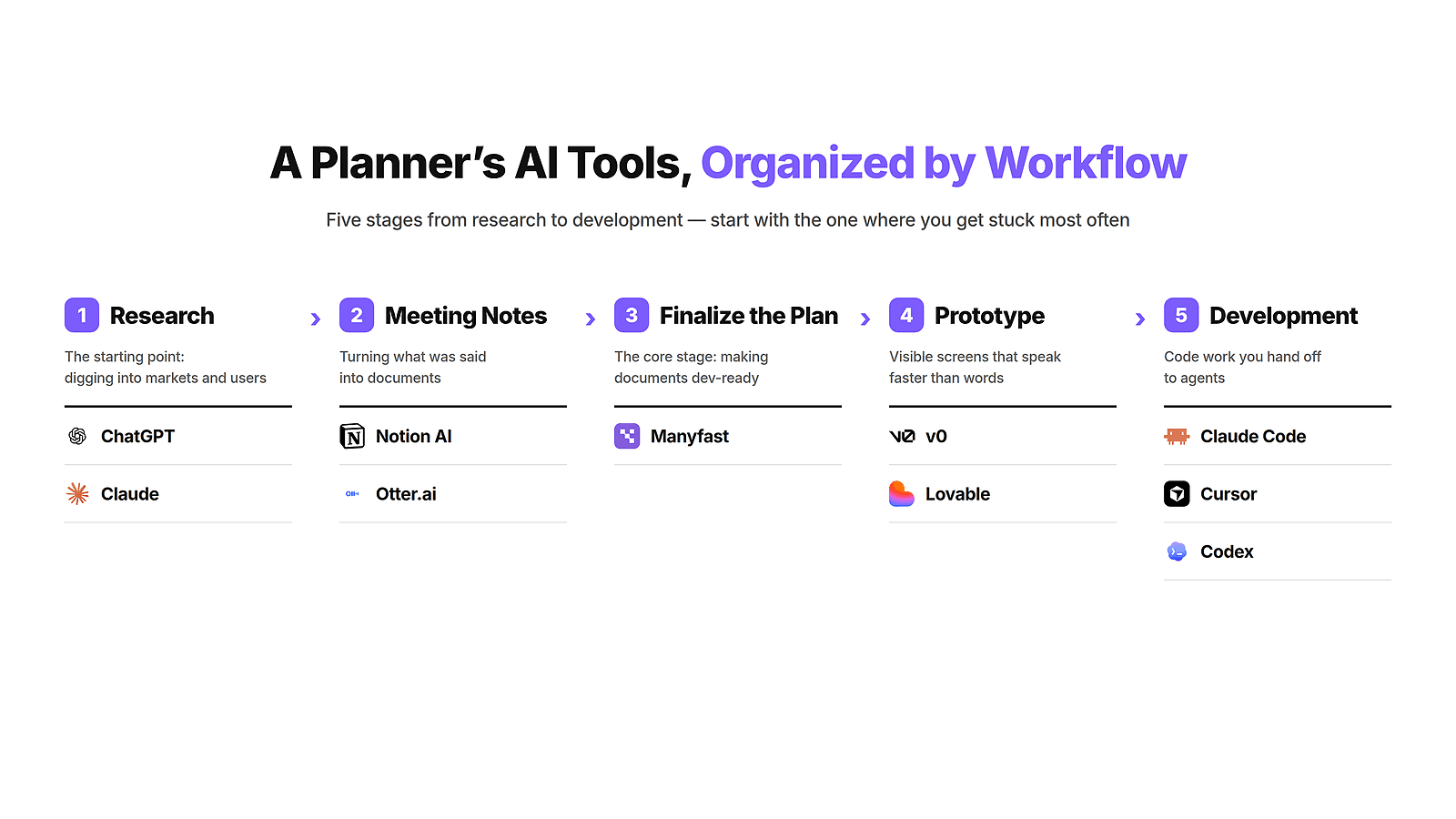
We've broken it down into five stages, starting from research to meetings, planning documents, screens, and development, selecting tools that are actually used in each phase.
You don't have to read them in order. If there is a stage where you frequently get stuck while working these days, you can start from there.
Stage 1. Research and Organizing Ideas: Where to Start?
The start of a new project involves looking into other services and the market. You need to gather information on what similar services exist and
where users are frustrated before the planning can begin.
If you skip this step, you will inevitably hear the question,
"Why did we decide to make this in the first place?" mid-project.
ChatGPT
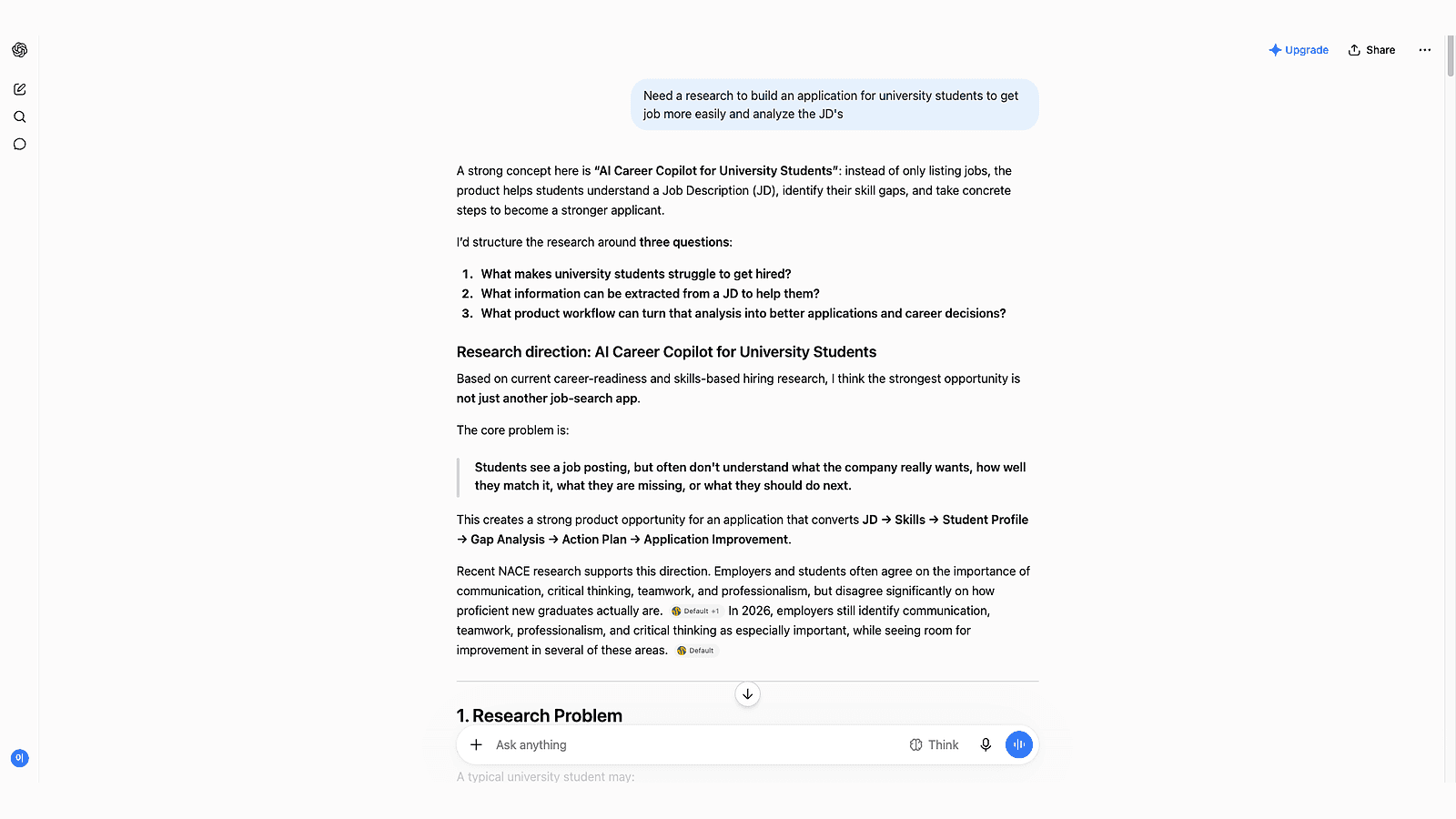
ChatGPT is the most versatile tool at this stage. While finding market data itself is something any AI can do these days,
ChatGPT doesn't just stop at giving chat answers; it lets you download the found content as files like PowerPoint or Excel.
This means you don't just finish by reading search results; you are left with files you can take to your next meeting.
Claude
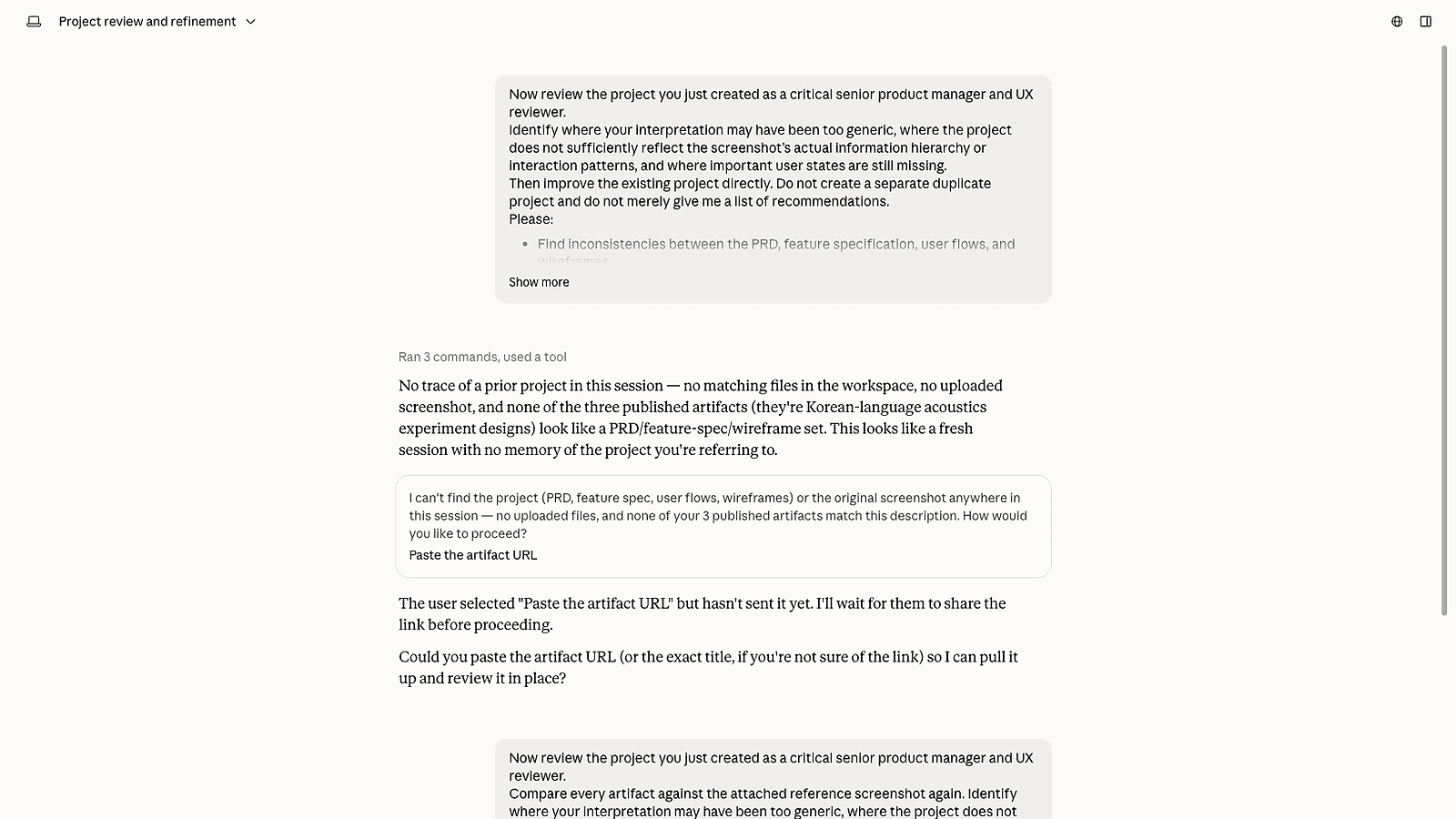
Claude is advantageous when there is a large volume of text. You can feed it entire competitor documents, user interview records, or long reports and ask it to summarize them. If you frequently need to extract reasoning from already gathered data rather than finding new data, we recommend using Claude.
Once materials are gathered and direction is established, it's time to talk with people.
Stage 2. Who Will Turn Spoken Words in Meetings into Records?
After research comes meetings. In outsourcing, it would be client meetings.
And what is said in a meeting does not become a task until someone turns it into a document.
Unrecorded words turn into different memories for each attendee after just a week.
Notion AI
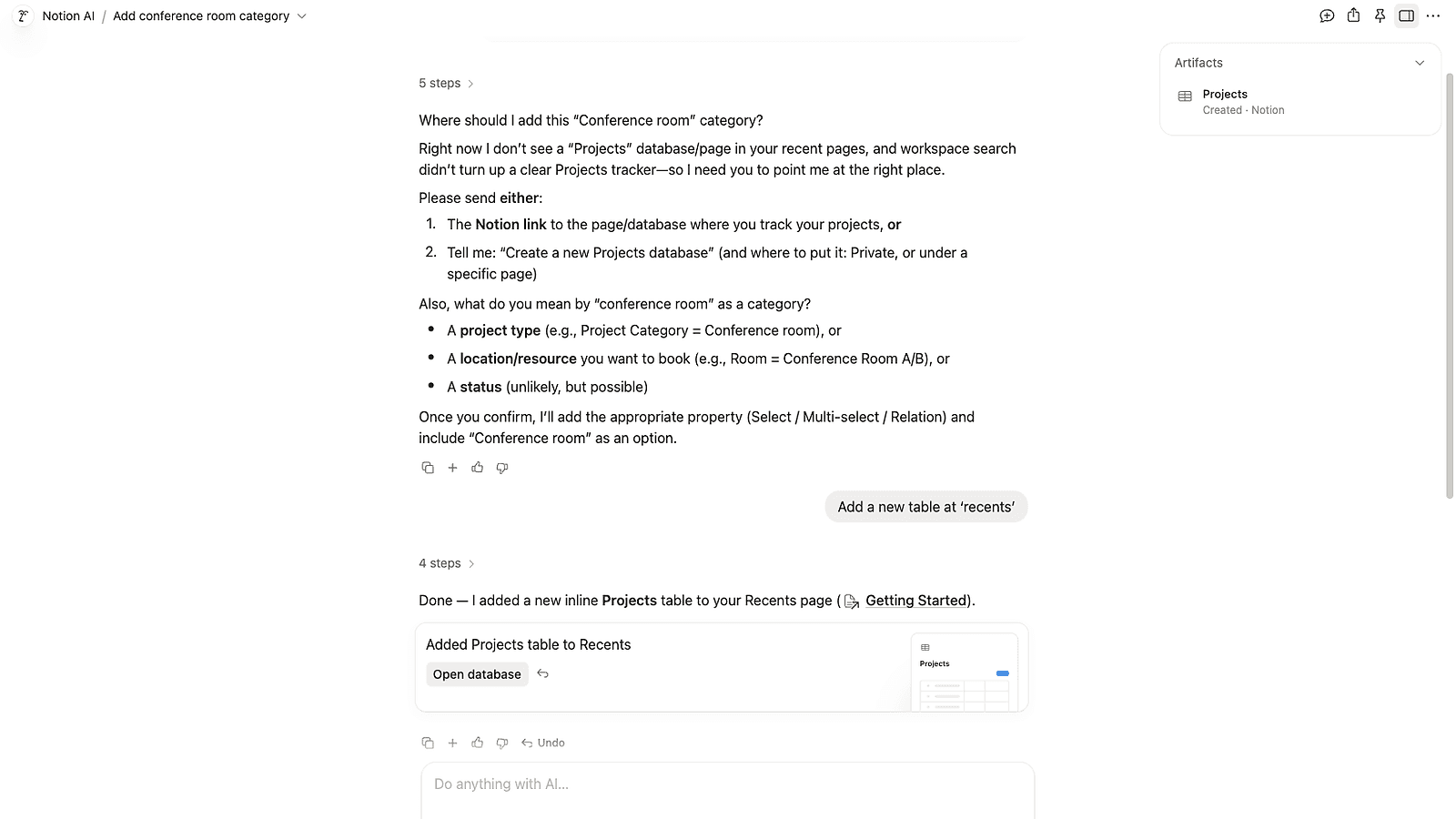
The strength of Notion AI is that meeting records lead directly to documents and tasks within the workspace.
AI meeting notes extract summaries and tasks from recordings, and if your team already collaborates using Notion, there's no need to move them elsewhere.
It's a tangible difference that you don't have to designate a specific person to organize things after a meeting.
Otter.ai
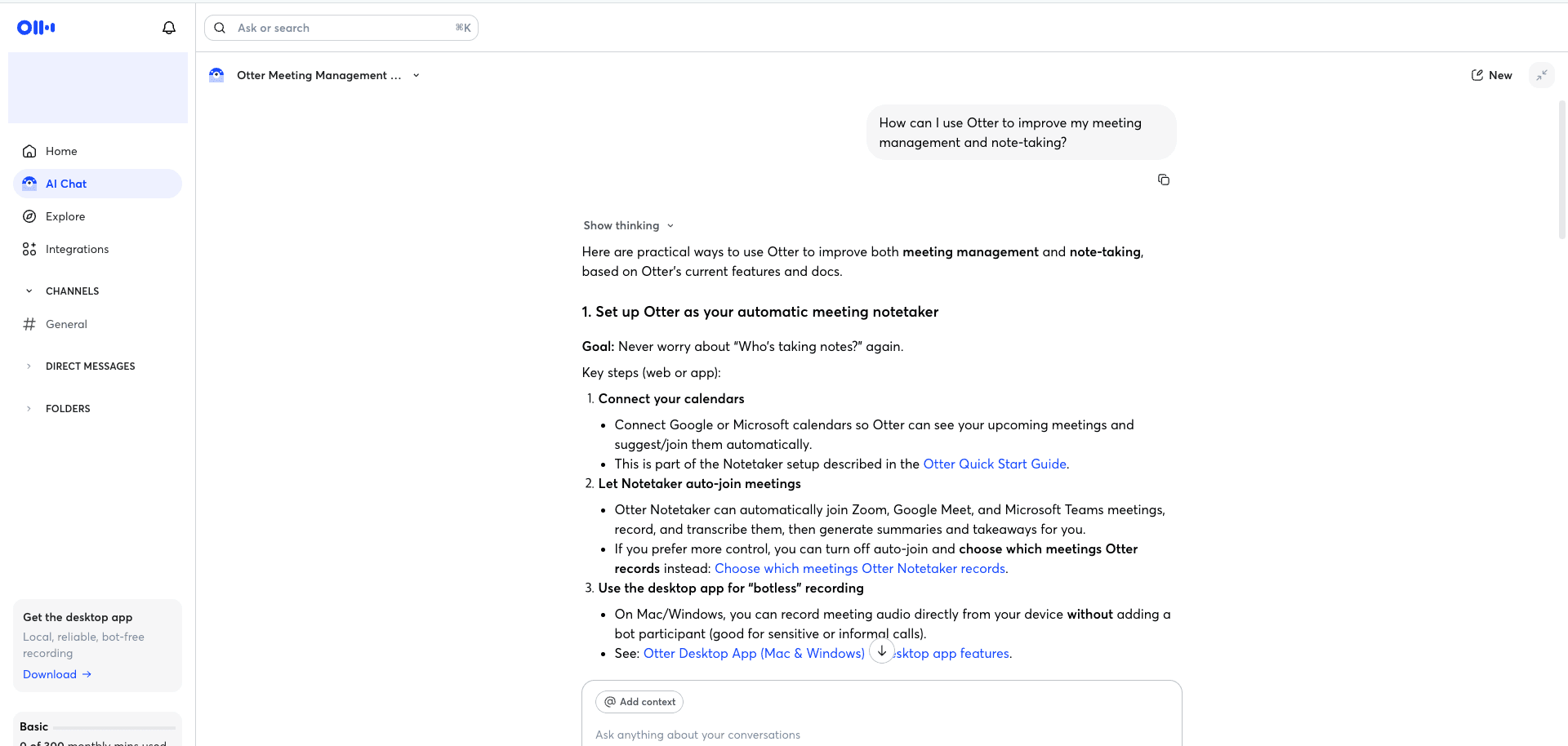
Otter.ai specializes in transcribing a meeting as it happens, down to labeling who said what.
It does have a language limit: transcription currently covers English, Spanish, French, German, Japanese, and Chinese. If your meetings run in one of those, it's a solid pick. If your team meets in a language Otter doesn't cover yet, put a local transcription tool next to it before you decide.
A set of meeting notes usually holds the decisions that are settled and the ones that are still vague, side by side. Telling those apart is the next stage's job.
Stage 3. Finalizing Planning: How to Create Documents to Pass to Development?
You've made it this far, so you have plenty of materials, but you still don't have the "finalized plan" to hand over to the development company or team.
This is especially critical in outsourcing, where this document serves as the basis for quotes and schedules.
While you can generate drafts of planning documents with other AIs, a PRD extracted via chat
begins to grow outdated the moment you paste it into Notion or a document archive. Because even if a policy changes, there is no one to tell you.
Manyfast
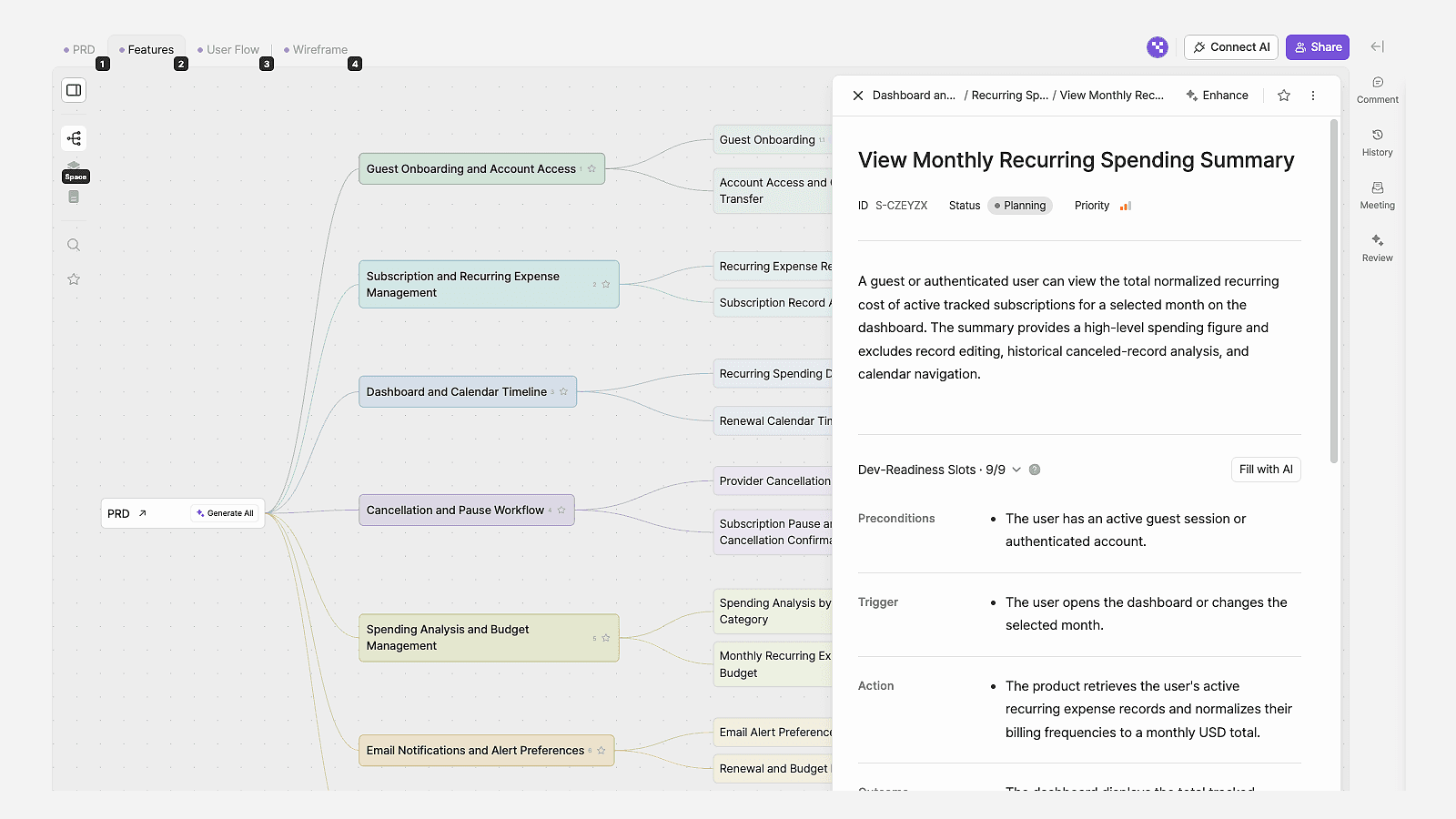
Manyfast is a planning workspace built for this exact point. PRDs, functional specifications, user flows, and wireframes are
interconnected from the start, so if a decision on one side changes, you can track where it impacts.
AI reviews from development, business, and UX perspectives also catch missing conditions and contradictions before development, though humans decide whether to apply them.
However, Manyfast is a tool tailored for software planning. For teams that want to manage
marketing proposals or business plans all in one place, general-purpose document tools like Notion might still be better at this stage.
Once document confirmation is done, the client's next question is usually predictable:
"So when can we see the screen?"
Stage 4. The Side That Shows the Screen Faster Than Words Wins
Once the planning is finalized, you need visual screens.
Particularly in outsourcing, clients react much faster to screens than to text.
Even details agreed upon in documents start to reveal hidden disagreements the moment they are visualized on a screen.
v0
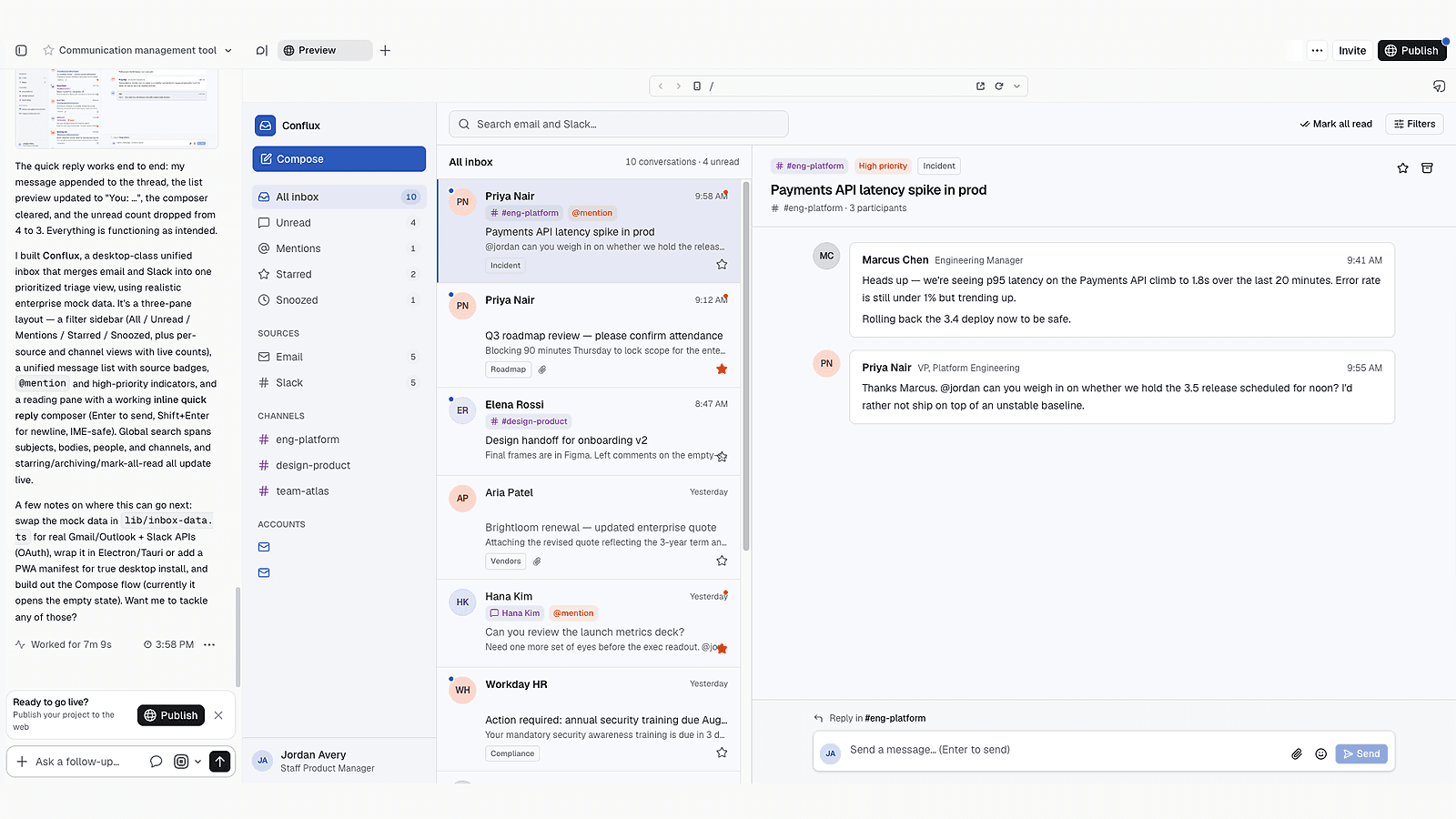
v0 is a tool that starts with prompts and creates a fully functioning web screen.
Since the output is a working application, not just a drawing, you can click buttons to check the flow,
and if you like it, you can proceed straight to deployment.
Instead of scheduling a draft review meeting, you can send a link and let the client click through it themselves.
Lovable
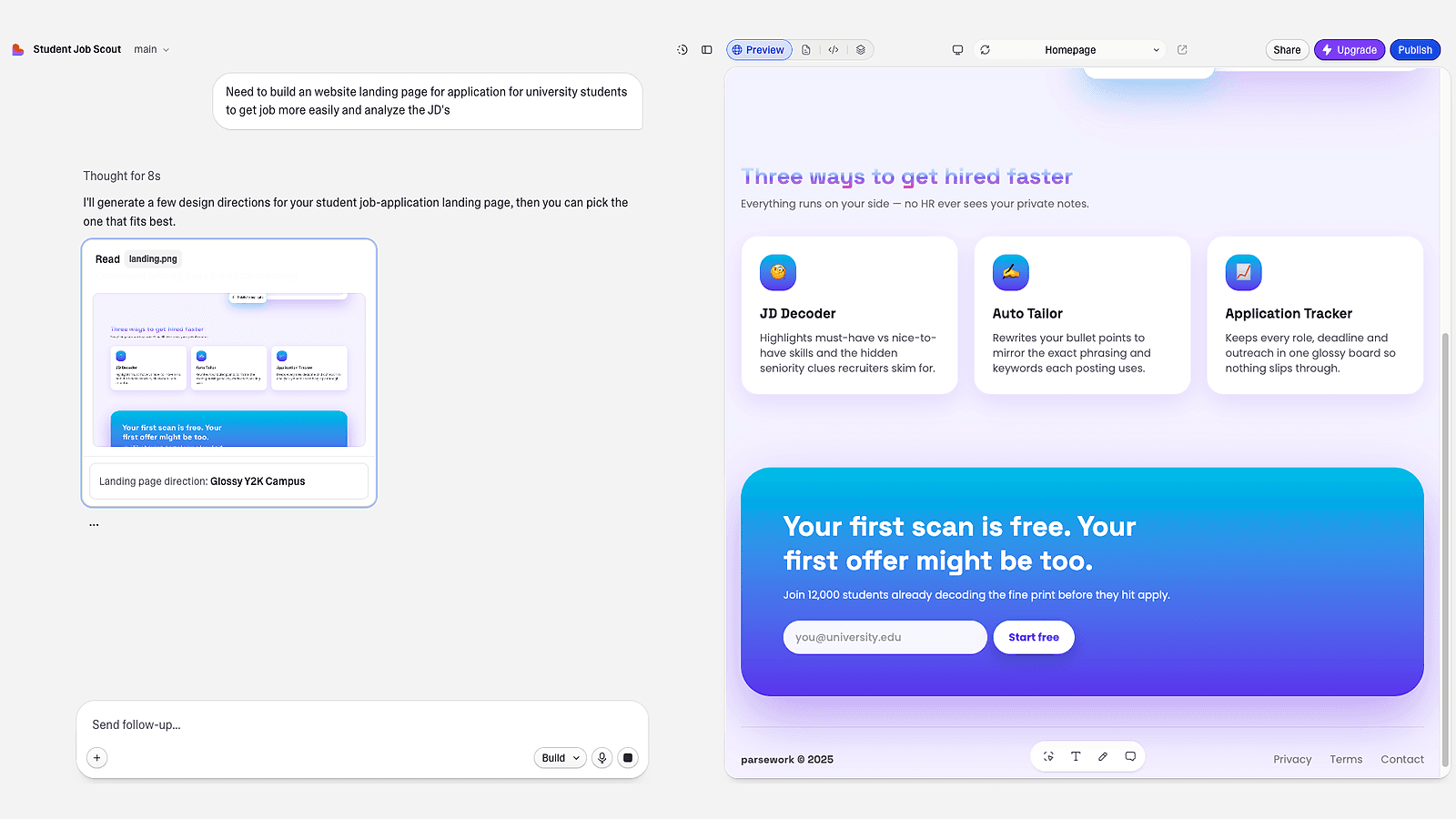
Lovable offers multiple ways to start. You can explain your idea in words,
or start by providing reference screenshots or planning documents.
The generated outputs even include features like login or payment, making them closer to
initial services rather than just screen drafts.
If your workflow involves creating planning documents first, those documents serve directly as material for the prototype.
If the client nods in approval at the prototype, now we must move on to development, right?
Stage 5. Executing Development: How Much Should We Delegate to Agents?
The final part is code. The three tools in this stage have slightly different characteristics, but they share one thing in common.
The quality of the output depends heavily on how well the planning was organized in the previous stages.
Even if you are a planner who doesn't write code yourself, knowing how the development team works
helps you see how far you need to prepare the documents.
Claude Code
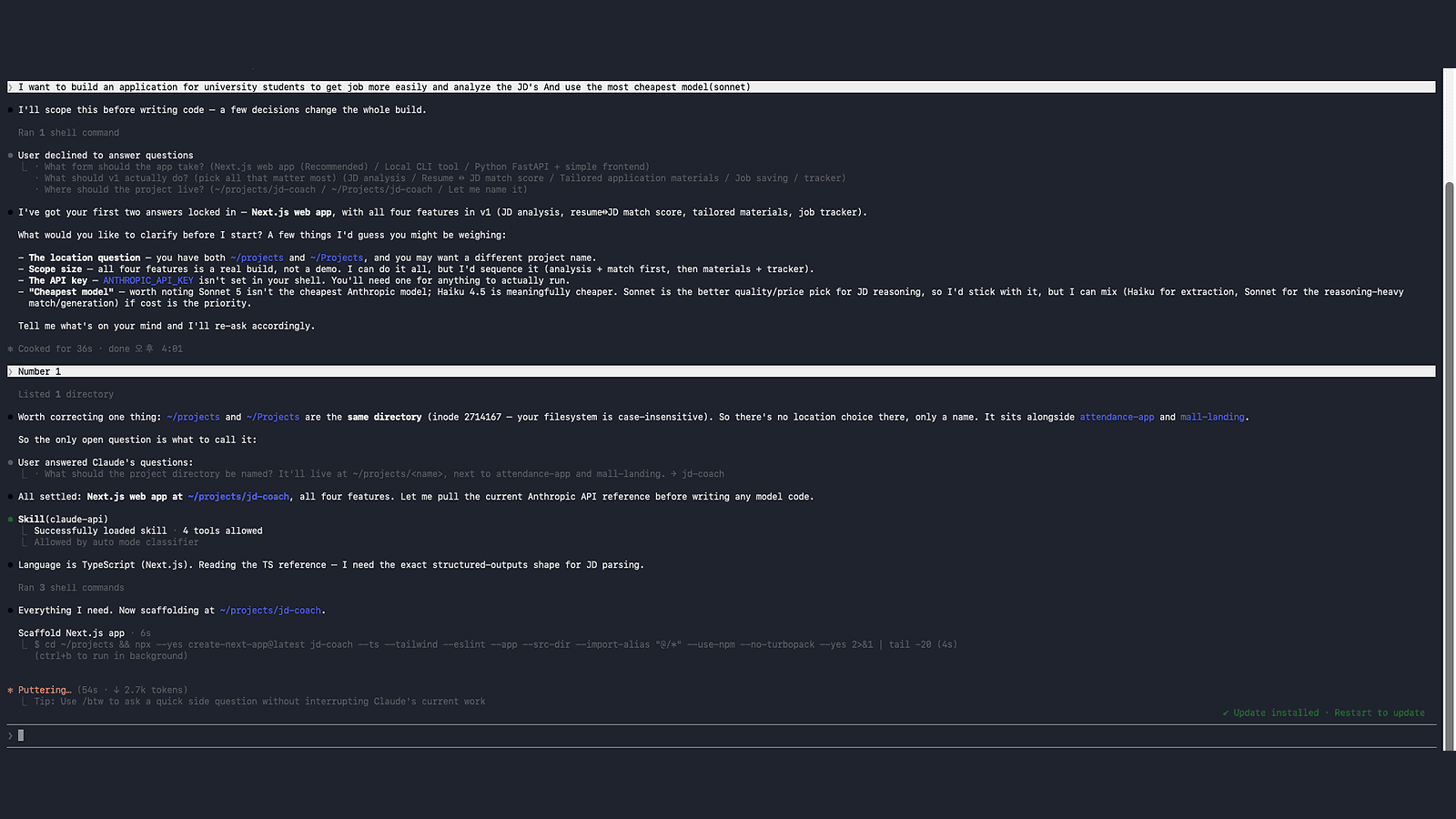
Claude Code is a tool that understands the entire project's code and modifies multiple files at once.
Changing one feature often requires edits scattered across several files, and it handles those scattered modifications with a single request.
It can be used in the terminal or within your existing development environment.
If you submit a bug report, it finds the cause and even generates a fix,
so a noticeable benefit is that humans don't have to track the scope of changes individually.
Cursor
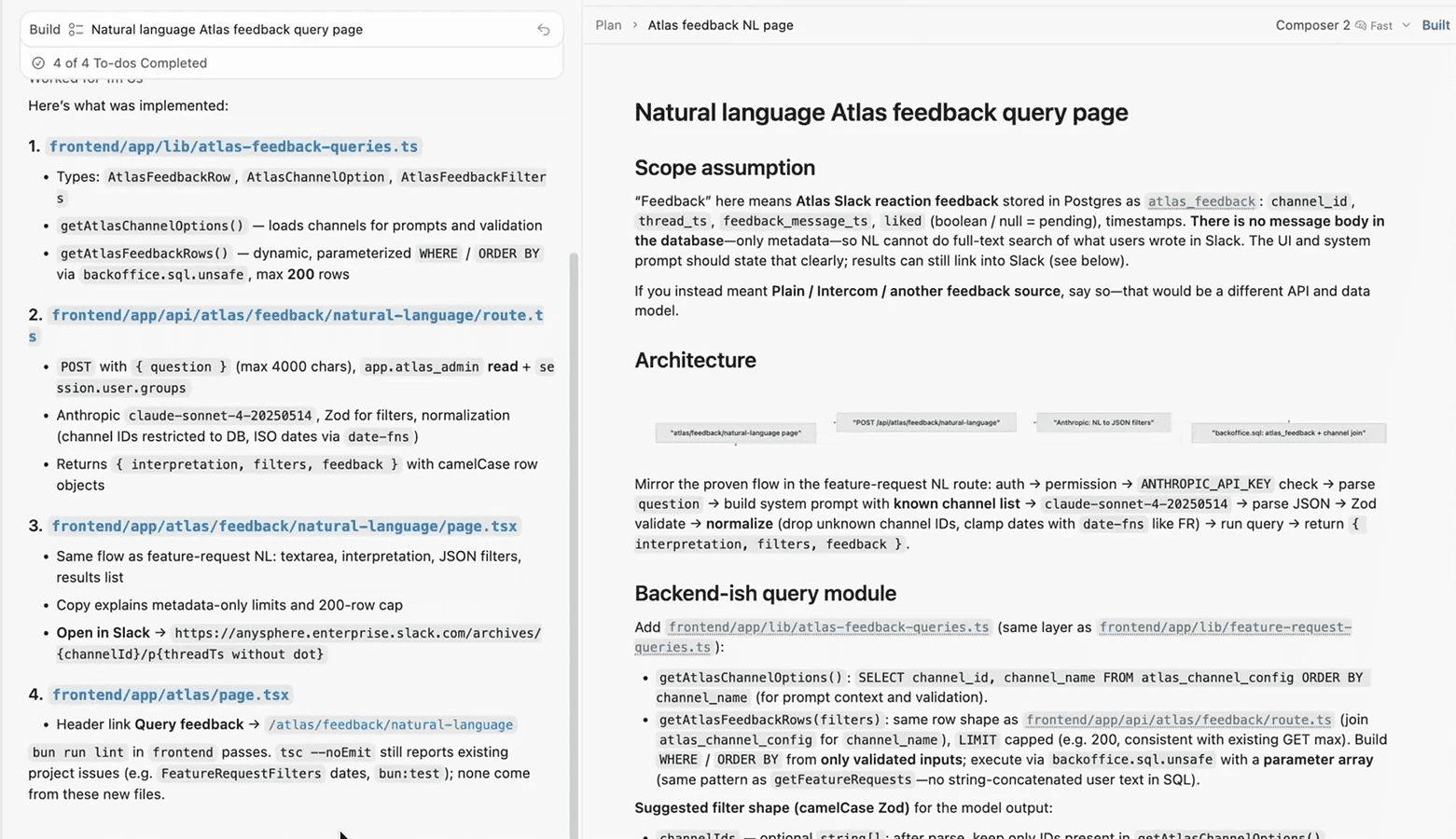
Cursor is a tool that embeds AI directly into the code editor that developers use daily. As you watch the AI write code on the screen, you can correct the direction on the spot if it goes off track. You can also run multiple agents simultaneously to delegate repetitive tasks.
This is a great approach for developers who prefer to maintain control, checking the process along the way rather than just receiving the final result.
Codex
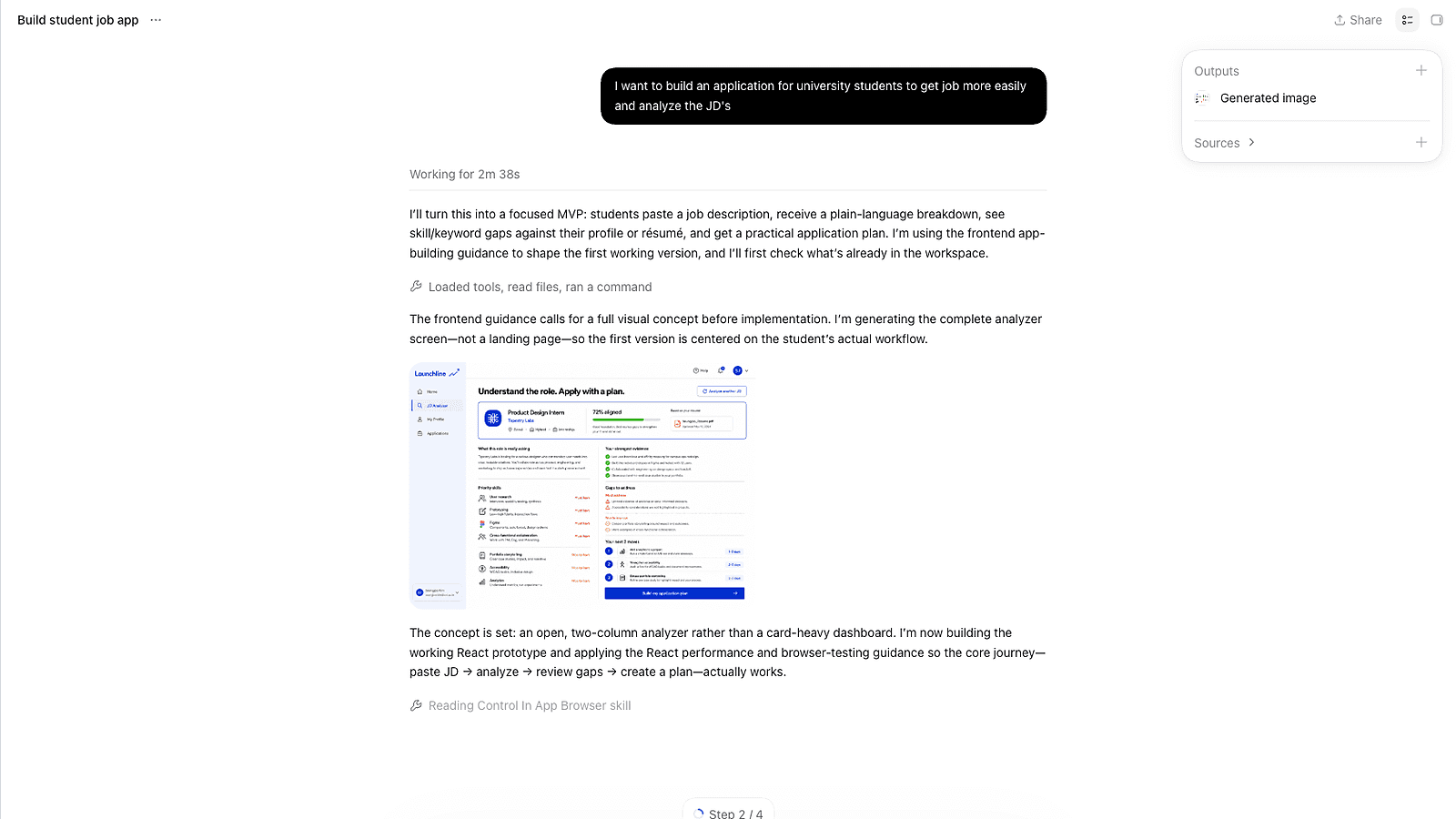
Codex is a tool designed to take over tasks and see them through to completion.
Once you give instructions, you don't need to watch the progress; it performs them in the background and returns only the finished results.
You can also queue multiple tasks at once.
If Cursor is like having someone work alongside you, Codex is closer to a manager you can delegate entire jobs to.
Which Stage Are You Blocked At Right Now?
The five stages flow in sequence.
Materials gathered in research become ingredients for meetings, decisions sifted from meeting minutes become planning documents,
and finalized planning documents become the input for prototypes and code.
Therefore, rather than memorizing tool names, finding which stage your work is currently stuck in comes first.
You do not need every tool at once. Start with the stage where your work slows down most often.
1. Research
Choose ChatGPT when research needs to become a shareable file, and Claude when you need to extract decisions from a large amount of material.
2. Meeting Notes
Choose Notion AI to turn meetings into Notion documents and tasks, or Otter.ai for real-time English transcription. For Korean meetings, compare it with Tiro.
3. Product Planning
Choose Manyfast when you need to hand a confirmed software plan to development and keep planning decisions reflected across feature requirements, user flows, and screen designs.
If general document management matters more, Notion may be a better fit.
4. Prototyping
Choose v0 for a working interface that clients can try, or Lovable to turn a planning document into an early product.
5. Development
Choose Claude Code for changes across multiple files, Cursor to supervise the work inside an editor, or Codex to delegate a complete task and review the result.
AI tools change so rapidly that this list might look slightly different next year.
However, the sequence from research to development will not change.
When a new tool comes out, just look at which stage you should use it in.