Plans and account
Check and buy credits
Learn the credit types, the order they're spent in, where to see what's left, and how to buy more.
Credits are spent when AI writes or refines your spec. Credits belong to a group, and everyone in the group shares them. For how many credits each plan gets, see Compare plans.
Credit types
| Type | How you get them | When they refill or expire |
|---|---|---|
| Today's free credits (daily) | Every plan gets them each day. A new group starts getting them the next day. | They refill at midnight Korea time. Unused daily credits don't carry over. |
| This month's credits (monthly) | Paid plans like Pro and Team get them. Team trial credits also go here. | With monthly billing, they refill on each billing date and don't carry over. With annual billing and partner plans, they're added each month and reset when your subscription renews or ends. Team trial credits are granted once and are gone if the trial ends without a payment. |
| Purchased credits | Credits you buy. The welcome credits you get when you start and Team trial rewards also go here. | Credits you buy and Team trial rewards are valid for 2 years from the day you get them. Welcome credits don't expire. |
Spending order
Credits are spent in this order: daily → monthly → purchased. Your free daily credits go first, then this month's credits, and purchased credits last. So purchased credits only go down after your granted credits run out.
What uses credits
Your credit usage history shows which task used the credits, for example Credit Usage - Chat.
| Name in usage history | When it's used |
|---|---|
| Chat | When you talk with AI in Chat |
| Generate all specs | When you generate the Features doc all at once |
| Item generation | When you generate requirements, features, or specifications one at a time |
| File analysis | When AI analyzes files you upload to start a spec |
| Onboarding questionnaire | When AI organizes your input while you start a new project |
| PRD sync | When you sync content between documents |
| User Flow | When you create or edit a user flow |
| Wireframe | When you create wireframes beyond your free pages |
| Dev-readiness fill | When AI fills in dev-readiness fields |
| Policy AI assist | When AI fills in product policies or suggests links |
| Plan review | When you run a plan review |
| Decision extraction | When you extract decisions from a source in Sources |
| Decision reflection | When you apply extracted decisions to your spec |
| Project customization | When you select Apply to this project in customization |
| File AI reading | When AI rereads file pages that couldn't be read the first time |
When a task fails
- If an AI task fails and the credits set aside for it come back, your usage history shows a Usage (failed) entry. Nothing is charged for that entry.
- If decision extraction or applying decisions fails, you also see No credits were used.
- When AI reads a file, you're charged only for the pages it actually reads, and the rest comes back.
See what's left
In the top bar
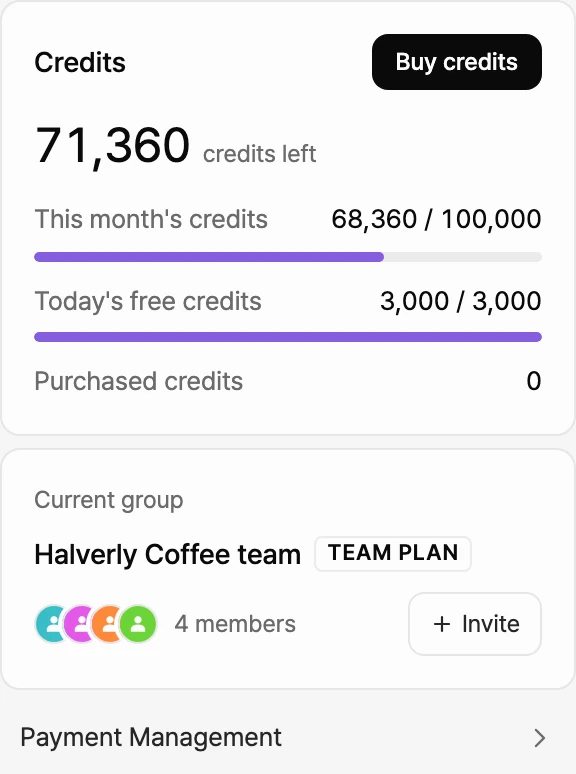
- Select the plan badge button at the top right of the top bar. The bar on the button shows how much is left.
- In the Credits window, check the credits left total along with This month's credits, Today's free credits, and Purchased credits.
- To see billing details, select Payment Management at the bottom of the window. Only the group owner and admins see it.
On the Credit page
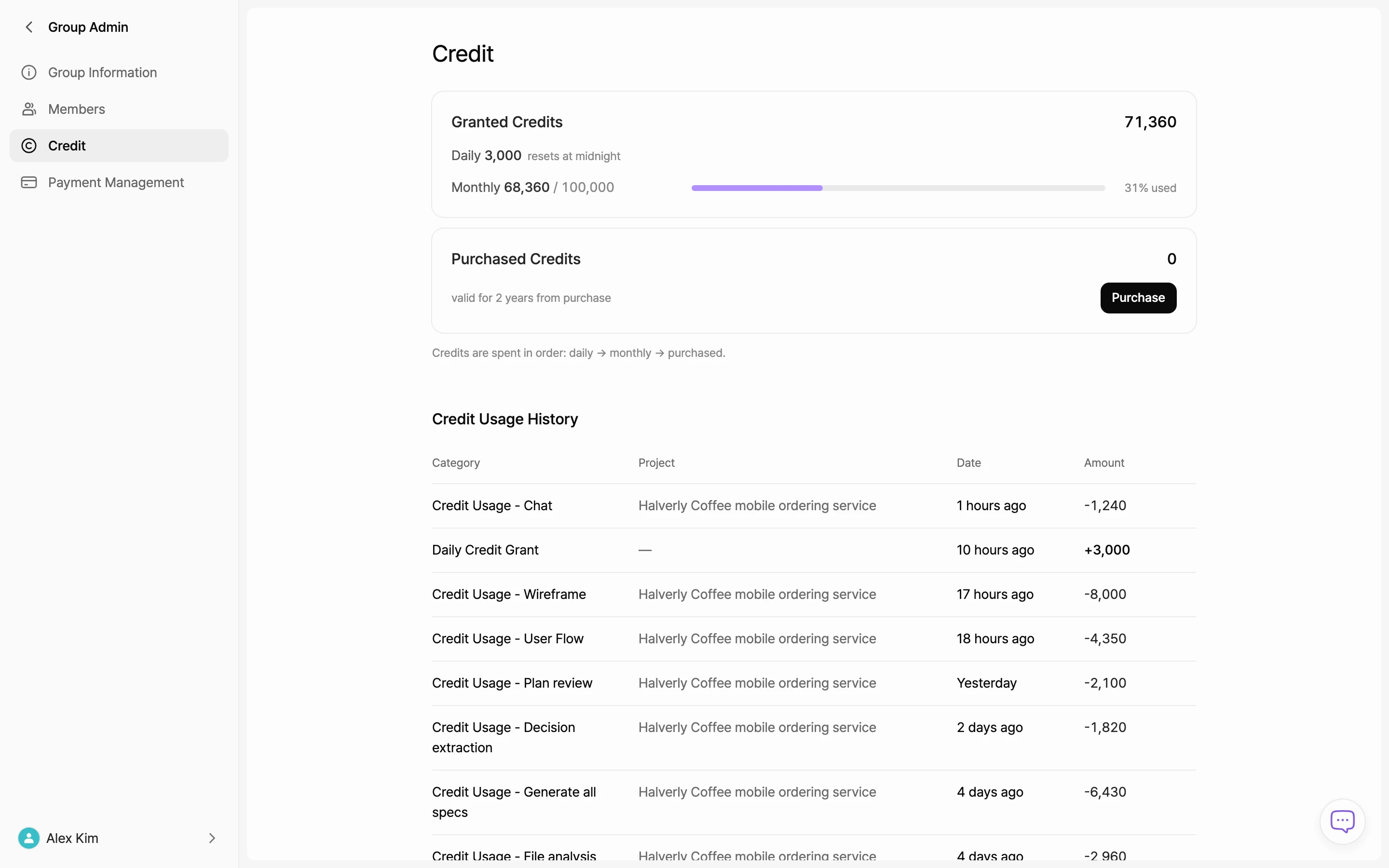
- Select the group name at the top of the sidebar, then select Manage Group.
- In the menu on the left, select Credit.
- Under Granted Credits, check how much of your monthly and daily credits you've used. Under Purchased Credits, check your remaining purchased credits.
- In Credit Usage History below, check the category, project, date, and amount. Select Load More to see older entries.
In the editor
- Select the logo at the top of the editor rail to open the project menu, then select Credit Usage. A window shows the same content as the Credit page.
- When credits run low, you see a notice like N% credits left near the chat input. Once your granted credits are used up and purchased credits start being spent, you see Using extra credits.
Buy more credits
- Open the purchase window from one of these places:
- The plan badge button in the top bar > Buy credits (groups on a paid plan)
- Manage Group > Credit > Purchase
- In the Buy Credits window, pick a credit pack.
- Select Confirm and pay and finish paying in the checkout window.
- When payment is done, the credits are added to Purchased credits.
When you run out
When you run out of credits in Chat, the notice depends on your plan.
- Starter: You see You've used up today's credits. Wait for your daily credits to refill at midnight, or select Upgrade plan or Buy credits to keep going right away.
- Pro and Team: You see You've used up your credits. Select Buy credits to keep going right away. Your daily credits refill the next day.