Write your spec
Fill in dev-readiness slots
Fill in nine dev-readiness slots on each feature and specification so developers can build without coming back to ask.
Dev-readiness slots are nine fields for the implementation details a feature description alone can't settle. Use them to decide ahead of time what a developer would otherwise come back to ask, like "Who can see this button?" or "What happens if it fails?" Features and specifications have the same nine slots. Let AI draft them, then answer the questions it can't decide on its own.
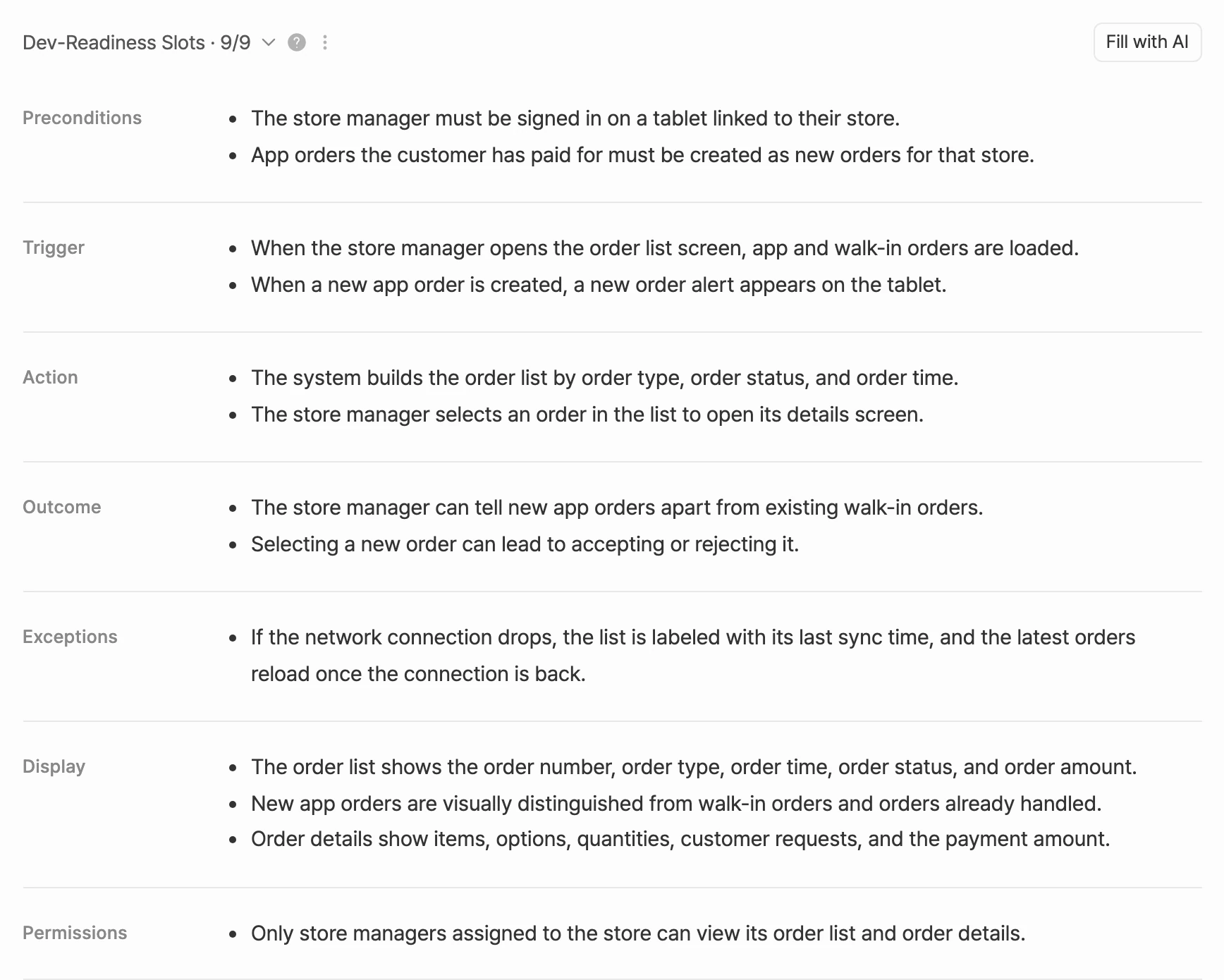
Find the slots
Select a feature or specification in Features, and you'll see the Dev-Readiness Slots section in its details. It's in the detail panel on the right in the Graph view, in the details on the right in the Directory view, and inside each block in the Document view.
- The numbers next to the section title show how many slots are filled out of how many are visible (for example, Dev-Readiness Slots · 3/9). Hidden slots don't count.
- Use the arrow next to the title to collapse or expand the section. In the Document view, it starts collapsed.
- The first time you open it, a card introduces the slots. To see it again, select the help icon next to the title (See the dev-readiness slots intro again).
The nine slots
The slots follow the order in which a feature runs (preconditions, trigger, action, outcome, exceptions, display), plus permissions, rules, and data. Empty slots show a faded example like the ones below.
| Slot | What goes in it | Example |
|---|---|---|
| Preconditions | What has to be true before the action can run: required permissions or state, and items that must already exist | You are an admin of the group to invite to |
| Trigger | What starts the action: buttons, shortcuts, menus, events, scheduled jobs | Press the 'Invite' button in the member list |
| Action | What the system does once it starts, step by step | Create and send an invite to the entered email |
| Outcome | What's settled on success: data that changes, follow-on effects like notifications, and what the user ends up seeing | The invite is added to the list as 'pending' |
| Exceptions | What can go wrong and how the system responds: things happening at once, repeated clicks, zero or over-the-limit values, no response | If the email was already invited, show a notice instead of creating a new one |
| Display | How it looks on screen: empty, loading, and failure states, plus success and error messages | On success, show the toast 'Invite sent' |
| Permissions | Who can do it, whether to hide or disable it for others, and what happens for people who aren't signed in | Only admins can invite |
| Business Rules | Limits, eligibility, formulas, sort order, and expiry or retention | Up to 50 pending invites per group |
| Data | The values you store and read: fields, types, whether they're required, and defaults | Takes an email and a role, returns an invite id |
Fill them in yourself
- Click a slot and type.
- Click anywhere else to save.
- To hide a slot you don't need, hover over the slot and select Hide next to its name.
- To see hidden slots, select + N hidden slots below the section. Select a slot name (for example, + Preconditions) to bring it back.
Fill with AI
- Select Fill with AI on the right of the Dev-Readiness Slots title row.
- Based on your spec, AI puts an AI suggestion in empty slots and a Question in slots where something still needs deciding. It leaves alone any slot you've already written, hidden, or that still has a suggestion or question waiting.
- Review each suggestion and select Apply or Dismiss.
- Answer a question by selecting one of its options. Your answer is added to the slot as a sentence, and the question goes away.
- Options marked AI pick are the ones AI would choose. When your spec doesn't settle it, AI goes on general judgment, so check before you choose.
- If none of the options fit, select Write your own, type your answer, and select Submit.
- Use Dismiss question to remove a question you don't need to answer.
AI may hide slots it thinks don't apply to the feature. When it does, a notification tells you which ones, and you can bring them back from + hidden slots.
Handle everything at once
When there are suggestions, or questions with an AI pick, buttons for handling them all at once appear in the title row.
| Button | What it does |
|---|---|
| Apply all (N) | Applies every slot's suggestion at once. |
| Apply answers (N) | Answers the questions with their AI picks at once. Appears when only questions are left. |
| Apply suggestions + answers | Applies every suggestion and answers the questions with their AI picks. Appears when there are both. |
| Suggestions only (N) | Applies the suggestions and leaves the questions. Appears when there are both suggestions and questions with an AI pick. |
| Dismiss all | Clears every suggestion you haven't applied. |
Right after a bulk action, select Undo in the notification to reverse it. If that slot changed again in the meantime (by you or someone else), it isn't reverted.
While unapplied suggestions remain, the Fill with AI button is hidden. It comes back once you've handled them all.
Check readiness
- In the Graph view, nodes for features and specifications you've started on show a small count of filled slots out of visible slots (for example, 3/9), so you can see at a glance which ones still need work. Turn this on or off with Dev readiness under Display settings.
- When you export Features, only slots with values are included. Empty slots, hidden slots, and unanswered questions are left out. See Export your spec.
If you don't use the slots
If your project doesn't use dev-readiness slots, you can hide the whole section.
- Select the menu button next to the Dev-Readiness Slots title.
- Choose Don't use this field. The section disappears from every feature and specification, and AI stops filling the slots.
To turn it back on, select Fields near the bottom of the details and pick Dev-Readiness Slots. Anything you wrote is still there.