Write your spec
Sync your documents
Pick one document as the source of truth and let AI find and fix what doesn't match in another one.
Sync uses one document as the source of truth and has AI find and fix what's missing, conflicting, or outdated in another. Use it after you change direction in the PRD and want Features to follow, or after you edit Features and want the user flow to match. Each time you run it, AI compares the two documents as they are at that moment.
Start a sync
- In the editor's top bar, select Sync right next to the document tabs (PRD, Features, User Flow, Wireframe). On a narrow screen, it shows as an icon only.
- Under Source, pick the document to treat as the source of truth. The tab you're on is selected to start.
- Under To fix, pick the document to bring in line.
- If you picked a user flow or wireframe, check the version to compare in the version row that appears below.
- Read the credit note, then select Start sync.
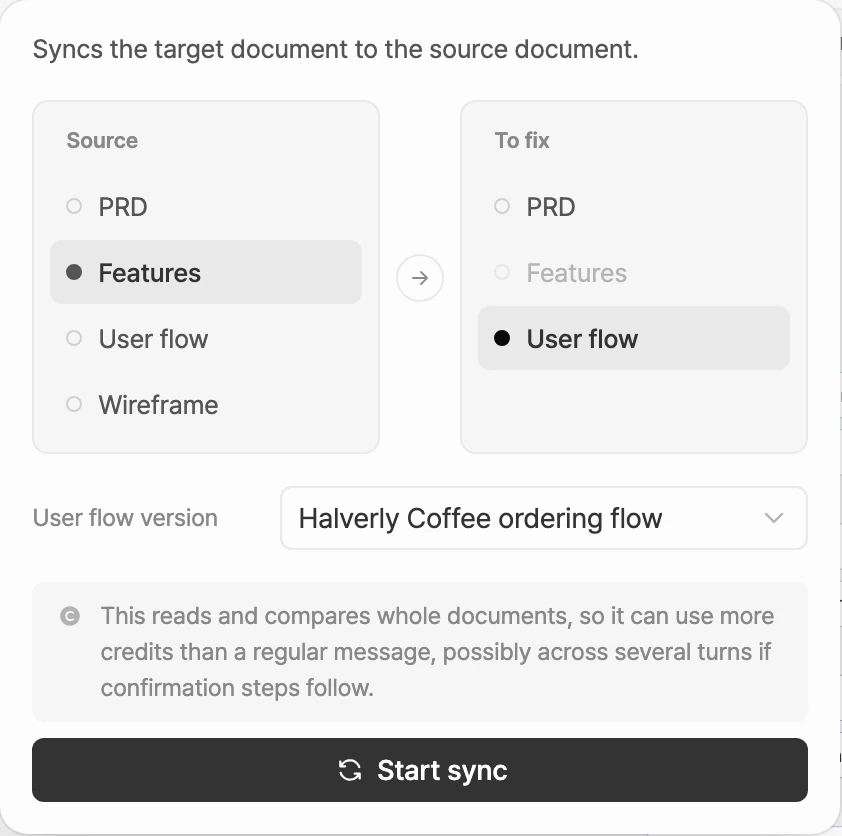
Documents you can pick
| Column | Documents |
|---|---|
| Source | PRD, Features, User flow, Wireframe |
| To fix | PRD, Features, User flow |
You can't pick the same document on both sides. A wireframe can only be the source.
Pick versions
User flows and wireframes can have several versions, so picking one adds a User flow version or Wireframe version row. The most recent version you can sync is selected to start.
Versions that are still being created or that failed can't be picked. If there's no version to pick, the row shows a status such as No versions, In progress, or Failed, and Start sync stays disabled. Create the document first, or come back once it's finished.
Review and apply the results
When you select Start sync, chat opens and sends a request that names what's being synced, such as Sync PRD → Features.
- AI reads both documents and reports its findings in chat before changing anything. It lists what's missing, conflicting, or outdated compared with the source, with the reason for each, plus what it won't change and which parts it checked.
- AI then changes only the document you're fixing. The source stays as it is.
- Review the result.
- PRD or Features: the changes arrive as AI suggestions. Approve or reject them one at a time or all at once. See Approve or reject AI suggestions.
- User flow: AI asks whether to save the result as a new version, overwrite the current version, or not apply it. It follows your choice.
- Finally, AI sums up what happened to each finding.
If the two documents already match, AI tells you there's nothing to change.
Credits
Sync reads and compares whole documents, so it can use more credits than a regular message, possibly across several turns if confirmation steps follow, as when it fixes a user flow. See Credits for your balance and usage.