Get started
Take the tutorial
Follow a ready-made sample project step by step and see how a spec comes together, without using any credits.
The tutorial walks you through Manyfast's planning flow with a ready-made sample project. You click through each step yourself as the screen points the way: drafting a spec, reviewing it, and carrying it into a user flow or wireframes. Because it runs on a sample, it doesn't use any credits.
Open the tutorial
You can open the tutorial from any of these places.
- Right after sign-up: The picker opens automatically the first time you land on Home.
- Tutorial row on Home: If you can't see any projects, folders, or sources in your group yet, select Start tutorial in the New here? Start with the tutorial row.
- Feature cards on Home: Under Try the features on Home, select Tour a sample project. This works even if you already have projects. If you close the cards with Dismiss feature cards, they stay hidden in that browser.
Choose a sample project
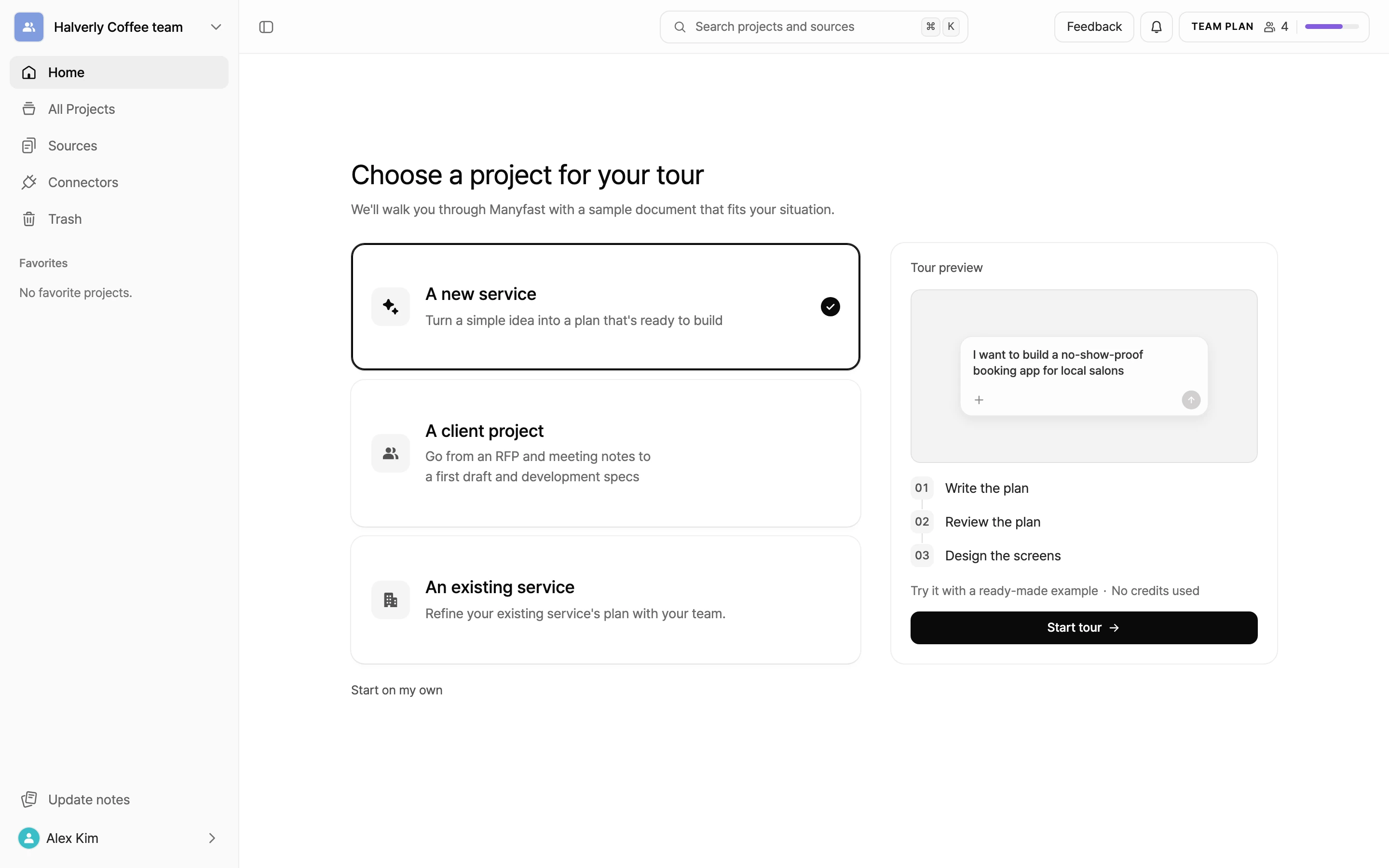
On the Choose a project for your tour screen, pick one sample. It doesn't have to match your situation exactly.
| Sample | Situation | Chapters you'll go through |
|---|---|---|
| A new service | Turn a simple idea into a plan that's ready to build. The sample is a salon booking app. | Write the plan, Review the plan, Design the screens |
| A client project | Go from an RFP and meeting notes to a first draft and development specs. The sample is Halverly Coffee Ordering. | Draft from the RFP, Prep for the meeting, Apply meeting notes, Sync documents, Create a share link, Save a version |
| An existing service | Refine your existing service's plan with your team. The sample is a time off management system. | Bring in your plan, Add a feature, Check the new screens |
- Pick a sample on the left. Tour preview on the right shows the chapters you'll go through.
- Select Start tour.
To skip the tutorial and create your own project right away, select Start on my own. You'll go back to the input box on Home.
Follow along
- Each chapter opens with a What we'll do together cover that lists what you'll do. Select Next or press
Enterto begin. - Click wherever the screen points you. For example: "Press [Review] in the left sidebar" or "Press [Start review]".
- Sample text and files are ready for you. If the input box is already filled in, just press the arrow.
- To stop partway, select Exit in the top right corner.
The tutorial only uses the sample files it comes with. To try it with your own files, finish the tutorial and follow Create your first project.
Resume a tutorial
If you exit the tutorial and come back to Home, you'll see a You have a tutorial in progress row.
- Select Resume tutorial.
- You'll pick up from the start of the chapter where you stopped.
When you finish
After the last chapter, you'll see You've walked through the whole planning flow. It sums up your Chapters completed and lists Next, in your own project.
- Start my project: Go back to Home and start your own project right away. If you can't see any projects, folders, or sources in your group yet and you finished A client project or An existing service, the input box opens with File analysis selected.
- Go to Home: Go back to Home.
You can also find these next steps in the checklist at the bottom left of the editor in your own project.