Files and sources
Apply decisions to your spec
Use AI to pull decisions from a source, link them to a project, and apply them from the Docs panel.
AI finds the decisions in a source and sorts them into Confirmed, Undecided, and Rejected. Each decision is linked to the project you choose, and you can apply it to that project's spec from the Docs panel. Here's the flow:
- Write a source in Sources (see Keep sources in Sources).
- Pick a project and extract decisions from the source.
- Review each decision's status and wording.
- Apply decisions from the Docs panel in the editor, then approve the changes on the canvas.
Extract decisions from a source
- Open a source in Sources. The body can't be empty.
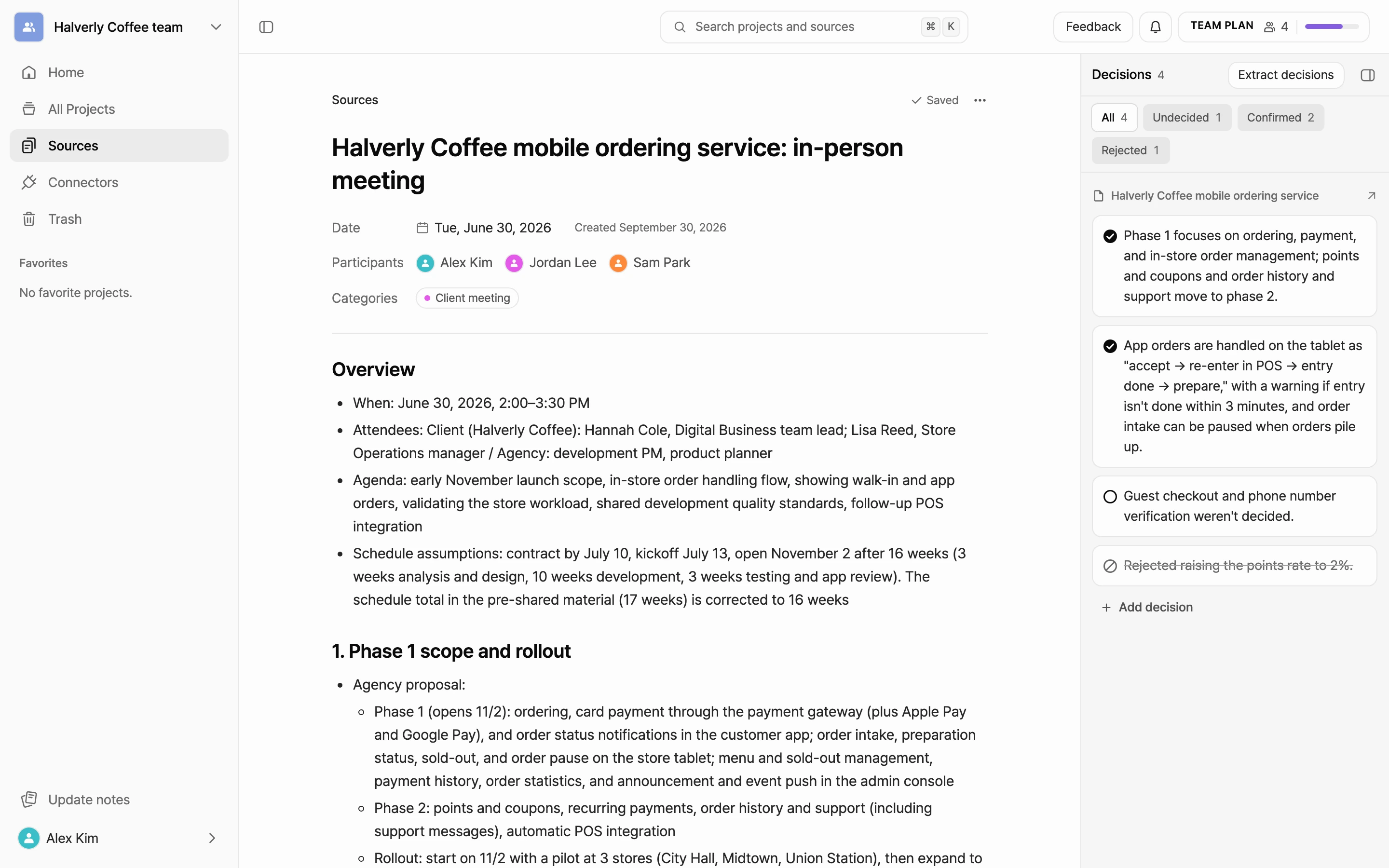
- In the Decisions panel on the right, select Extract decisions.
- In the Extract decisions? dialog, choose one project under Project to link. AI reads that project's spec together with the source and pulls out only the decisions that relate to it.
- Select Extract. It usually takes less than a minute.
- If decisions are found, you're taken to that project's editor. If none are found, you stay on the source. Add more detail about what was decided, then try again.
The extracted decisions also appear in the source's Decisions panel, grouped by project.
You can extract from the same source again for a different project. Select Extract decisions at the top of the Decisions panel, and the Extract again? dialog opens. Choose a project and select Extract again. If you extract again for the same project, existing decisions stay and only newly found ones are added.
Review decisions
Filter chips at the top of the Decisions panel show All and a count for each status, and decisions are grouped by linked project. Select a project name to go to that project.
- Confirmed: a decision that's been made. You can apply it to your spec.
- Undecided: a question that hasn't been settled yet. You can discuss it in chat to reach a conclusion.
- Rejected: something the team decided not to do.
Expand a decision card to see its AI rationale. Select the quote to jump to that spot in the source, where it's highlighted.
- If the status is wrong, select the status icon in front of the statement and pick another status. On an expanded card, use the status chip in the row below.
- To reword a decision, expand the card and select Edit, or double-click the statement. The status and AI rationale stay the same.
- Select Add memo to leave My memo on a decision.
- To add a decision AI missed, select Add decision under the project group, enter the statement and status, and select Add. It's labeled Added directly.
- To delete a decision you don't need, expand the card, select Delete, then select Delete again at Delete for real?. A deleted decision is removed from both the source and the project.
Apply a decision to your spec
- Open the editor of the project the decision is linked to.
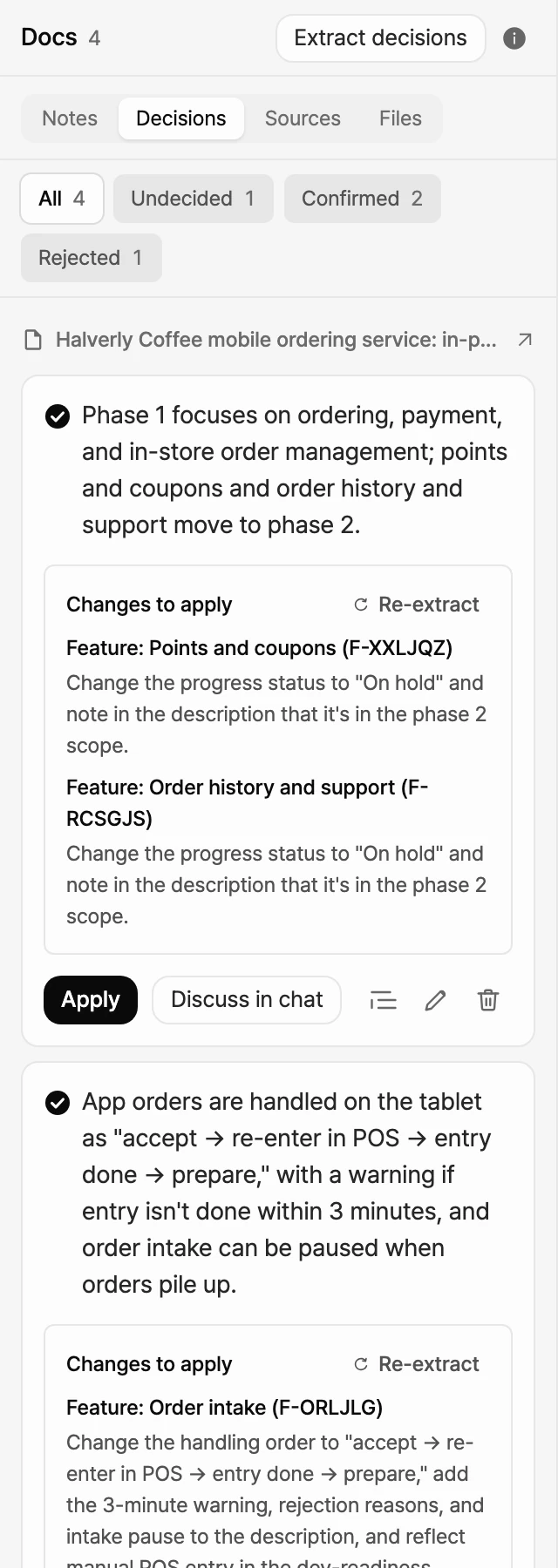
- Select Docs on the left rail, then select the Decisions tab. Decisions are grouped by source.
- On a confirmed decision, check Changes to apply to see what will change in your spec.
- Select Apply. When the credit dialog (Apply changes to the document?) opens, select Apply again to start.
- AI drafts the changes and shows them in your spec as suggested changes. The card shows Preview applied with the date.
- Approve or Reject the suggestions on the canvas.
To learn how to review suggested changes, see Approve AI suggestions.
Recalculate the changes
If your spec changed after the decisions were extracted, or you reworded a decision, recalculate the changes before you apply. When you reword a decision that already has AI-generated changes, it's marked (edited).
- On the card, select Re-extract next to Changes to apply. If there are no changes yet, as with a decision you added yourself, you'll see Extract instead.
- In the Re-extract changes to apply? dialog, select Re-extract. For a decision that has never been extracted, select Extract in the Extract changes to apply? dialog. This uses credits based on usage.
When you re-extract a reworded decision, the AI-generated reason is removed, but the quote from the source is kept.
Discuss in chat
For an undecided decision, or a confirmed one you want to revisit, select Discuss in chat to talk it through with AI. The Docs panel stays open, and chat opens in a window over the canvas.
After the discussion, the card shows Discussed in chat - have you finished applying it? If you already updated the spec in chat, select Mark as applied to mark the card Applied. This doesn't use credits.
See Chat with AI to learn more about chat.
Next steps
- Approve AI suggestions: review the suggested changes shown on the canvas.
- Keep sources in Sources: write and organize the sources you extract decisions from.
- Plans: see what's included in the Team plan.
- Credits: check the credits used to extract and apply decisions.