Team and sharing
Invite external editors
Give a specific person edit access to a single project by email, without adding them to your group.
An external editor is someone outside your group who can edit one project with you. Use this when you want to bring in a freelance planner or a client contact for a single project. Your group's member list and other projects stay visible only to group members, so external editors see just the project you invited them to.
If someone only needs to look, send a share link instead. If they'll work across several of your group's projects, invite them as a member.
Send an invite
- Open the project and click Share in the top bar.
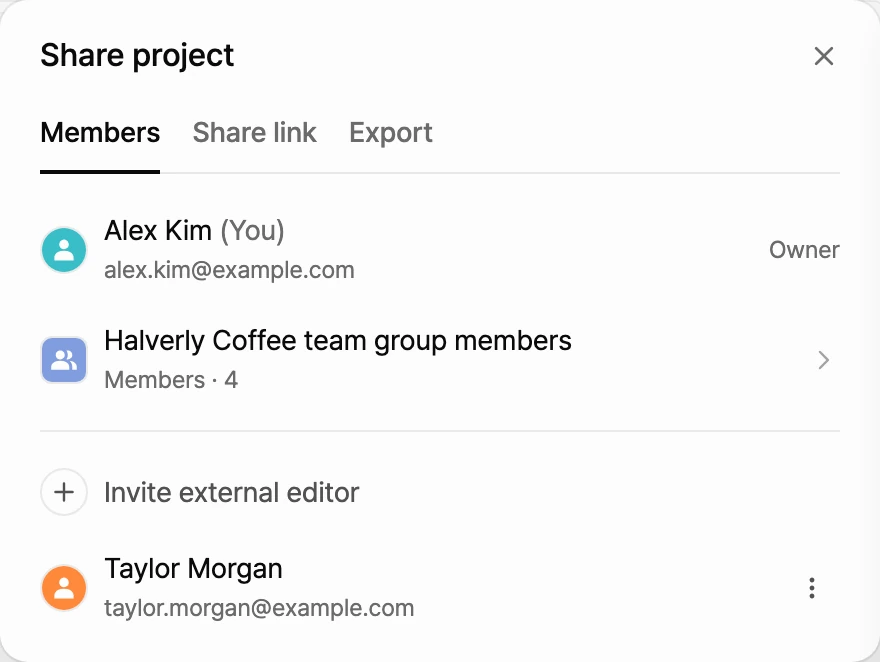
- In the Members tab, click Invite external editor. An email field opens.
- In Email address of the user to invite, enter the full email address the person uses for Manyfast. Partial addresses and names won't match.
- To let them use AI in this project, check Allow AI credit usage (consumes your group's credits).
- Click Invite or press
Enter.
The person appears in the list as Invite pending · Can edit. Once they accept, their name and email show up instead.
If no one matches the address, you'll see one of these messages:
- Enter the full, valid email address.: The text isn't a complete email address. Check that you typed all of it.
- No matching user found.: No account uses this address. Ask the person to sign up first, or ask which address they signed up with.
Accept an invite
- The invited person gets a notification in their inbox: "(sender) shared (project) with you for editing."
- They click Accept in the notification.
- In the sidebar, they open All Projects. The project appears at the top under Shared with me, with the original group's name and their access (Editor).
- They click the card to open the project and start editing.
External editors can edit the project and leave comments just like group members. In the Members tab of the share panel, they see This project belongs to a group. Only group members can see the member list. instead of the member list.
Allow AI credits
When an external editor uses AI features such as chat, the credits come out of the group that owns the project. That's why only people the owner allows can use AI.
- External editors with AI allowed show AI credits usable next to their email in the list.
- If an external editor without permission tries to use AI, they see No permission to use AI. They can ask the project owner to allow it.
To learn how credits are used, see Credits.
Change access or stop sharing
As the project owner, open the Members tab and click the menu button at the end of the external editor's row.
- AI credit usage: Turns AI access on or off each time you click it. A check mark shows when it's on.
- Remove access: Stops sharing. The person can no longer open the project and gets a notification that their access was removed.
To withdraw an invite that hasn't been accepted yet, click Cancel at the end of its row.
Leave a shared project
External editors can remove themselves from a project they no longer work on.
- In the sidebar, open All Projects.
- Under Shared with me, hover over the project card.
- Click Leave in the top-right corner of the card and confirm.
Next steps
- Share with a link: Send a read-only link to people who only need to look.
- Invite members: Bring in people who'll work across your group's projects.
- Edit together in real time: Work on the same project with external editors at the same time.
- Compare plans: See what's included in the Team plan.