Plan with AI
What the AI can do
What the chat AI can read, write, analyze, and look up, how each result lands in your project, and requests to try.
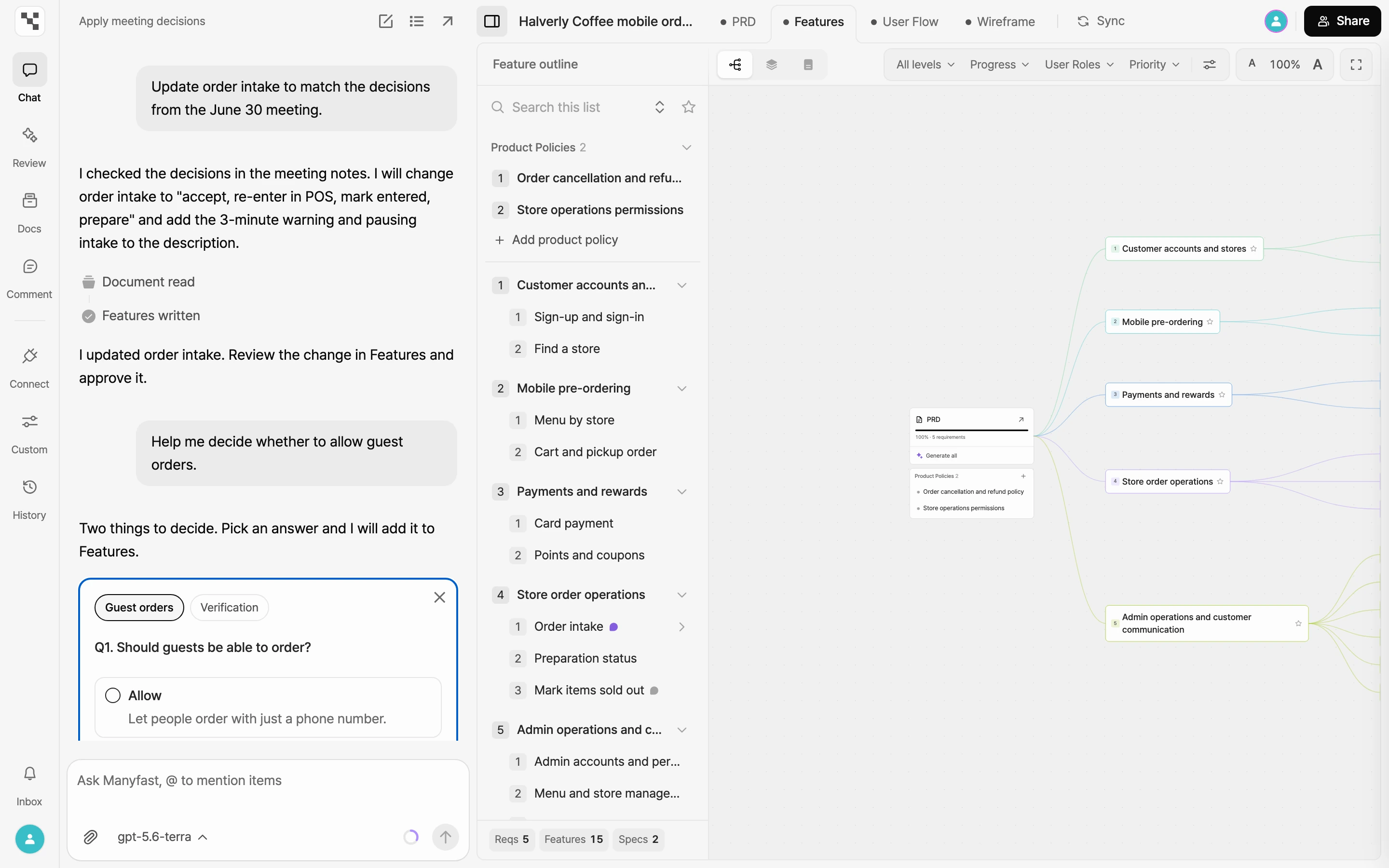
The chat AI reads this project's documents, writes your spec, and looks things up on the web. Chat shows what it's doing one row at a time, such as Document read or Features written. Knowing where each result ends up makes it easier to hand work over with confidence.
At a glance
| Area | What it can do | How the result lands |
|---|---|---|
| Read | Read the PRD and Features, search project content, read user flows and wireframes, read the activity log and version list | Used in its answers only |
| Write | Write and edit PRD sections, requirements, features, specifications, and product policies, change status and importance, delete items | Arrives as suggestions awaiting approval. What fills a blank PRD for the first time is saved right away |
| Title | Rename the project | Changes right away |
| Analyze and review | Analyze how a change affects other items, review the whole document | Reported in the answer |
| Web | Search the web | When it finishes, its sources are listed under the search query |
| User flows | Generate and edit user flows | Generation goes through a confirmation card. Edits are saved right away as a new version |
| Export | Export the PRD or Features as Excel, Markdown, or text | Shown as a download card |
| Notes | Read your note, add new entries, add to an entry, rewrite an entry | Saved to your note right away |
| Collaboration | Read comments, leave new comments, reply, mark as resolved | Applied right away |
| Versions | Save the current state as a version, restore an earlier version | Applied right away |
| Sources | Find and read sources in your group's Sources | Used in its answers only |
| Files | Read and search files uploaded to this project | Used in its answers only |
| Settings | Propose changes to project customization | Saved only after approval in the customization panel |
| Issue trackers | Search and read issues in a connected tracker, propose new issues, updates, and comments | Applied only after you approve the card |
Writes arrive as suggestions
Changes to an existing PRD or your Features become suggestions awaiting approval. What the AI writes into a blank PRD the first time is saved right away, without a suggestion. Suggested items get a New, Modified, or Delete badge, and nothing goes into the document until you approve it. Deletions are only marked until you approve them. See Approve and reject AI suggestions.
When a change is broad and your request could be read more than one way, the AI first sends a plan card with a Proceed button before writing.
Everything else lands like this:
- Applied right away: project title, comments, saved versions, notes, and user flow edits. User flow edits are saved as a new version, or applied to the current version if you ask the AI to overwrite it. Before restoring an earlier version, the AI tells you that suggestions awaiting approval will be discarded and asks whether to continue.
- Confirmation card: user flow generation, and creating, updating, or commenting on issues in an issue tracker.
- Settings proposal: for project customization, the AI only proposes. Changes are saved after a group member with edit access approves them. See Customize your project.
Requests to try
Read and summarize
- "Summarize the PRD in three sentences."
- "Check whether @Checkout is missing any edge cases."
- "Use the activity log to tell me who changed what last week."
Write and edit
- "Create requirements and features based on the PRD."
- "Add social login specifications to the sign-up feature."
- "Merge these two overlapping features into one."
- "Set the status of the login features to In Development."
Analyze and look up
- "If we change the target user, which features need updating?"
- "Find out how similar booking services reduce no-shows."
- "Pull only the confirmed policies from the uploaded files."
- "Summarize the payment decisions from this month's sources."
Deliverables and housekeeping
- "Export Features to Excel."
- "Save the current state as a version named 'Before first review'."
- "Add the options we've compared so far to my note."
- "Read the comments on this feature, address them, and mark them resolved."
Requirements
- AI work uses credits. How many depends on the model, how much it reads, and the size of the task. See Credits.
- If another long-running AI task is in progress, such as user flow generation or document analysis, ask again once it finishes.
- The AI can read and explain your wireframes in chat. To create wireframes, see Wireframes.