Team and sharing
Set folder access
On the Team plan, choose who can see each folder so some projects are visible only to selected members.
You can choose who sees each folder. It's handy when some plans aren't ready for the whole team, or when a few projects are meant for only some people: put them in one folder and show it to selected members. New folders start out visible to all members.
Set access for a folder
- In the sidebar, go to All Projects.
- Click the more (⋯) button on the folder, or right-click the folder.
- Click Folder info.
- Under Access, choose Selected members only.
- In Members with access, check the members who should see this folder.
- Click Save changes.
If the change means fewer people can see the folder, a confirmation dialog appears. It tells you how many members will lose access and how many projects are affected. Review it and click Save.
To make the folder visible to everyone again, choose All members in the same window and save.
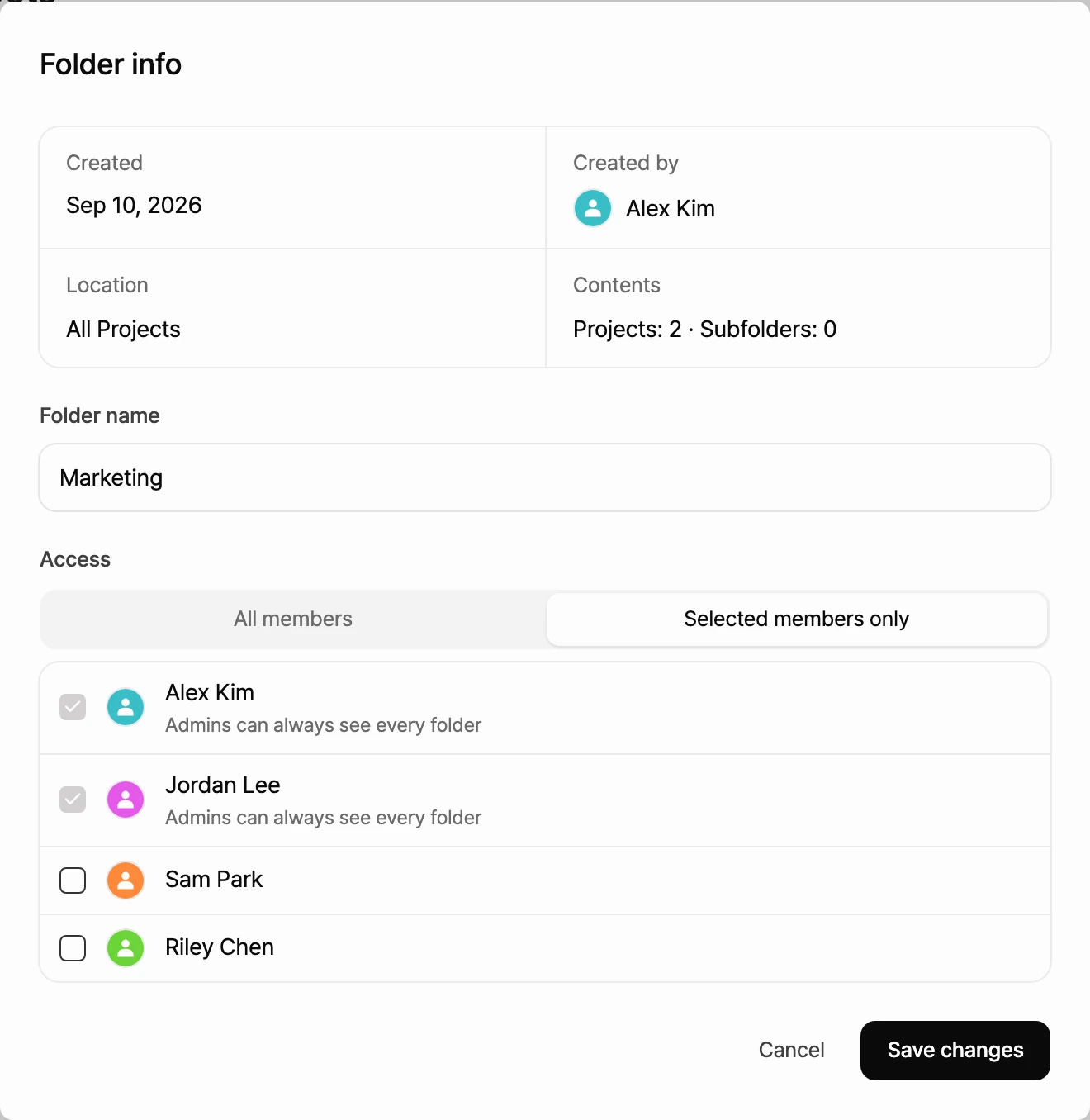
Who can see a restricted folder
A folder set to Selected members only is visible to:
- The group owner and admins: they can always see every folder, whatever its access setting. The list marks them with Admins can always see every folder.
- Members and viewers you check in the list
- Owners of projects inside the folder: they can't be removed from a folder that holds their own project. The list marks them with Owns a project in this folder, so they can't be removed.
Everyone else in the group can't see the folder or the projects in it.
Subfolders and moving items
- A subfolder can't be opened up wider than its parent. Members who can't see the parent folder can't be selected, and the list marks them with Can't see the parent folder.
- Even if a subfolder is set to All members, only the members allowed by its parent folders can see it.
- When moving a project or folder into another folder changes who can see it, a confirmation dialog appears. It shows how many members gain access and how many lose it.
- When you restore something from Trash and it can't go back to its original folder, it's restored to All Projects. If that means more members can see it, you'll be asked to confirm first.
When the Team plan ends
If a Team trial ends without payment, or your Team plan ends, the restriction on Selected members only folders is lifted. Every member of the group can then see those folders and the projects in them.
Your access settings aren't deleted. Subscribe to Team again and the saved settings come back, so only the selected members can see those folders.