Plan with AI
Customize your project
Set the AI's output language, tone, writing style, and team terms per project, and apply them to existing content.
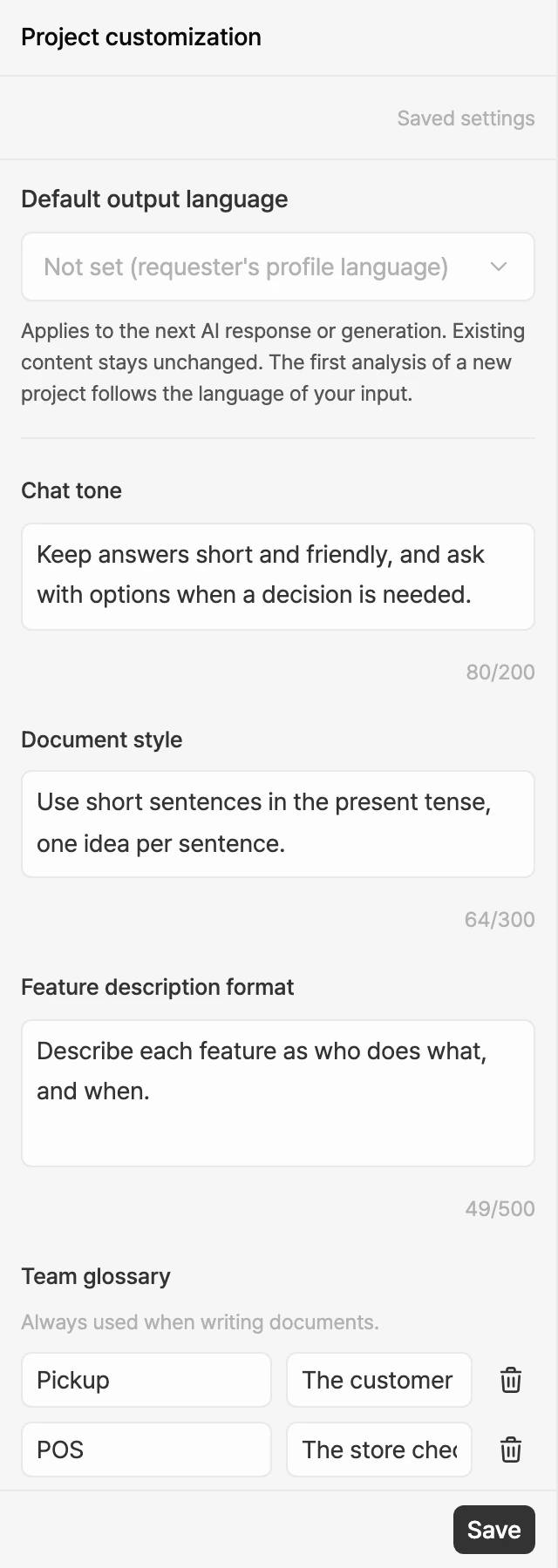
Project customization is where you set the rules the AI follows in this project. Instead of telling chat "use bullet points" or "say member, not customer" every time, save it once and the AI answers and writes your spec that way. Settings are saved separately for each project.
Open customization
- Select Custom in the left rail of the project editor.
- The Project customization panel opens next to the rail, so you can adjust settings while looking at what the AI wrote.
- To close it, select Custom again.
If chat suggests saving a setting, you can also open customization with Set up on that notice. See Get suggestions from chat.
Set your rules
Fill in the fields from the top of the panel and select Save. Empty fields aren't applied.
| Field | What it controls | Example | Limit |
|---|---|---|---|
| Default output language | The language the AI answers and writes in | English, Korean, Not set (requester's profile language) | |
| Chat tone | How chat replies sound | Short, conclusion first, no emojis | 200 characters |
| Document style | The writing style of your PRD and Features | Concise bullet style | 300 characters |
| Feature description format | The order and must-have parts of feature descriptions | 'Who, what, why' order, include an edge case | 500 characters |
| Team glossary | Terms to always use when writing, with their meaning | Member: our end user; never 'user' | 30 characters per term, 100 per description |
| Things to avoid | Behavior the AI should stay away from | Don't add features that weren't requested | 300 characters |
| Anything else to know | Background on your product and team | We're a B2B SaaS | 3,000 characters |
- Default output language saves as soon as you pick it. It applies from the next AI response or generation, and existing content stays as is. The first analysis of a new project follows the language of your input.
- Add rows to Team glossary with Add term. You can add up to 30 terms, and only rows with both a term and a description are saved.
Preview your rules
Before saving, you can check how your document rules come out.
- Fill in at least one document rule, such as Document style, Feature description format, or Team glossary.
- Under Preview, select Run preview.
- A sample sentence appears side by side as Without settings and With settings. Compare them, and select Save if you like the result.
The preview uses what you've typed so far and doesn't change your document or saved settings. If you've only filled in Chat tone, check it in chat replies instead.
Apply to existing content
Saved rules apply to whatever the AI writes from now on. To bring existing item descriptions in line too, use Apply to this project.
- Save your document rules (style, format, or glossary) first.
- Select Apply to this project.
- In the confirmation, select Use credits & apply. Customization closes and the rewrite starts.
- Rewritten descriptions appear on each item as suggestions. Approve or reject each one, as described in Approve and reject AI suggestions.
- Up to 100 items can be rewritten at once.
- If another AI task is running, you can run this once it finishes.
- It uses credits based on the size of your document. If it fails, no credits are charged.
Get suggestions from chat
There are two ways a chat can lead you to customization.
When you keep repeating an instruction
If you haven't saved any settings yet and keep giving the same tone or format instruction, chat shows "You keep repeating the same instruction."
- Set up: opens customization so you can save the instruction.
- Close: hides it for now.
- Don't show again: stops showing it in this project.
When the AI proposes a settings change
When you tell the AI a rule to keep following, such as "always write in bullet points from now on," it can propose a settings change. The proposal isn't saved until it's approved.
- When the proposal notice appears above chat, select Set up. You can also open customization yourself.
- In the Settings proposal box at the top, check where it came from (Chat, External AI, or Source), the reason, and the current and proposed values. For the glossary, each added, changed, or removed term is listed.
- Select Approve to save the new settings, or Reject to keep your current ones.