Plan with AI
Collect ideas in notes
Keep ideas and research from chat in a private note, then apply them to your spec or post them to Sources for your team.
Your note is a private scratchpad for what comes out of your chats. Keep the back-and-forth of an idea, research results, options you compared, and open questions, then apply them to your spec or share them with your team later. Each project has its own note, and only you can see it.
Open your note
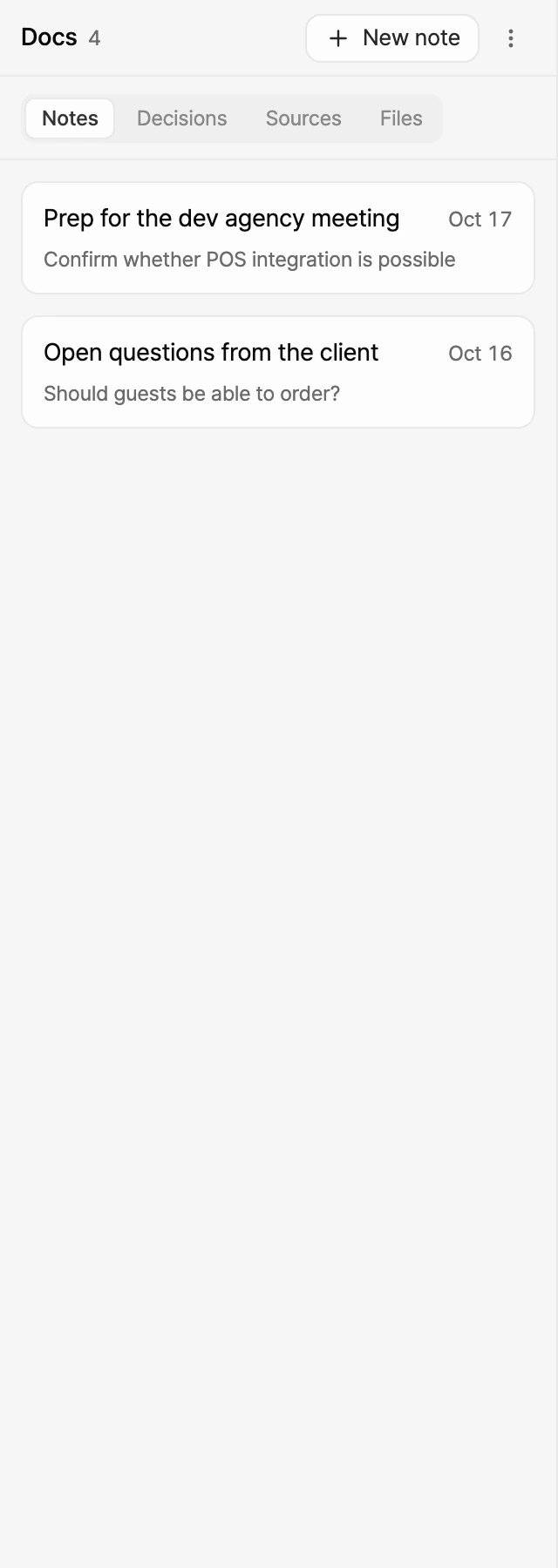
- Select Docs in the left rail of the project editor.
- Choose Notes, the first tab in the Docs panel.
- Your entries are listed with their dates.
If the AI added entries you haven't opened yet, a dot appears on Docs in the rail.
Add to your note
From chat
- In chat, say "add this to my note."
- The AI adds a new entry or adds to an existing one. You'll see an Added to note or Added to note entry card in chat.
When a discussion runs long, the AI may ask whether to keep it, and it may add things worth keeping on its own.
Write it yourself
- On the Notes tab, select New note at the top right of the panel.
- Enter a Title and Content.
- Select Save.
Read and edit entries
- Select an entry in the list to open it in the panel. Use the list at the top to jump to another entry.
- To make changes, select Edit, then Save when you're done. Select Cancel to leave it as is.
- For more room, select View larger.
If the AI changes the same entry while you're editing, your save won't go through and you'll see a notice. Select Cancel to see the latest version, then edit again.
To delete an entry, open it, open its menu, choose Delete, and confirm.
Apply your note to the spec
Use chat to bring what you've collected into the project.
- Apply specific entries: type
@in the chat message box, pick entries from the Note group, and ask something like "Update Features based on this." - Apply the whole note: ask "apply my note" or "apply my note to the project."
When the AI writes into an existing spec, the change arrives as a suggestion awaiting approval. See Approve and reject AI suggestions.
Post to Sources to share with your team
For things your team should see, like an agreed direction or notes for a meeting, post the entry to Sources.
- Open the entry and choose Post to Sources from its menu.
- Check the Title and Date, then select Post.
- On the "Posted to Sources." notice, select Open to open the new source in the Docs panel.
- Everyone in the group, including viewers, can see the posted source.
- Images aren't moved. They're replaced with a text placeholder.
- The source ends with a line noting which project's note it came from. The original entry stays in your note.
To learn more about sources, see Keep sources in Sources.
Turn the note feature on or off
To stop the AI from reading or adding to your note in this project, turn the note feature off.
- On the Notes tab, open the menu next to New note at the top right of the panel. If an entry is open, open that entry's menu instead.
- Turn off Use note.
Your Notes tab and existing entries stay, and you can still read and edit them yourself. This setting applies only to you, in this project. Turn the same switch back on to resume.