Plans and account
Change your account settings
Change your profile, password, theme, language, and email alerts, and continue on a computer from your phone.
You change your name, photo, password, theme, language, and email notifications from the profile menu and the settings window. This page also shows how to continue on a computer from your phone.
Open the profile menu
Select your name at the bottom of the sidebar to open the profile menu. In the editor, select your profile photo at the bottom of the rail.
The profile menu has these items:
- Your name and email: Opens the settings window.
- Theme: Choose System, Light, or Dark.
- Language: Choose English or Korean.
- Guide: Opens this user guide in a new tab.
- Homepage: Opens the Manyfast homepage in a new tab.
- Manyfast Forum: Opens the Manyfast forum in a new tab. It appears when your language is set to Korean.
- Sign Out: Signs you out of Manyfast.
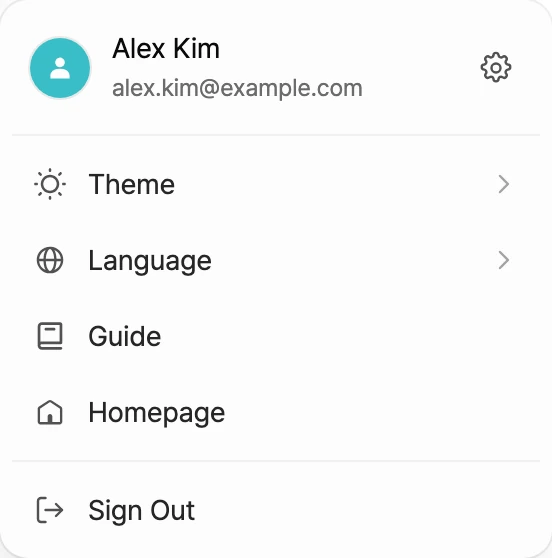
Open the settings window
- Open the profile menu.
- Select your name and email at the top.
- On the left of the settings window, choose the Profile, General, or Notification tab.
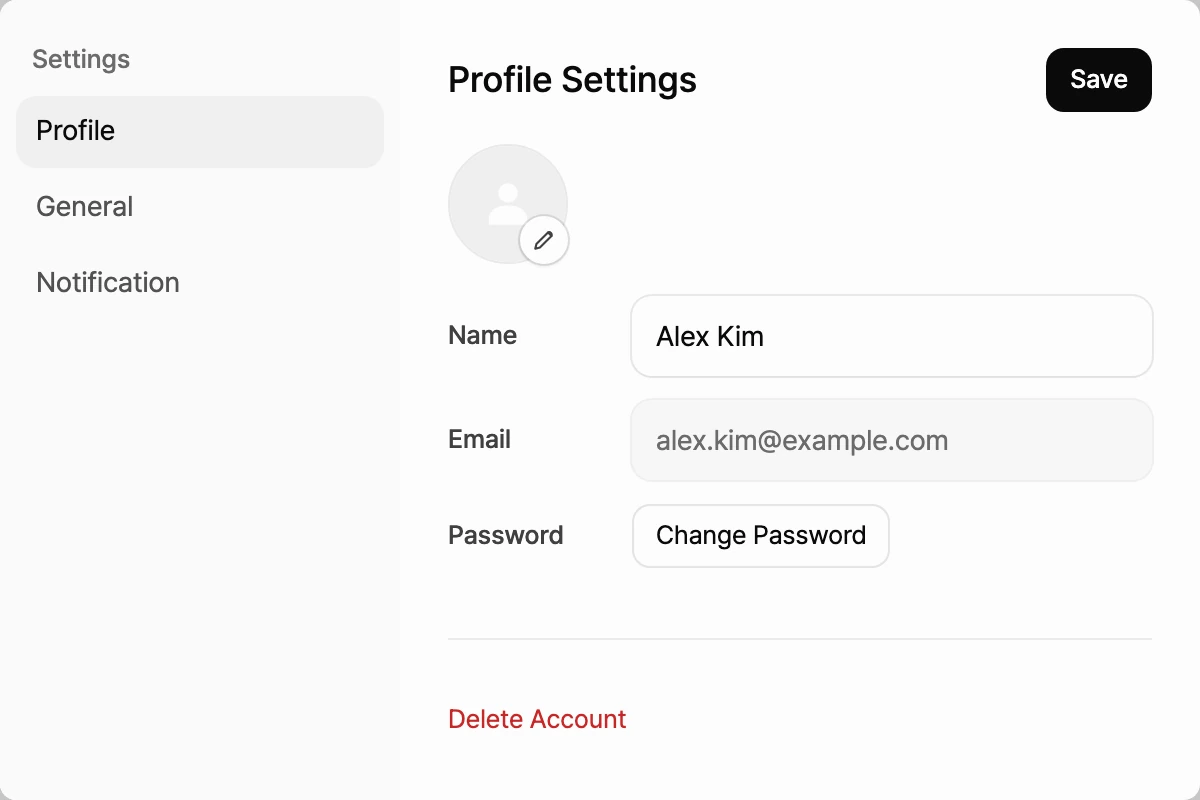
Update your profile
- Open the Profile tab.
- Select your profile photo to upload a new image, or edit your Name.
- Select Save.
Change your password
- On the Profile tab, select Change Password.
- On the Enter your new password screen, enter your new password twice.
- Select Change Password.
Change theme and language
- Open the General tab.
- Under Theme, choose System, Light, or Dark. System follows your device setting.
- Under Language, choose English or Korean.
Changes apply right away. You can also change these from Theme and Language in the profile menu.
Set up email notifications
On the Notification tab, turn emails on or off.
- Newsletter & product updates: Get Manyfast news and updates by email.
- Mention & reply emails: If you don't check mentions or replies right away, we email them to you together a minute later.
For more on comments and mentions, see Comments.
Delete your account
- At the bottom of the Profile tab, select Delete Account.
- Read the confirmation and select Delete Account.
Continue on a computer
You create and edit projects in a browser on a computer. To keep going with a project you were viewing on your phone, sign in with the same account on a computer.
- On your phone, select Get link for computer in the notice bar at the top of Home or the editor, or where the chat input usually is.
- In the Continue on a computer sheet, choose how to get the link:
- Email me the link: Sends the link to the email address you signed up with.
- Share link: Sends the link with your phone's share menu. It appears when your phone supports sharing.
- Copy link: Copies the link so you can paste it into a note or a message to yourself.
- Open the link in a browser on your computer and sign in with the same account.