Help
Frequently asked questions
Quick answers about the free plan, credit refills, AI suggestions, invites, sharing, exports, and canceling.
Here are the questions people ask most often. Each answer is short and points to the page with the full steps. If something isn't working, start with Troubleshooting.
Plans and credits
What can I do for free?
Every new group starts on Starter, the free plan. On Starter you can build a PRD, Features, user flows, and wireframes, and chat with AI. AI runs on credits that refill every day.
When do my credits refill?
Each kind of credit refills on its own schedule.
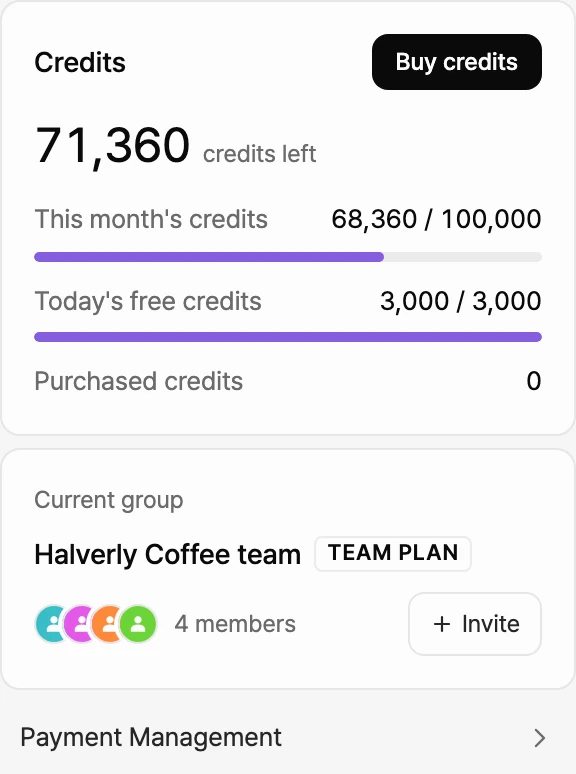
- Today's free credits (daily credits) refill every day at midnight Korea Standard Time (KST).
- This month's credits (monthly credits on paid plans) refill on your billing date or are added each month, depending on your subscription.
- Purchased credits don't refill. You can use them for a set period after you buy them.
Credits are used in this order: daily, then monthly, then purchased. To see what's left, select the plan badge button in the top bar to open the Credits panel.
For the full rules, see Credits.
AI
Do AI changes go straight into my spec?
Mostly no. When AI edits an existing PRD or writes to your Features or product policies, the change first arrives as a suggestion marked New, Modified, or Delete, and it stays in your spec only after you approve it. What AI writes into a blank PRD the first time is saved right away, without a suggestion.
- On a suggested item, select Approve or Reject.
- To handle everything at once, select Batch in the review bar at the bottom of the screen, then select Approve All N Edits or Reject all edits.
- To keep a suggestion with your own changes, click a field in the suggestion, edit it, then select Approve.
For details, see Review AI suggestions.
My AI tool lost its connection
If ChatGPT, Claude, Cursor, or another AI tool says your Manyfast connection has expired, clear the sign-in details for the Manyfast connection in that tool and connect again. In Claude Code, run claude mcp logout manyfast in your terminal, then reconnect.
For fixes by error message, see Troubleshooting. For setup steps per tool, see Connect your AI tools.
Team and sharing
I can't invite teammates
Check these in order.
- Plan: Starter groups can't invite members. Move to Pro or higher to invite people.
- Role: Only the group owner and admins see the invite button. If you're a member or viewer, ask an owner or admin to send the invite.
- Seats: If your plan's seats are full, the group owner needs to add seats or move to the Team plan.
- Expired invites: Go to Manage Group > Members > Pending and select Resend on any expired or declined invite.
For details, see Invite members.
How do I turn off a share link?
- In the editor's top bar, select Share.
- On the Share link tab, find the link under Created links and select Deactivate.
- Confirm with Deactivate link.
For details, see Share with a link.
Projects
Which export formats are available?
The formats depend on the document.
| Document | Formats |
|---|---|
| PRD | Markdown (.md), Text (.txt), Excel (.xlsx) |
| Features | Excel (.xlsx), Image (.png), Markdown (.md), Text (.txt) |
| User flow | Image (.png), Mermaid (.md) |
| Wireframe | Image (.png), HTML (.html), Export to Figma |
Select the logo in the top-left corner of the editor and choose Export, or go to Share > Export in the top bar.
For details, see Export.
Can I move a project to another group?
To get a project into another group, duplicate it there. The original stays where it is.
- In the receiving group, go to Manage Group > Group Information and select Copy group ID. If you're not in that group, ask someone who is for the ID.
- In All Projects, open the menu on the project you want to send and select Duplicate to another group.
- Paste the group ID and select Request copy.
If you belong to that group, the copy happens right away. Otherwise, a manager of that group needs to accept the request from their notifications.
How do I get a deleted project back?
- In the sidebar, select Trash.
- Open the menu on the project or folder and select Restore. You can also select several items and restore them together.
Restored items go back to their original folder, or to All Projects if that folder is gone.
What's the difference between Sources and the Docs panel?
- Sources is a shared space for the whole group, opened from the sidebar. You collect sources there, such as notes from meetings or research, and pull decisions out of them to link to projects.
- The Docs panel lives in the editor's rail and gathers the notes, decisions, sources, and files you use in the current project. It has Notes, Decisions, Sources, and Files tabs.
In the Docs panel, the Sources tab lists the sources linked to this project along with all of the group's sources, and the Decisions tab lists the decisions linked to this project from Sources. Notes are private to you, and Files are the files uploaded to this project. To learn more, see Write sources and Upload project files.
Account and billing
How do I change the language or theme?
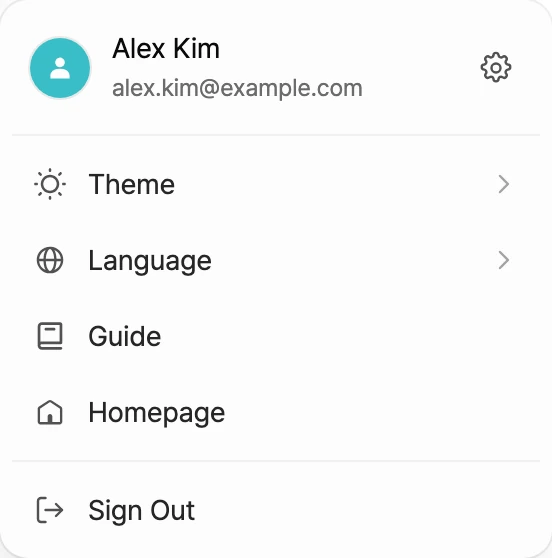
- Select your profile at the bottom of the sidebar.
- Under Language, choose English or Korean.
- Under Theme, choose System, Light, or Dark.
For more, see Account settings.
How do I cancel my subscription?
Canceling means moving your group down to Starter, the free plan.
- Go to Manage Group > Payment Management.
- On your current plan card, select Cancel subscription next to the next payment date.
- Continue through the prompt, choose a reason, and select Submit.
Your group switches to Starter on the next billing date. Until then, you keep your current plan's features and credits. If you change your mind, select Cancel Scheduled Change on the same screen.