Write your spec
Create a wireframe
Pick pages from a user flow to draw screen layouts, then regenerate single pages or edit them right on the canvas.
A wireframe turns the pages in your user flow into screen layouts. Pick the pages and the device, and AI draws a screen for each page. You can then regenerate only the pages you don't like, or fix text and placement yourself on the canvas.
Before you start
If you don't have a user flow yet, the Wireframe tab shows To create a wireframe, please create a user flow first. Select Go to Create User Flow and create a user flow first.
Generate a wireframe
- Open the Wireframe tab and select Generate wireframe. You can also open the same dialog from a version menu in the User Flow tab by selecting Create wireframe.
- Under User flow, pick the user flow to build from.
- Under Device, pick Desktop or Mobile.
- Under Pages to draw, pick the pages you want. Use Select all and Clear selection, or find pages with Search pages. If status screens are in the list, select Skip status screens to remove them all at once.
- To emphasize certain elements or a mood, add it under Additional request. For example: "Large buttons, simple tables."
- Check the device, page count, and cost in the What you'll get line.
- Select the button with your page count, such as Generate 5 pages.
While it runs, the canvas shows the current step and how many pages are done. You can open each page as soon as it's finished.
Browse pages
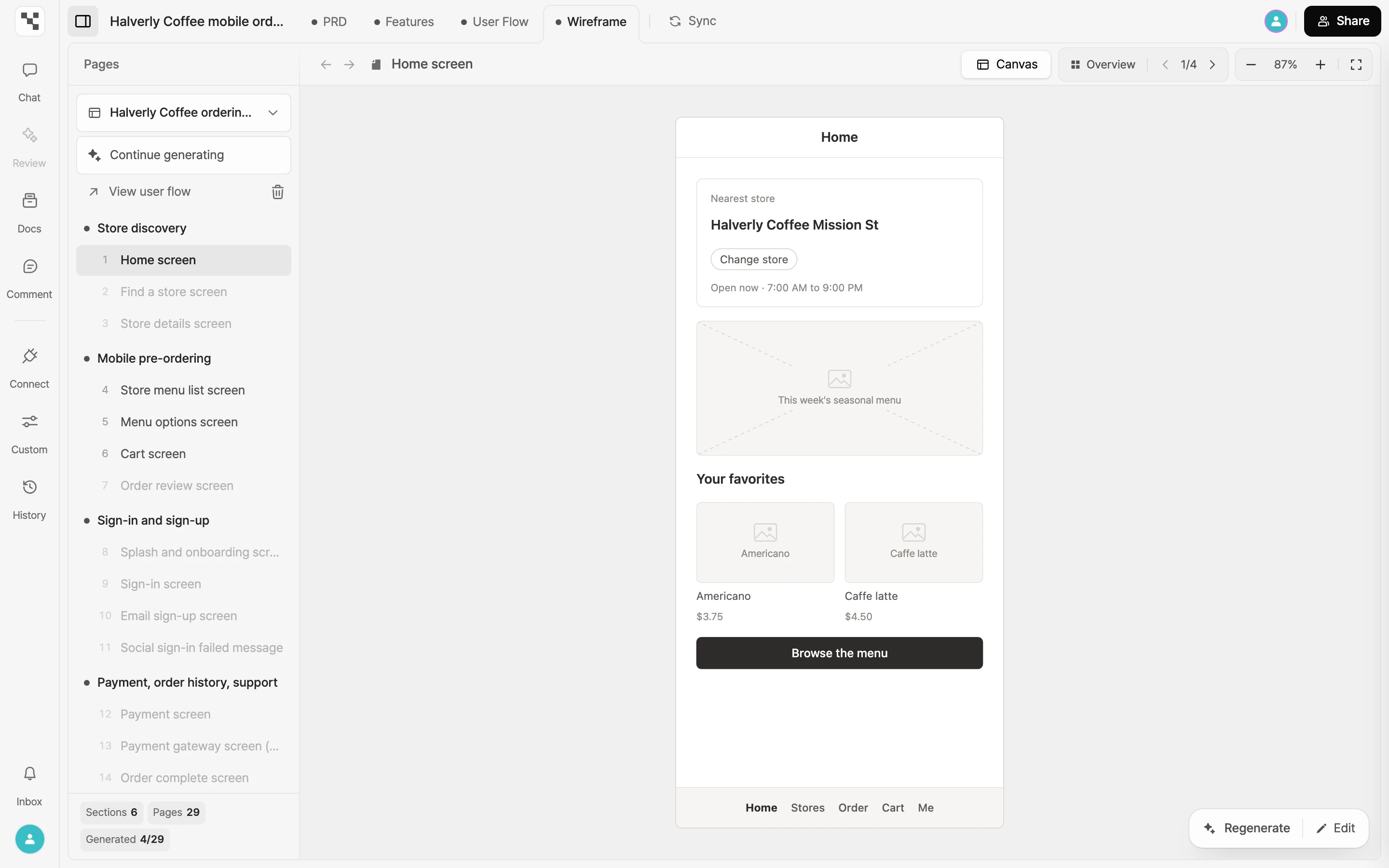
- Pick from the list: select a page in the navigator (Pages) to open it. Pages are grouped by section, and until every page is built, the summary below the list shows how many are done.
- Flip through: use the Previous page and Next page arrows at the top of the canvas.
- Overview: once every page you picked is finished, select Overview to lay out the finished screens on one board and follow the flow. Select One at a time to go back.
- Zoom: use the zoom buttons on the canvas or the shortcuts:
+to zoom in,-to zoom out,0to reset, andFto fit to screen. - Move between screens: select an element that leads to another page to jump there. If that page hasn't been made yet, you'll see This page hasn't been generated yet, and you can select Generate to make it right away.
- Back and forward: after you move to another page by selecting an element on the screen, use the Back and Forward arrows at the top of the canvas, or
⌥←and⌥→(WindowsAlt+←andAlt+→), to go through the pages you came from.
Add and rebuild pages
Continue generating
If your user flow still has pages without a screen, Continue generating appears in the navigator. Select it to open Continue building, where you can pick only the missing pages and add them to the same wireframe. The device stays the one you chose the first time.
Pages that couldn't be generated are marked Failed in the list. You can rebuild them with Continue generating too.
Regenerate one page
- Open the page you want to redo.
- Select Regenerate in the toolbar at the bottom right of the canvas.
- Describe what to change, or leave it empty to simply rebuild the page.
- Check what you have left, then select Regenerate. Every other page stays as it is.
To change the flow itself, such as adding or removing pages, update the user flow and then build a new version. Select View user flow in the navigator to open the user flow this wireframe came from.
Rebuild as a new version
- Select the wireframe name at the top of the navigator to open the version list.
- Select Create wireframe.
- Pick a user flow that already has a wireframe and you'll see Built · as a new version next to it. Pick pages and generate to add a new version. Earlier versions stay in the version list.
Edit directly
- Open the page and select Edit in the toolbar at the bottom right of the canvas.
- Click an element to select it, double-click to rename it, and drag to move it. Press
DeleteorBackspaceto remove the selected element. - If you make a mistake, select Undo (
⌘Z, orCtrl+Zon Windows) to undo the last edit on this page. - When you're finished, select Done.
Each edit saves as you make it. Done just ends edit mode.
Generation limits and credits
The What you'll get line in the generate dialog shows what this run will use, and both the generate and regenerate dialogs show your remaining free pages and credits. When you've reached the limit, Upgrade plan to generate more takes the place of the generate button.
Export and Figma
In the project menu at the top left, select Export > Export wireframe and choose Image (.png), HTML (.html), or Export to Figma. See Export and Send to Figma for details.