Plans and account
Compare plans
See the credits, seats, and features you get on the Starter, Pro, and Team plans, side by side.
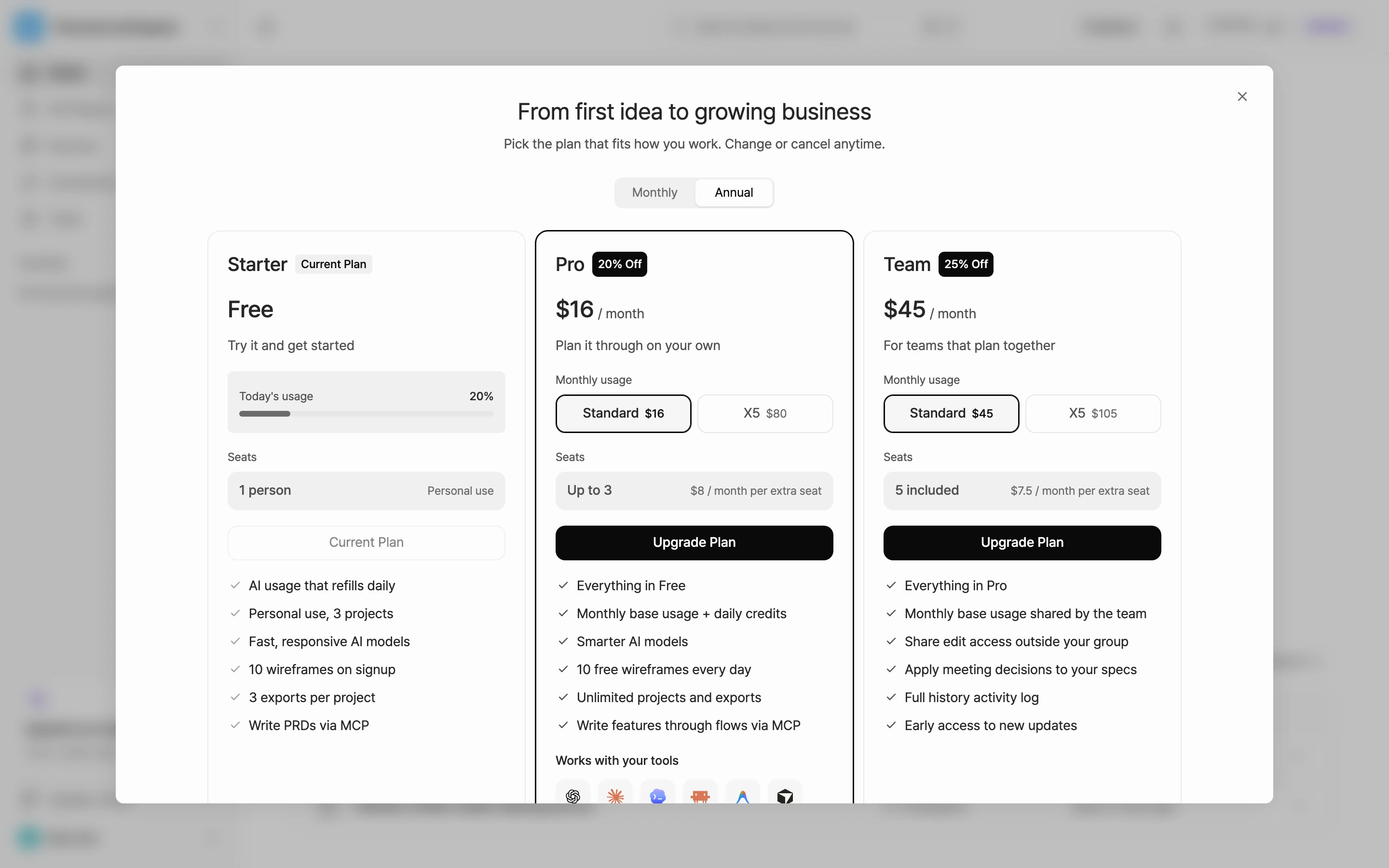
Manyfast has three plans: Starter (free), Pro, and Team. Use this page to compare the credits, seats, and features each plan includes. For prices, see Pricing.
Which plan is right for you
- Starter: Good for starting a spec on your own. Only the owner uses it.
- Pro: Good when you're making more projects and doing more work, or connecting outside AI tools like Claude Code and Cursor through MCP. Up to 3 people, including the owner.
- Team: Good when several people write specs together and want to apply decisions from Sources to the spec. Includes 5 seats, and you can buy more.
Side-by-side comparison
Credits and seats
| Feature | Starter | Pro | Team |
|---|---|---|---|
| Credits | 5,000 to start + 3,000 daily | 100,000 monthly + 3,000 daily | 100,000 monthly + 3,000 daily |
| Projects | 3 | 500 | 500 |
| Seats | Owner only (no invites) | Owner + up to 2 invites | 5 seats + add-ons |
- On Team, the whole group shares the monthly credits.
- For credit types and the order they're spent in, see Credits.
- Pro and Team can buy extra seats. Pro goes up to 3 seats. Team has no seat limit. To add seats, see Billing and subscriptions.
Project files
| Feature | Starter | Pro | Team |
|---|---|---|---|
| Reading limit | First 100 pages | 3,000 pages monthly | 3,000 pages monthly |
| Storage | 300 pages, 500MB | 5,000 pages | 5,000 pages |
- Each group has its own reading limit and storage. Files uploaded to every project in the group count toward them, and all members share them.
- Reading a file as text uses as many pages as the file has, all at once. A file with more pages than your remaining limit can't be read. A file with no readable text, such as an image-only scanned PDF, doesn't use your reading limit. For how pages are counted, see Upload project files.
- On Starter, the reading limit doesn't refill. On Pro and Team, it refills at midnight Korea time on the 1st of each month, and unused pages don't carry over.
- Storage counts the files currently uploaded, including files in projects in the trash. To free up space, delete files you don't use or permanently delete projects in the trash.
- A file with more pages than your remaining storage still uploads, but it can't be read and its card shows Failed. Once storage is full, you can't upload more files.
- On Starter, size (500MB) counts too. A file that would take you over 500MB can't be uploaded at all.
- Pro in this table is Standard usage. On Pro X5, your reading limit and storage are also 5 times larger (15,000 pages monthly and 25,000 pages of storage).
- Each file can be up to 50MB and 500 pages on every plan. Read with AI uses credits, not your reading limit.
Spec work
| Feature | Starter | Pro | Team |
|---|---|---|---|
| AI model | Standard | Advanced | Advanced |
| MCP connection | PRDs only | All features | All features |
| Wireframe generation | First 10 | 10 free daily, then credits | 10 free daily, then credits |
| Document export | 3 per project | Unlimited | Unlimited |
| AI instructions (Project customization) | Default output language and Chat tone | All fields | All fields |
| PRD form editing | Not included | Included | Included |
| Plan review lenses | Development only | All six | All six |
- On Starter, outside AI tools connected through MCP can write the PRD directly. To have them write requirements, features, specifications, and product policies directly, or approve requirement, feature, and specification suggestions, you need Pro or Team. Manyfast AI runs that use credits (chat and user flow generation) also work on Starter. To connect a tool, see Connect with MCP.
- On Starter, once you use your 10 free wireframes, you need to upgrade to make more. On Pro and Team, wireframes past the 10 free daily pages use credits.
- You set AI instructions in Project customization. On the Starter plan, you can change only Default output language and Chat tone. On Pro and Team, you can also use the other fields (Document style, Feature description format, Team glossary, Things to avoid, and Anything else to know). Apply to this project, which rewrites existing item descriptions to match your rules, is also available on Pro and Team.
Collaboration
| Feature | Starter | Pro | Team |
|---|---|---|---|
| Real-time collaboration | Solo use | Included | Included |
| Activity log history | Not included | Last 30 days | Full history |
| Sharing projects outside your group | View only | View only | View and edit |
| Sharing sources to the web | Not included | Included | Included |
| Apply decisions from Sources | Write sources and extract decisions | Write sources and extract decisions | Apply to your specs |
| Folder access control | Not included | Not included | Included |
| Issue tracker connections | Not included | Included | Included |
- To give people outside your group a view-only link, see Share with a link. To let them edit, see Invite external editors.
- To share a source with a link people can read without signing in, see Share a source outside your group.
- To apply decisions pulled from a source to your spec, see Apply decisions.
- To limit a folder to selected members, see Folder access. To connect tools like Linear or GitHub, see Issue trackers.
Choose 5x usage (X5)
On Pro and Team, you can pick Standard or X5 monthly usage. If you pick X5, the plan name becomes Pro X5 or Team X5.
- X5 gives you 5 times the monthly credits (500,000 a month).
- On Pro X5, the reading limit and storage for project files are also 5 times larger.
- Daily credits, seats, and features stay the same as Standard.
To choose X5:
- Open the plans window. The places to open it are listed in Billing and subscriptions.
- On the Pro or Team card, under Monthly usage, select X5.
- Select Upgrade Plan on the card to continue to payment.
Team trial
Eligible groups can try Team with the Team trial before paying for it. During the trial, you get every Team feature. For who can start a trial and how it works, see Team trial.
Enterprise
To roll Manyfast out across a company or institution, fill in the Talk to us form on the Enterprise page and select Send. Add your name, email, organization, and what you'd like to discuss, and agree to the collection and use of your personal data. Our team will review it and reply to the email you left.