Write your spec
Get to know the editor
Learn the editor layout, from document tabs and the top bar to the rail, navigator, project menu, and shortcuts.
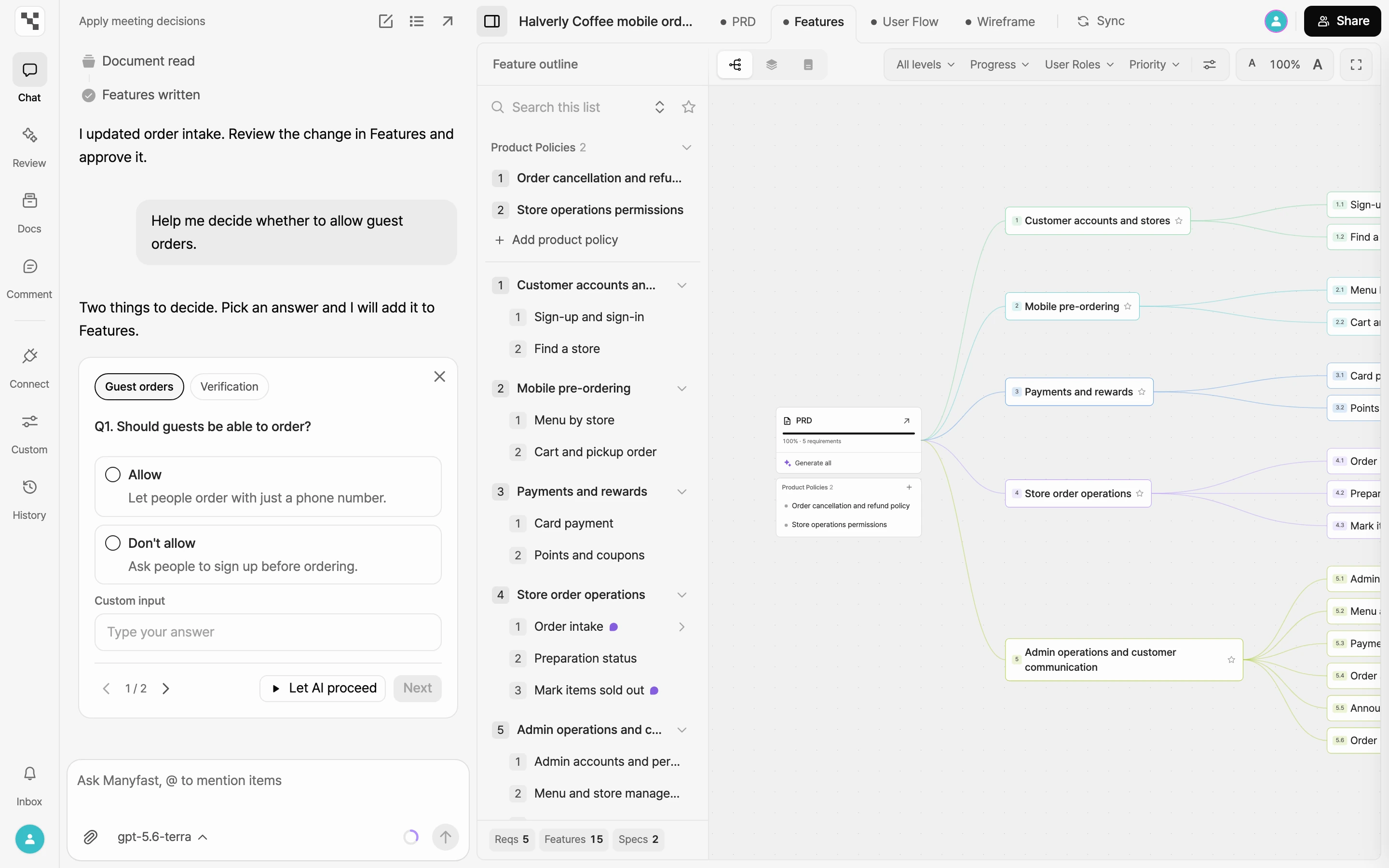
When you open a project, it opens in the editor. The editor is where you write and edit a project's spec: the PRD, Features, User Flow, and Wireframe. This page walks through each part of the screen and what opens when you click it.
Editor layout
The editor has five areas.
| Area | Where | What it does |
|---|---|---|
| Rail | Narrow column on the far left | Opens the project menu and tools like Chat and Review. Notifications and your profile sit at the bottom. |
| Tool panel | Right next to the rail | Shows the tool you picked on the rail. |
| Top bar | Across the top | Holds the document tabs, Sync, who else is here, and Share. |
| Navigator | Below the tabs, on the left | Shows an outline of the current tab. |
| Canvas | Right of the navigator | Where you view and edit the current tab. |
Switch between document tabs
The four tabs in the top bar are the four documents in your spec. Click a tab or use its shortcut. Hover over a tab to see its shortcut.
| Tab | Shortcut | What it holds |
|---|---|---|
| PRD | Shift+1 |
The product's goals, problems, audience, and success criteria |
| Features | Shift+2 |
Requirements, features, specifications, and product policies |
| User Flow | Shift+3 |
How users move between screens |
| Wireframe | Shift+4 |
Draft screens |
- While you're on the Features tab, click it again to cycle through the Graph, Directory, and Document views. See View as graph, directory, or document.
- When the top bar is narrow, tab names collapse into icons.
- In a new project, you can't switch tabs while AI writes the first draft. Tabs unlock when the draft is done.
Read the progress dots
The small dot to the left of a tab name tells you where that document stands. Filled dots and hollow circles appear only if you can edit the project.
| Dot | Meaning |
|---|---|
| Filled dot | This document already exists. |
| Hollow circle | It doesn't exist yet, but you can create it now, or the previous step is done and it's next in line. |
| Blinking blue dot | The PRD or Features has AI changes you haven't approved yet. |
When you see a blue dot, open that tab and review the suggestions. See Approve or reject AI suggestions.
Top bar
From left to right, the top bar holds:
- Show navigator (or Hide navigator): Opens or closes the navigator below the tabs.
- Project name: The name of the project you have open. It's hidden when the top bar is narrow.
- Document tabs: See Switch between document tabs above.
- Sync: AI uses one document as the source and fixes what doesn't match in another. You see it if you can edit the project. See Keep documents in sync.
- Who's here: Profile pictures of people who have this project open right now. Up to four appear, and the rest show as +N. Hover over a picture to see the name. See Edit together in real time.
- Share: Opens the project to other people. You see it if you can edit the project. See Share with a link.
Rail
Click an item on the rail to open its panel right next to the rail. Only one panel is open at a time. Click the open item again to close it.
| Item | What it does | Learn more |
|---|---|---|
| Logo | Opens the project menu. | Project menu |
| Chat | Write and edit your spec by talking with AI. | Plan with chat |
| Review | Get your spec reviewed from several perspectives. Works on the PRD and Features tabs. | Plan review |
| Docs | See what you've gathered for the project in the Notes, Decisions, Sources, and Files tabs. | Upload project files |
| Comment | See all comments in the project. | Comments and notifications |
| Connect | Connect your AI tools and issue trackers. | Connect AI tools (MCP) |
| Custom | Opens project customization, where you set the AI's tone, writing style, and team terms. | Customize the AI |
| History | Save versions, browse past versions, and restore them. | Versions and the activity log |
| Inbox | See your notifications. A badge shows how many are unread. | Comments and notifications |
| Profile | Opens your account menu, with settings, theme, and language. | Account settings |
- You can keep Chat docked next to the rail, or select Pop out to move it into its own window.
- Review only works on the PRD and Features tabs. Hover over it on another tab to see why.
- Custom only appears for group members.
- In a new project, only Chat is open while AI writes the first draft. Everything else except Inbox and your profile unlocks when the draft is done.
Navigator
The navigator is the outline that sits below the tabs on the left. Its content depends on the tab.
| Tab | Navigator | What it shows |
|---|---|---|
| PRD | Outline | Sections and fields. Click one to jump to it. The Edit form button is here too. |
| Features | Feature outline | Requirements, features, specifications, and product policies. You can search, add, and drag items here. |
| User Flow | Flows | Flows and their versions. |
| Wireframe | Pages | Sections and pages. |
- Select Show navigator on the left of the top bar, or press
Shift+`, to open or close it. - All four tabs share the same open or closed state. If you close it on one tab, it stays closed on the others. Your browser remembers this setting.
- Item counts appear at the bottom of the navigator.
Project menu
Click the logo at the top of the rail to open the project menu.
| Menu item | What it does |
|---|---|
| Project name | Shows the project name at the top of the menu. If you can edit the project, you can rename it right here. |
| All Projects | Leaves the editor and goes to your project list. |
| Project info | Opens the project info window. |
| Export | Exports the PRD, Features, User Flow, or Wireframe as a file. See Export your spec. |
| Credit Usage | Shows this group's credit history. See Check and top up credits. |
| Upgrade Plan | Opens plan checkout. It only appears when there's a higher plan to move to. |
| Keyboard Shortcuts | Lists the editor's shortcuts. |
| Guide | Opens the user guide in a new tab. |
Keyboard shortcuts
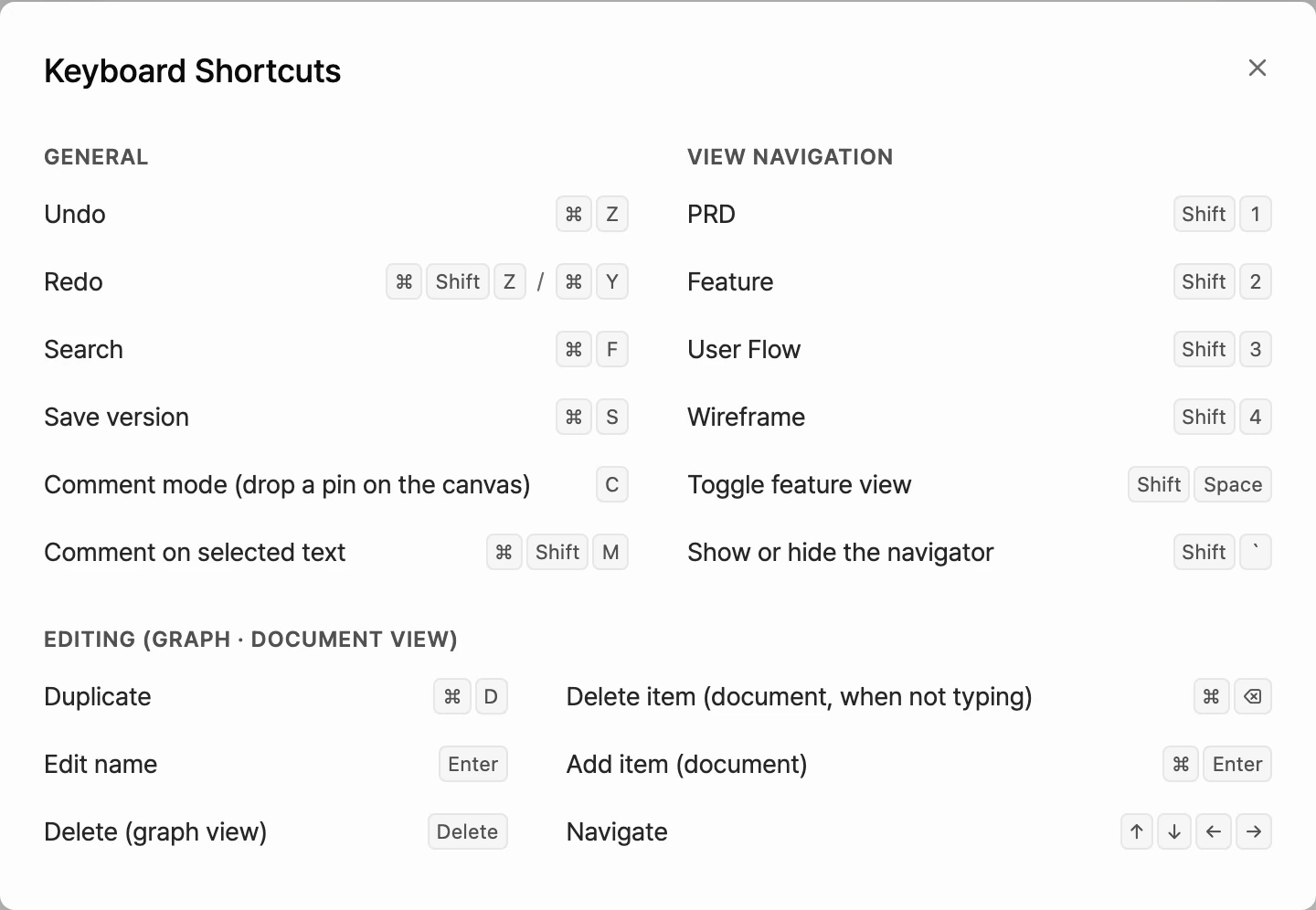
Select Keyboard Shortcuts in the project menu to see the full list. Use ⌘ on Mac and Ctrl on Windows. For example, ⌘Z is Ctrl+Z on Windows.
General
| Shortcut | What it does |
|---|---|
⌘Z |
Undo |
⌘⇧Z or ⌘Y |
Redo |
⌘F |
Jump to the search box on the Features tab |
⌘S |
Save the current state as a version |
C |
Turn comment mode on or off (drop a pin on the canvas) |
⌘⇧M |
Comment on the selected text |
View navigation
| Shortcut | What it does |
|---|---|
Shift+1 to Shift+4 |
Go to the PRD, Features, User Flow, or Wireframe tab |
Shift+Space |
Switch the Features view |
Shift+` |
Show or hide the navigator |
Editing
These work in the Graph and Document views of Features.
| Shortcut | What it does |
|---|---|
⌘D |
Duplicate |
Enter |
Edit the name |
Delete |
Delete the selected item (Graph view) |
⌘⌫ |
Delete the item (Document view, when you're not typing. Ctrl+Backspace on Windows) |
⌘Enter |
Add an item (Document view) |
| Arrow keys | Move between items |