Team and sharing
Roles and permissions
See what the group owner, admins, members, and viewers can do, and how to change someone's role or remove them.
Everyone in a group has one role. The role decides whether they can edit projects and use AI, and whether they can manage members and billing. You pick a role when you invite someone, and you can change it later.
The four roles
| Role | What they do |
|---|---|
| Group Owner | The person who created the group. Each group has one, and they handle billing and deleting the group. |
| Admin | Invites members, sets roles, and manages group details and folder access. |
| Member | Creates and edits projects and plans with AI. |
| Viewer | Views projects and leaves comments. |
Permissions by role
| What you can do | Group Owner | Admin | Member | Viewer |
|---|---|---|---|---|
| View projects | Yes | Yes | Yes | Yes |
| Leave comments | Yes | Yes | Yes | Yes |
| Create and edit projects and folders | Yes | Yes | Yes | No |
| Use AI | Yes | Yes | Yes | No |
| Write specs from a connected AI tool (MCP) | Yes | Yes | Yes | No |
| Invite members and approve join requests | Yes | Yes | No | No |
| Change member roles | Yes | Yes | No | No |
| Remove members | Yes | Yes | No | No |
| Edit group details | Yes | Yes | No | No |
| Change folder access (Team) | Yes | Yes | No | No |
| Permanently delete projects and folders in the trash | Yes | Yes | No | No |
| View billing details on Payment Management | Yes | Yes | No | No |
| Change the plan and manage payment methods and payment history | Yes | No | No | No |
| Buy extra credits and seats | Yes | No | No | No |
| Delete the group | Yes | No | No | No |
| Leave the group | No | Yes | Yes | Yes |
A few things to know:
- If a viewer tries to use AI, they'll see a message saying edit access is required. In connected AI tools, viewers can read specs but not write them. To set up a connection, see Connect AI tools.
- The group owner and admins can see every folder, whatever its access setting. Which folders members and viewers can see is set in Folder access.
- The group owner can delete the group rather than leave it. See Create and manage groups.
Change a role
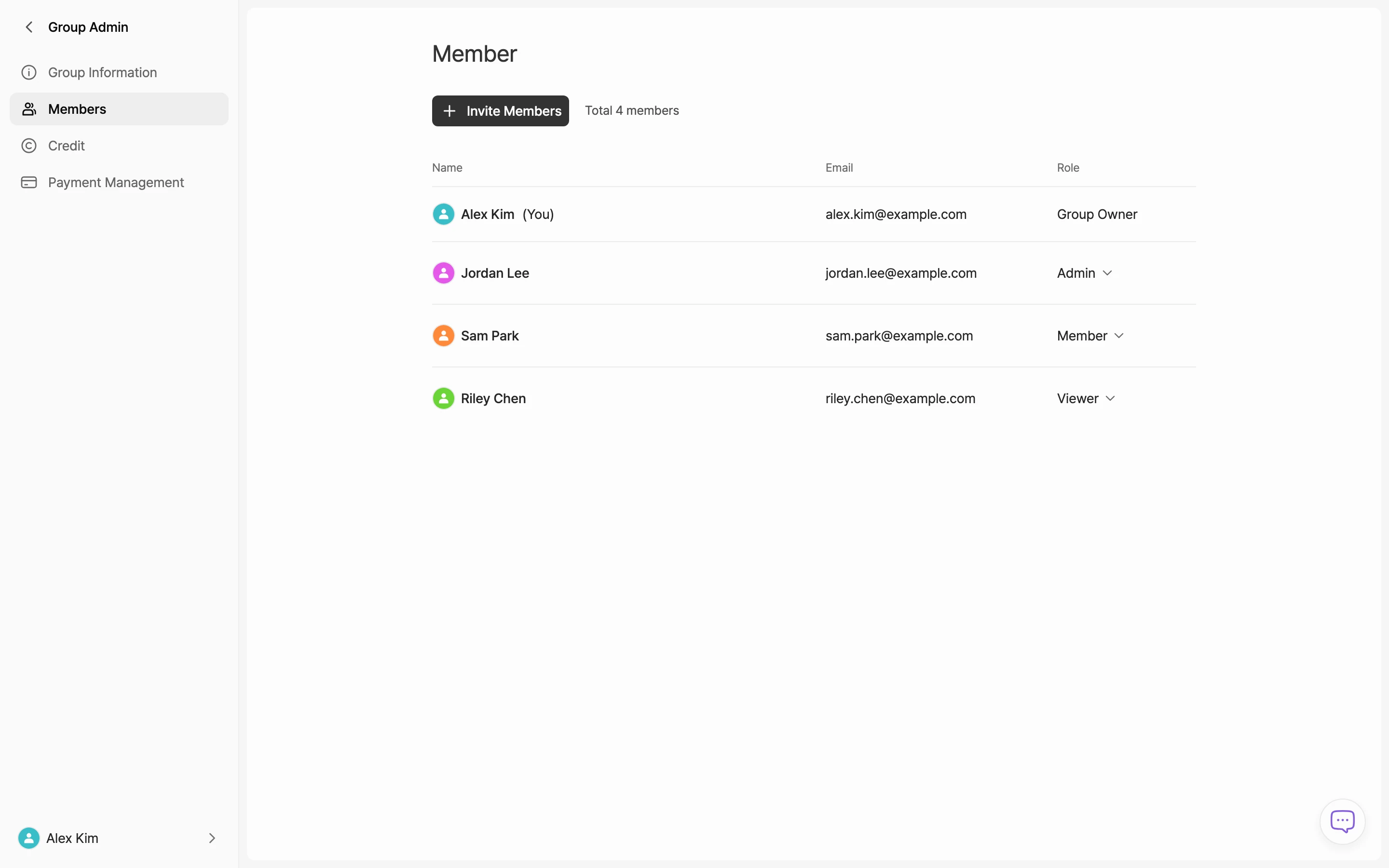
- In the group menu, click Manage Group, then go to Members in the left menu.
- In the person's row, click the Role cell.
- Choose Admin, Member, or Viewer. The change applies right away. However, project tabs the person already has open can keep working under the previous role until the connection drops.
Remove a member
- Go to Manage Group > Members.
- In the person's row, click the Role cell to open the menu. In a Starter group, click the more (⋯) button next to the role instead.
- Click Remove.
- In the dialog, click Remove.
You can remove anyone other than the group owner. To leave a group yourself, use Leave a group.
What access stays after removal
What happens to the person's access depends on the project:
- Projects they could open as a group member: They can no longer open or save these. However, tabs they already have open can keep saving until the connection drops, and share links that haven't expired or been deactivated keep opening in read-only mode.
- Projects they created or have owned, and projects shared with them individually: Their access stays. They can still open these from the project's URL or a connected AI tool, and edit them if they have edit access. Projects they didn't create also appear under Shared with me.
Either way, they can no longer use the group's credits for AI.
To end the remaining access:
- Projects the person created or currently owns: The group owner or an admin moves the project to the trash, then deletes it permanently. Access remains while the project is only in the trash.
- Other projects: If the project owner is still in the group, they click Remove access. If the project owner has left too, the group owner or an admin deletes the project permanently.
- Share links: Anyone who can edit the project can deactivate them.