Write your spec
Save versions and view activity
Save the current state of your project as a version, restore an earlier one when needed, and see who changed what.
A version is a snapshot of your whole project at one point in time. Save a version before a big change or a sync, and you can go back to that point if you don't like the result. The activity log shows who changed what, and when.
Open version history
Select History on the editor's left rail. The Version history panel opens with your saved versions, newest first. Each card shows:
- The version name. Versions without a name show a number, such as Version 3.
- When it was saved and who saved it
- A summary of what changed in that version, such as "Requirements: 2 added"
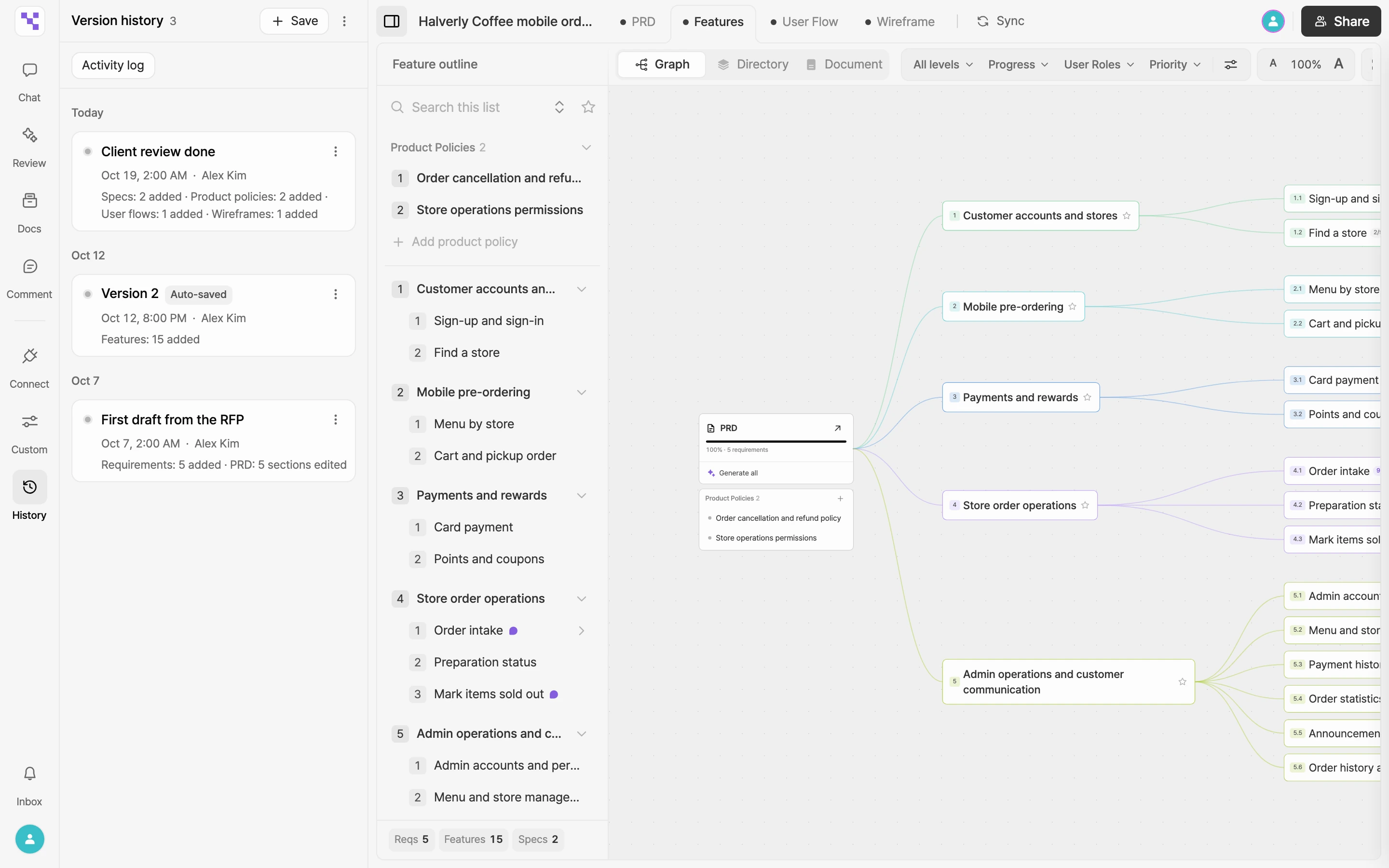
Save a new version
- Select Save at the top of the Version history panel.
- Under Version name (optional), enter a name that's easy to recognize, such as "Before dev handoff" or "PRD first review done". Leave it empty to save with a number.
- Select Save.
Press ⌘S (Ctrl+S on Windows) to save a version right away without opening the panel.
Auto-save
Manyfast also saves versions automatically while you work. These versions are marked Auto-saved. Use versions you name yourself as checkpoints your team agrees on, and auto-saved versions to retrace how the work went.
Rename and delete
- Rename: open the menu on the right of a version card, select Rename, and type a new name.
- Delete one: select Delete in the same menu.
- Delete several: in the menu at the top of the panel, select Select to delete, check the versions to remove, and select the button with the count, such as Delete 2 versions.
Restore an earlier version
- Select the card of the version you want to go back to. The card is selected and a Restore button appears. Selecting a card doesn't change your project.
- Select Restore.
- Read the notice in Restore version.
- To keep the current state too, select Save current state first. The dialog stays open after it saves.
- Select Restore.
The restore itself is added to the list as a new version, and its card shows which version it came from, such as "v3 → v8".
View the activity log
- Select Activity log at the top of the Version history panel. The Activity Log opens next to the version list.
- Each entry shows who changed which item, how, and when. Changes made with AI are marked AI.
- Select a version card to see only the activity between that version and the one before it, titled like Version 3 activity. Select Show all to see everything again.
If there's new activity since you last checked, the count appears next to Activity log. You can also find an Activity Log section at the bottom of each requirement, feature, spec, and product policy.