Team and sharing
Comments and notifications
Comment on items, sentences, and spots on the canvas, then wrap up discussions with replies, mentions, and resolve.
Comments let you attach feedback to a specific spot in your spec. When a question, review request, or suggested change sits right where it applies, everyone knows what it's about, and all of the project's discussion lives in one panel. Group members, external editors, and people with a share link can all comment.
Open the comments panel
Click Comment in the rail on the left side of the editor to open the Comments panel. It collects every comment in the project.
- Click a comment to jump to where it was left. The panel stays open, so you can move through comments one after another.
- Comments you haven't read yet have a purple dot right after their timestamp.
- Use the menu at the top right of the panel (Comment options) to turn Show resolved and Show comment pins on or off. Show comment pins appears only in User Flow, Wireframe, and the Graph view of Features.
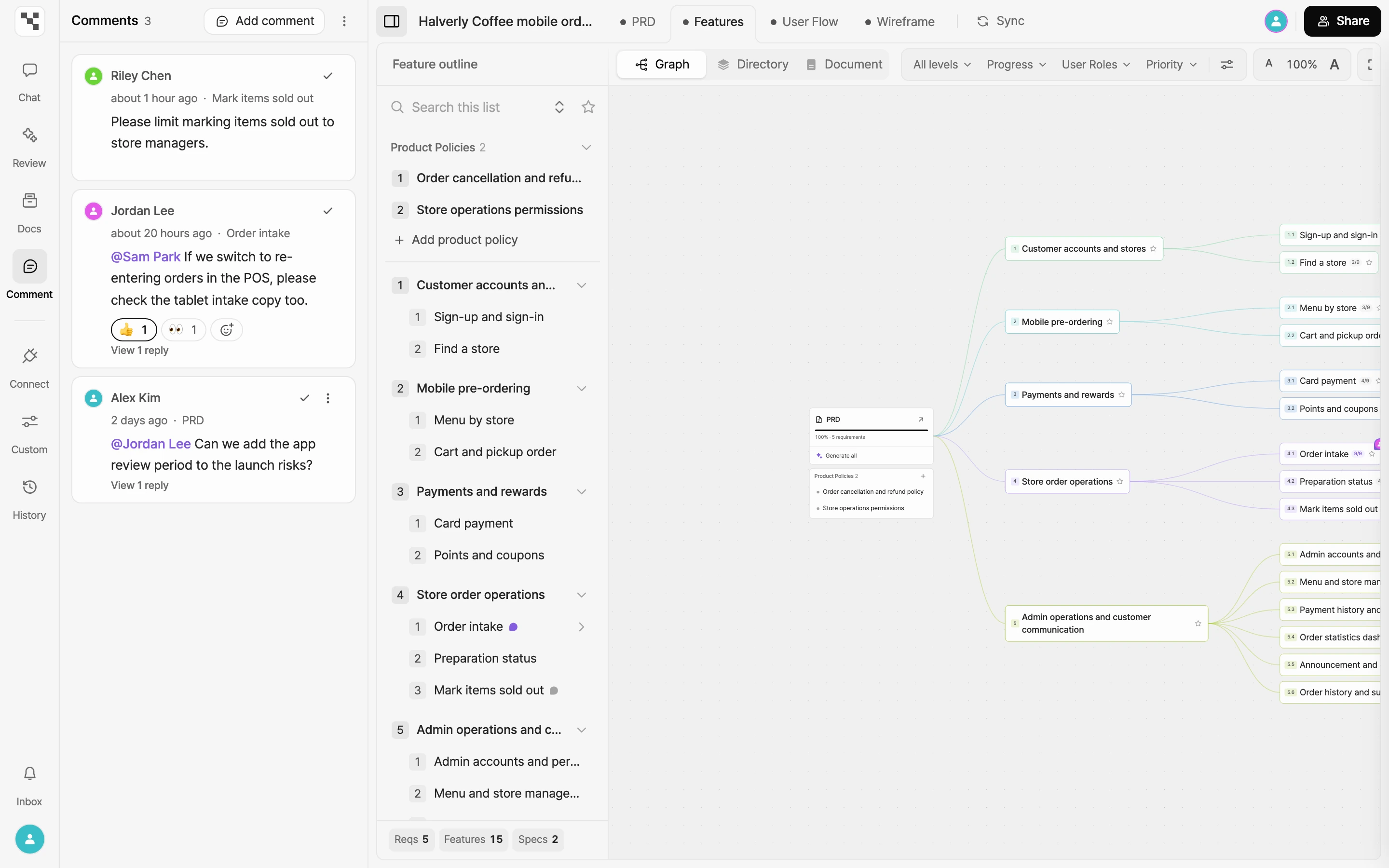
Add a comment
How you add a comment depends on the screen you're on. Wherever you are, type your comment and click Submit. Comments can be up to 5,000 characters.
Comment on an item
- PRD and the Document view of Features: Hover over an item and a comment icon appears next to its title. Click it to open the comment box.
- Directory view of Features: Open an item. The comment box is at the bottom of the detail pane on the right.
- Graph view of Features: Click Add comment at the top of the comments panel or press
C, then click the item you want to comment on. Its details open and scroll to the comment section.
Learn more about each view in View as graph, directory, or document.
Comment on a sentence
When your feedback is about one sentence in a longer description, attach the comment to that sentence.
- In the PRD body or an item's description in Features, drag to select the text you want to comment on. The selection has to stay within one item.
- Click Comment in the selection menu, or press
⌘⇧M(WindowsCtrl+Shift+M). - A Comment on text card opens with your selection quoted. Write your comment and click Submit.
Text with a comment stays highlighted. In the comments panel, click Go to text to jump to it. If the text is later deleted, the comment shows Original text deleted.
Drop a pin on the canvas
In User Flow and Wireframe, you drop a pin anywhere on the canvas and comment there.
- Open the User Flow or Wireframe tab.
- Click Add comment at the top of the comments panel or press
C. The panel shows Click where you want to comment. - Click the spot you want to comment on, write your comment, and click Submit.
- When you're done, click Add comment or press
Cagain to stop dropping pins.
If you haven't created a user flow or wireframe yet, Add comment is locked. Hover over it to see Generate content first.
Replies, reactions, and mentions
- Replies: Hover over a comment and Reply appears below it. Click it to open the reply box. If a comment already has replies, View N replies is always there instead. Click it to expand the replies and the reply box.
- Emoji reactions: Hover over a comment, click Add reaction, and pick an emoji. Click an existing reaction to add yours, and click your own reaction again to remove it.
- Mentions: Type
@in the comment box to open a list. Under People, pick a group member, or choose Everyone in group to notify everyone. The same list lets you link the PRD, requirements, features, specifications, and user flow or wireframe versions. Click a linked item in a comment to jump to it.
Resolve a discussion
When a discussion is done, click the check icon (Resolve) on the first comment in the thread. Resolved comments are hidden from the list.
- To see resolved comments again, turn on Show resolved in Comment options.
- To reopen a discussion, click the same check icon (Unresolve).
Resolving only changes the status of the discussion. It doesn't change your spec, so apply any decisions separately.
Edit or delete
A menu button appears only on comments you wrote. Choose Edit or Delete from it. Edited comments are marked edited.
Get notified
When someone mentions you in a comment, a notification arrives in your inbox. Click it to go straight to the comment.
- On the home screen or project list, click the bell button (Inbox) in the top bar.
- In the editor, click Inbox at the bottom of the rail.
To get emails too, change your account settings.
- Click your profile at the bottom of the sidebar, then click your name at the top of the menu to open settings.
- Open the Notification tab.
- Turn on Mention & reply emails. If you don't check mentions or replies right away, Manyfast emails them to you together a minute later.
For the other settings, see Change your account settings.
Work with AI
In chat, you can ask AI to read, add, reply to, or resolve comments. For example: "Read the unresolved comments and draft changes to apply to Features." Comments written by AI are labeled AI. To learn more about chat, see Plan with chat.
Next steps
- Share with a link: Show your spec to people outside your group and collect their comments.
- Edit together in real time: Open the same project at the same time and edit together.
- Plan with chat: Ask AI to apply what was decided in comments.
- Change your account settings: Change your notification email settings.