Get started
Organize projects and folders
Find projects in All Projects, sort them into folders, and restore or permanently delete items from the trash.
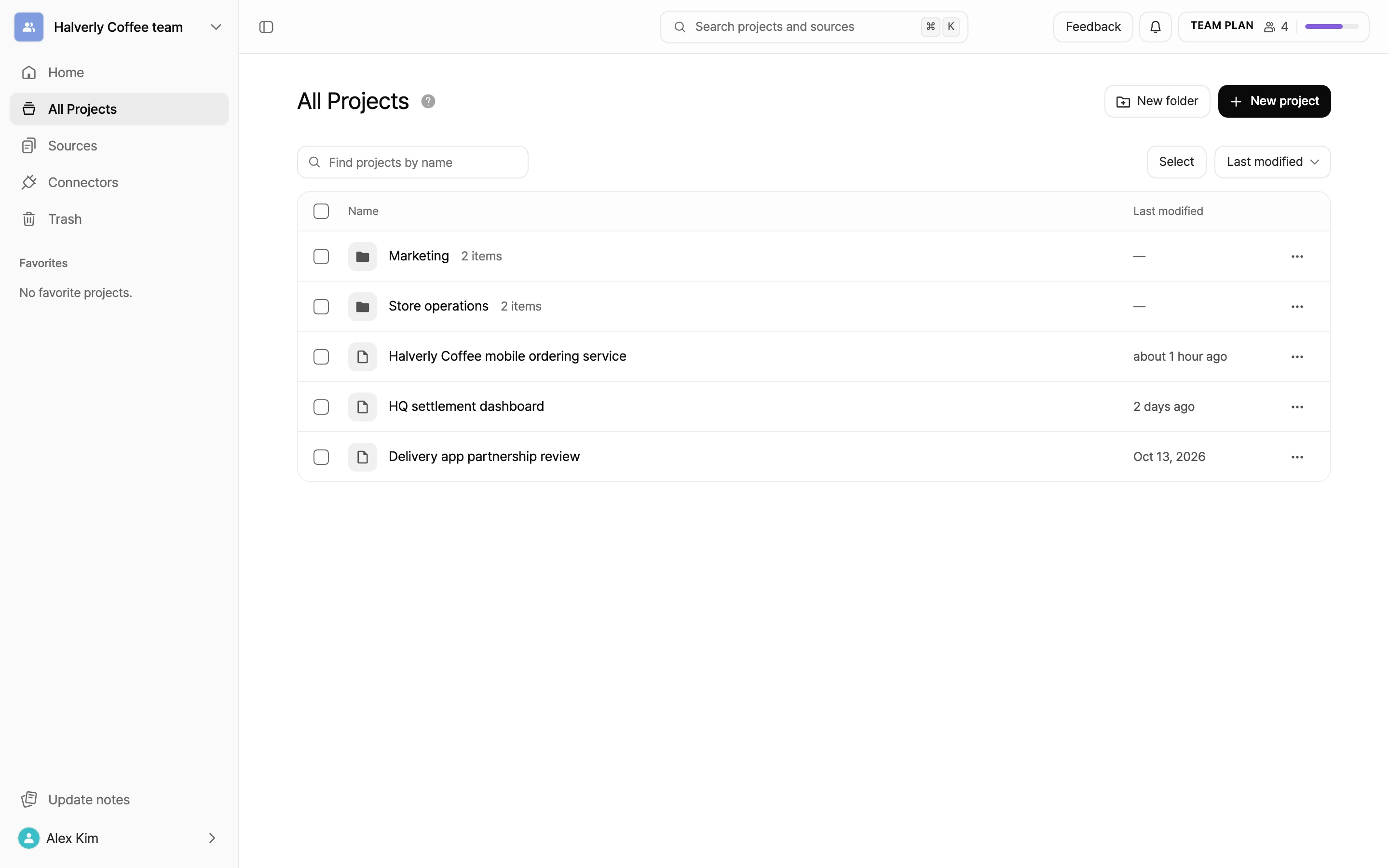
All Projects in the sidebar shows your group's projects and folders in one table. Find projects by name, group them into folders, and move what you no longer need to the trash. You can restore anything in the trash later.
Select the question mark next to the title (How to use projects) to open Ways to use projects. While the top-level list is empty, the same tips show right on the screen, except for viewers.
Find and sort projects
- Type in Find projects by name. Search covers every folder, not just the one you have open. While you search, the Location column shows which folder each project is in.
- Use the sort menu to choose Last modified or Name. Folders always stay at the top, sorted by name.
- The table shows each item's Name and Last modified date.
- Hover over a row to see the star (Favorite) next to the name. Select it to add that project to Favorites in the sidebar. Select it again to remove it.
Projects someone in another group shared with you for editing show up separately under Shared with me at the top of All Projects. You can't put shared projects into folders. Learn more in Invite external editors.
Project menu
Select the menu button (⋯) on a project row to see these options.
| Option | What it does |
|---|---|
| Project info | See when the project was created and who owns it, and change the Project title and Thumbnail. The project owner and the Group Owner can also change the Project learning option. The project owner can hand ownership to another member with the pencil button next to the owner. |
| Move | Move the project to another folder. In Choose a destination, pick a folder and select Move here. |
| Duplicate project | Make a copy in the same group. The copy is named Duplicate of (original title). |
| Duplicate to another group | Send a copy to another group. See below for details. |
| Move to trash | Move the project to the trash. |
You can also drag a project row onto a folder row to move it into that folder.
Duplicate to another group
- In the project menu, select Duplicate to another group.
- Enter the ID of the group that should receive the copy. You can copy a group's ID from that group's management page. See Copy the group ID.
- Select Request copy.
If you belong to that group, the copy happens right away. If you don't, a manager of that group gets a notification and has to accept the request before the copy is made.
Move or delete several items at once
- Select Select above the table, or check the box on a row. You can also hold
⌘(WindowsCtrl) orShiftwhile clicking rows, or drag from an empty spot to draw a box around several rows. - The bar at the top shows N selected. To pick everything, select Select all.
- Select Move to move the items to another folder, or Move to trash to send them to the trash. You can mix folders and projects.
- Select Cancel to stop selecting.
There's a limit to how many items you can move to the trash at once. If you have a lot, move them in smaller batches.
Organize with folders
- Select New folder. A New folder appears inside the folder you have open, with its name ready to edit.
- Type a name and press
Enter. PressEscto keep the default name. - Select a folder row to open it. Select a folder in the path at the top to go back up.
- Inside a folder, select New project to create a project in that folder.
You can create folders inside folders to add more levels. The menu button (⋯) on a folder row has these options.
| Option | What it does |
|---|---|
| Rename | Change the folder's name. |
| Move | Move the folder into another folder. |
| Folder info | See Created, Created by, Location, and Contents, and change the Folder name and Access. |
| Delete | Move the folder to the trash. Everything inside, including projects and subfolders, goes with it, and you can restore the whole folder from the trash. |
Trash
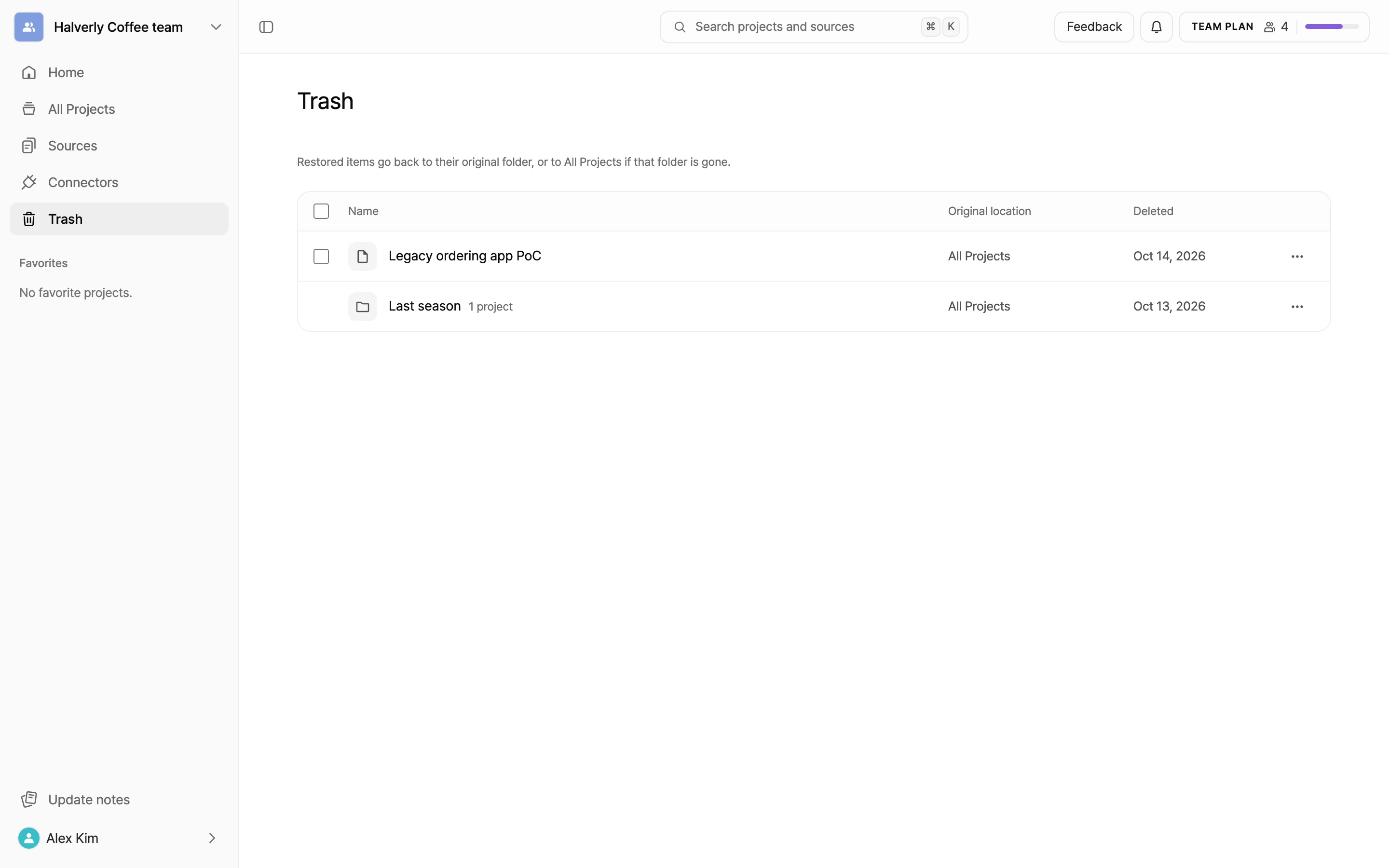
Trash in the sidebar holds the projects and folders you moved to the trash. The table shows each item's Name, Original location, and the date it was Deleted.
Restore items
- Select the menu button (⋯) on the row you want to restore, then select Restore.
- To restore several projects, check their boxes and select Restore in the bar at the top.
Restored items go back to their original folder, or to All Projects if that folder is gone. When you restore a folder, the projects that went to the trash with it come back too. A restore won't go through if it would put your group over its project limit.
Delete permanently
- From a row's menu button (⋯), select Delete permanently. To delete several projects, select them and choose Delete permanently in the bar at the top.
- In the confirmation window, select Delete permanently again.