Help
Troubleshooting
Fixes by symptom for when AI replies stop, generate buttons don't respond, files aren't read, or connections fail.
When something doesn't work the way you expect, find the symptom below and work through the checks in order. Messages you see on screen are in bold, exactly as they appear. For short questions and answers, see the FAQ.
AI and credits
AI replies stop or fail
If a chat reply cuts off or an error card appears, check the card's title and do the following.
| Card title | What to do |
|---|---|
| Internet connection lost | Check your connection and select Retry. Your draft is kept. |
| Temporary server issue | Select Retry in new chat. Your last message is filled into the new chat's input. |
| Response timed out | Select Retry in new chat, or send your request in shorter pieces. |
| Another AI task is in progress | Wait for the user flow generation or document analysis to finish, then try again. |
| Couldn't complete the request | Select Retry, or break your request into smaller steps. |
| Something went wrong | Select Retry in new chat. If it keeps happening, refresh the page. |
If a large task pauses after reaching a limit, you'll see The task paused after reaching a limit above the chat box with a Continue working button. Select it to pick up the remaining work.
To stop a reply yourself, select the stop button (Stop generating) that replaces the send button while AI is replying. A Response stopped line stays in its place. To ask again, send your message again.
You're out of credits
When your credits run out, a notice appears above the chat box.
- You've used up today's credits: Daily credits refill every day at midnight Korea Standard Time (KST). To keep going right away, select Upgrade plan or Buy credits.
- You've used up your credits: Select Buy credits to keep going right away.
To see what's left, select the plan badge button in the top bar to open the Credits panel. To see where credits went, go to Manage Group > Credit and check Credit Usage History.
You see a message that you can't use AI
When No permission to use AI appears, the message underneath tells you why.
- AI isn't available in a project where you only have view access: You can only view this project, and AI needs edit access. If you're a viewer in the group, ask the group owner or an admin to change your role to member or higher. If the project was shared with you as view-only, ask the project owner for edit access. See Roles and permissions for what each role can do.
- You don't have permission to use AI credits in this project: You're an external editor this project was shared with from outside the group. Ask the project owner to turn on Allow AI credit usage for you. See Invite external editors for details.
If you open the editor on your phone, the chat area shows Chat is available on a computer. Select Get link for computer and continue on a computer with the same account.
Generation and review
The user flow or wireframe generate button doesn't respond
To create a user flow, all of these need to be true.
- Your PRD overview and Features have content. If they're empty, you'll see Please write PRD and feature specs first. Use Write PRD or Write feature items to jump to those tabs.
- You're on a computer. On a phone, you'll see Please use desktop to generate.
- You have edit access to the project. Viewers and people opening a share link can't generate.
- You have credits left. If not, you'll see Insufficient credits.
- No other AI task is running. If one is, you'll see Another AI task is in progress. Please try again after it finishes.
A wireframe is built from a user flow.
- If there's no user flow yet, you'll see To create a wireframe, please create a user flow first. Select Go to Create User Flow and make one.
- You need a computer and edit access. Without edit access, you'll see Read-only view.
- If the button in the generate dialog is locked, the reason appears at the right end of the summary line. Free pages used up means you've used all the pages you can generate for free. If you're short on credits, it shows how many you're missing. If you picked more pages than your free allowance, it shows how many you're over. Pick fewer pages, add credits, or upgrade your plan.
For full steps, see User flow and Wireframe.
Plan review won't start
If Review in the rail is grayed out or a review doesn't start, check these.
- You're on the PRD or Features tab. On other tabs, you'll see Review works on the PRD and Features tabs only.
- Your plan has at least 3 items. If not, you'll see A review needs at least 3 spec items. Add a bit more to your PRD, requirements, or features.
- You have edit access, and the first draft of a new project has finished.
- You have credits left. If not, you'll see Not enough credits to start the review. with Add credits / view plans.
- No review is already running. If one is, you'll see A review is already in progress. Please try again shortly. Wait for it to finish.
For details, see Get a plan review.
Files and connections
A file isn't being read
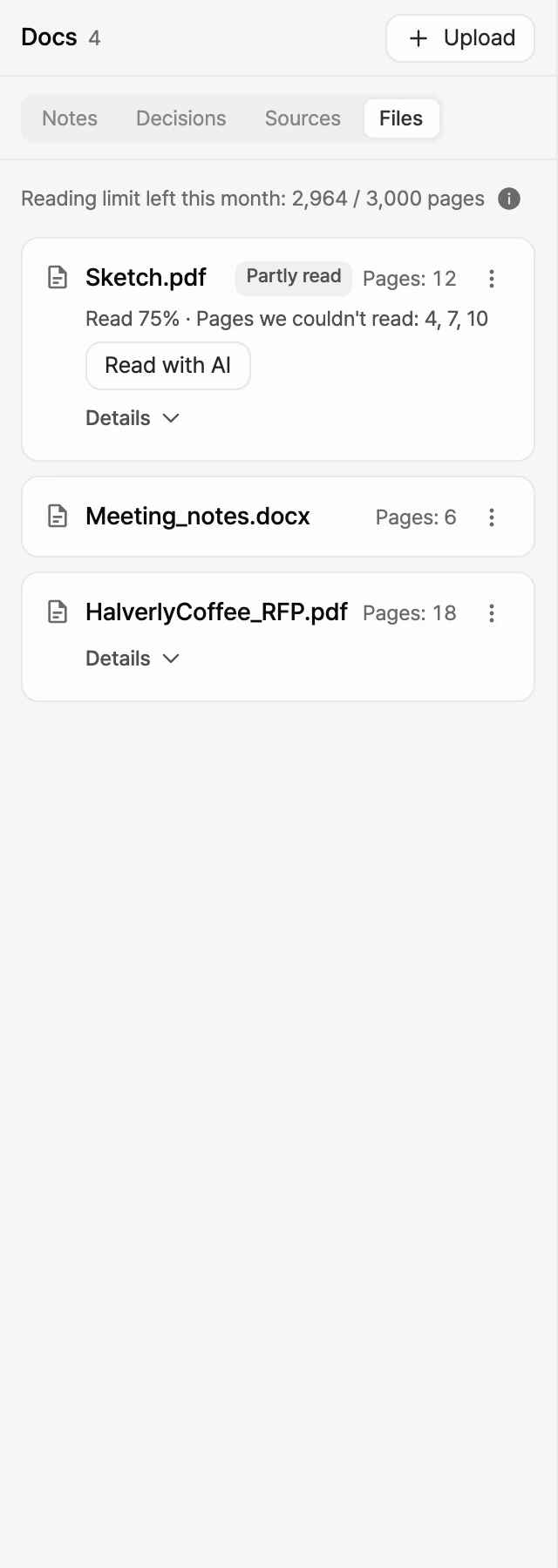
Upload project files and check their status in the editor rail under Docs > Files. The status on each card helps you narrow down the cause.
If the upload is rejected right away
- This file type can't be uploaded: Upload one of the file types listed in the message.
- The file is larger than 50MB: Split it into files of 50MB or less.
- This file is empty: Choose a file with content.
- You don't have permission to upload files: Ask a member with edit access to upload it.
If the card changes to Failed, follow the reason shown under the card.
- For a password-protected file, remove the password and upload it again.
- For a damaged or mismatched file, save it again in the original app and upload it.
- For older .xls, .doc, or .ppt files, save them as .xlsx, .docx, or .pptx and upload them again.
- If the file is too large or takes too long to read, split it. A single file can be read up to 500 pages.
If the card says Partly read, or the pages are images
- Select Read with AI on the card.
- In AI reading quote, check the pages to read and the credits.
- Select Start AI reading. The read rate on the card updates when it's done.
AI reading is available only on files whose card shows Read with AI, and it uses credits. You're charged only for pages that are actually read, and the rest is returned.
If you hit a limit
- You've used up your file reading limit: Upgrade your plan to read more. On plans that refill monthly, the limit refills on the 1st of next month. Your uploaded files are kept. To compare limits by plan, see Compare plans.
- This exceeds your storage limit: Delete files you don't use, or ask the group owner or an admin to permanently delete projects in the trash, then upload again.
You can attach one file at a time to a chat. For supported formats, see Attach files. For details, see Upload project files.
Your AI tool connection expired or shows an auth error
If the Manyfast sign-in window opened from ChatGPT, Claude, Cursor, or another AI tool shows an error, follow the message.
-
The Manyfast connection saved in your AI tool has expired or can no longer be used.
- Close the window.
- In your AI tool, clear the sign-in details for the Manyfast connection.
- Connect again.
In Claude Code, select Copy command to copy the command shown in the window, run it in your terminal, then reconnect. With the default connection name, the command is
claude mcp logout manyfast. If you added the connection under a different name, use that name instead ofmanyfast. -
Invalid authentication request: Close the window and start a new connection from your AI tool.
-
Connection denied: You didn't approve the connection. When you're ready, start a new connection from your AI tool and select Connect with this account.
To connect a different account, select Sign in with a different account instead of Continue with this account in the sign-in window.
For setup steps per tool, see Connect your AI tools.
Google sign-in doesn't work in an in-app browser
If you open the sign-in page in the built-in browser of an app such as KakaoTalk, Naver, or Instagram, you'll see Please open in a browser and Google Sign-In is not supported in this in-app browser. Try one of these.
- Follow the steps shown for your app to open the page in another browser. In KakaoTalk, for example, tap ··· at the top right and select 'Open in other browser'.
- If you see an Open in browser button, select it.
- Select Copy link and paste it into the address bar in Chrome or Safari.
- If you signed up with email, sign in with email on the same screen.
For sign-up and sign-in steps, see Sign up and sign in.
The tutorial won't open on your phone
The tutorial is built for hands-on use on a computer. On your phone, you can preview tutorials from Home.
If your phone shows Open the tutorial on a computer:
- Select Email me the link to get the link by email, or Copy link and save it in a note. Email me the link appears only when you're signed in.
- Open the link on a computer and sign in with the same account.
To preview on your phone instead, select Go home. For what the tutorial covers, see Take the tutorial.
Still stuck?
- On Home or All Projects, select Feedback in the top bar.
- In Send Feedback/Inquiry, set the feedback type to Bug Report.
- Fill in Title and Content. Describe what you were doing, what went wrong, and any message you saw.
- Select Submit.
We'll reply through your inbox and by email.