Get started
Tour the workspace
See what's in the sidebar, top bar, and Home, and where to go to open each part of Manyfast.
When you log in, you'll see the sidebar on the left, the top bar across the top, and Home in the middle. This page walks through each area on a computer screen and what you can open from it. For the editor you see when you open a project, see Editor layout.
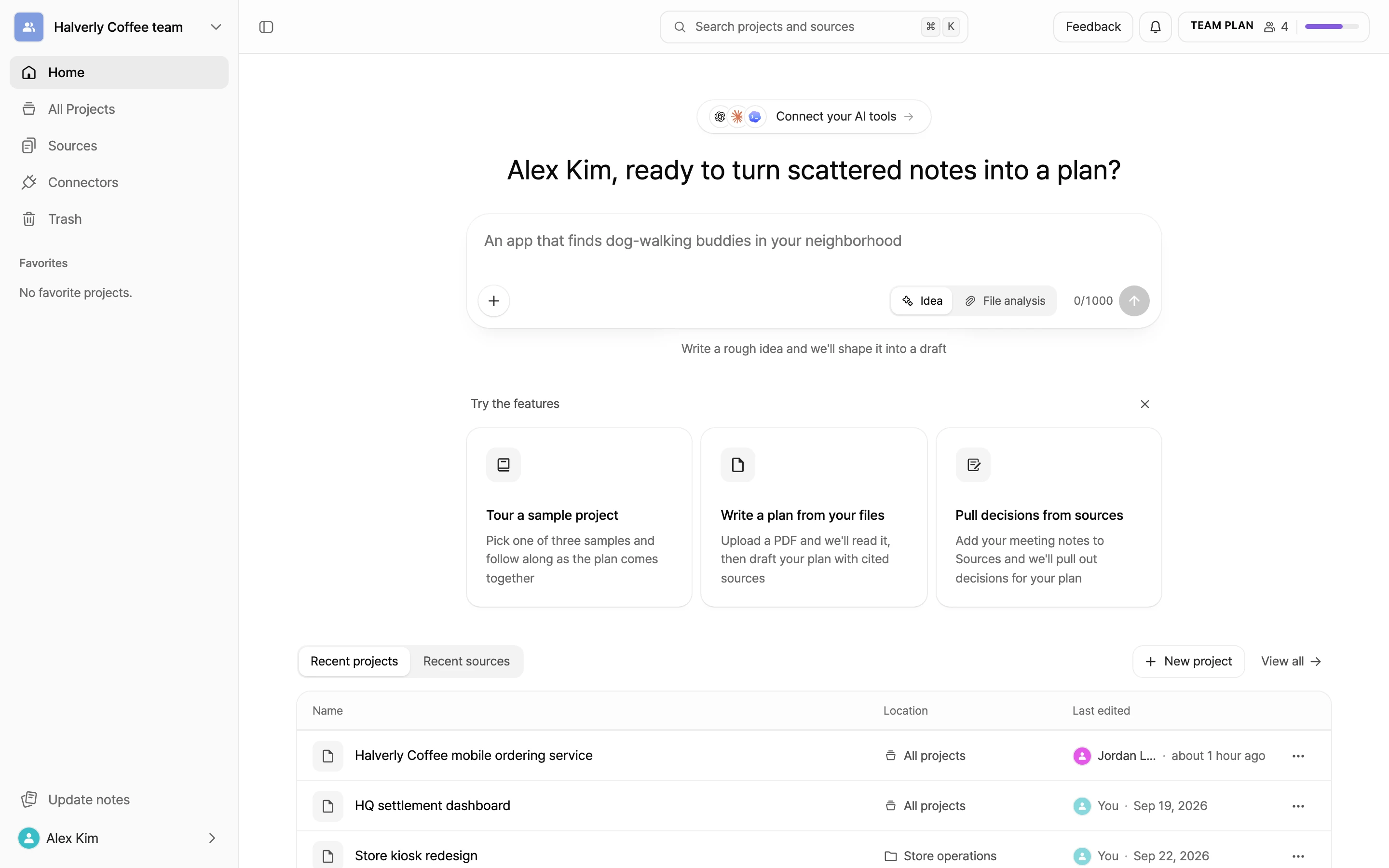
Sidebar
From top to bottom, the sidebar has these items.
| Item | What it does |
|---|---|
| Group picker | At the very top. Check which group you're in, switch to another group, or create a new one. See Create and manage groups. |
| Home | Your starting screen, with the input box and recent items. |
| All Projects | A table of your group's projects and folders. See Organize projects and folders. |
| Sources | Sources your whole group shares. See Keep sources in Sources. |
| Connectors | Connect AI tools and issue trackers to Manyfast. The Connectors screen opens on Home. See Connect AI tools. |
| Trash | Restore or permanently delete projects and folders you moved to the trash. |
| Favorites | Projects you've starred, ready to open. |
| Update notes | News about new features. A marker appears when there's something you haven't read. |
| Account | Select your profile at the bottom to find Theme, Language, Guide, Homepage, Sign Out, and a settings button. See Account settings. |
Groups on the free plan also see an upgrade prompt near the bottom of the sidebar.
Collapse the sidebar
Select Collapse sidebar at the left end of the top bar, or press ⌘\ (Windows Ctrl+\), to shrink the sidebar to a narrow strip of icons. Do the same to expand it again. While it's collapsed, hover over an icon to see its name.
Top bar
The top bar sits above Home, All Projects, Sources, and Trash. From left to right, it has:
- Collapse sidebar: collapse or expand the sidebar.
- Search projects and sources: find projects and sources in the current group.
- Feedback: send the Manyfast team a feature request, bug report, or billing question. You'll get replies in your inbox and by email.
- Notifications (bell): see group invitations, comment mentions and replies, mentions in sources, shared projects, and more. A dot appears on the bell when you have unread notifications.
- Credits and plan: shows your plan badge, member count, and a bar for remaining credits. Select it to see the details.
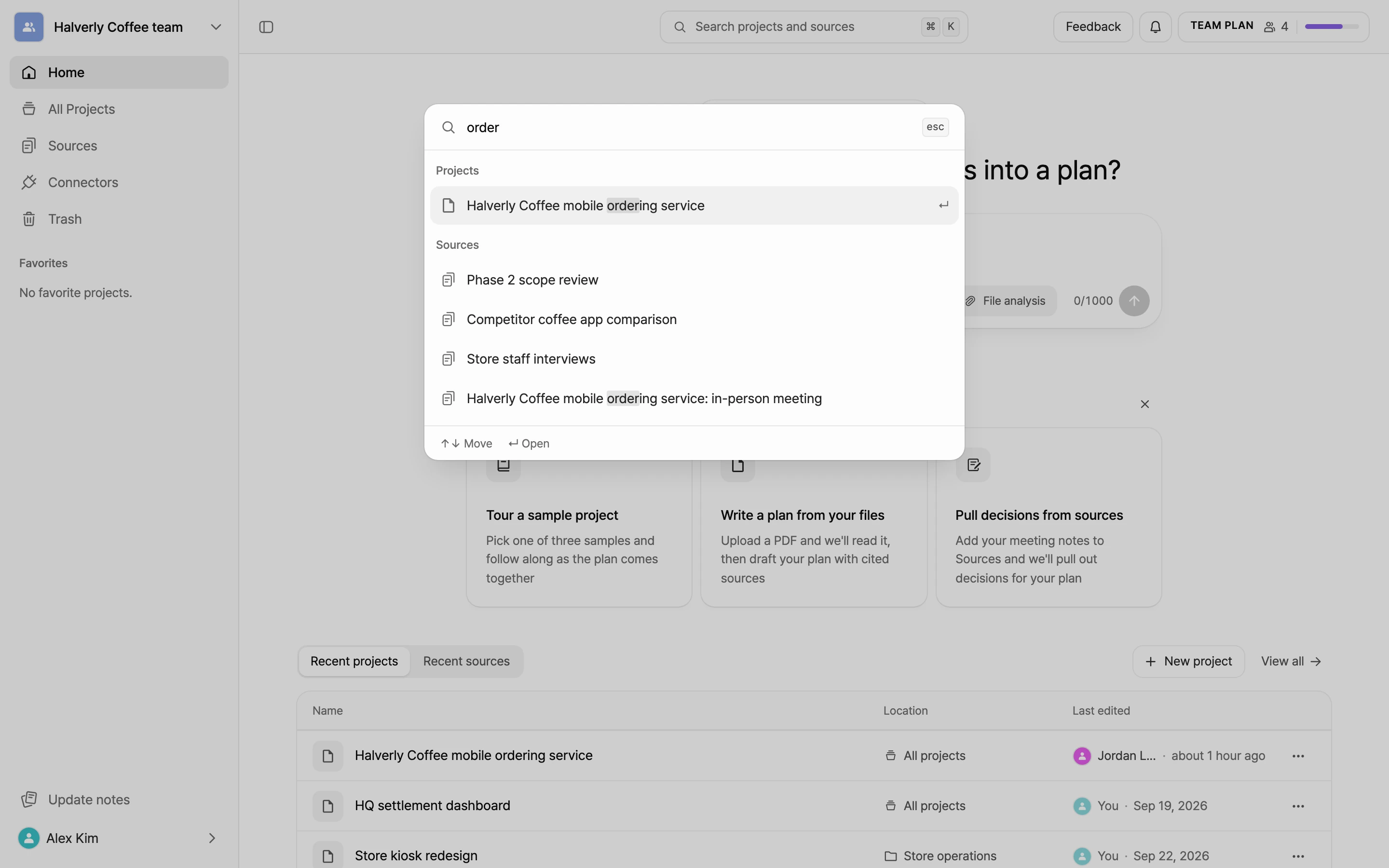
Search projects and sources
- Select Search projects and sources in the top bar, or press
⌘K(WindowsCtrl+K). - Type the name of a project or source. Sources also match words in their body. Results are split into Projects and Sources, with up to 6 in each.
- Use
↑and↓to choose a result and pressEnterto open it. PressEscto close search.
Before you type, search shows your Recent projects and Recent sources.
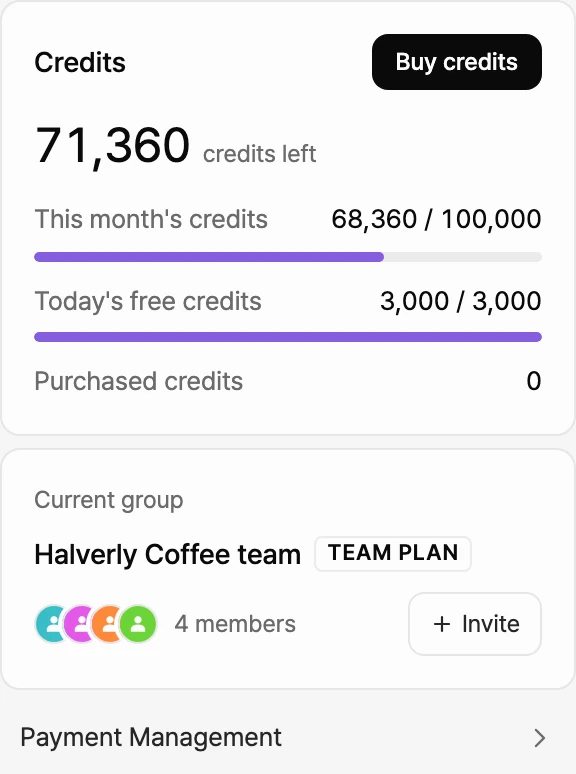
Credits and plan
Select the credits and plan button at the right end of the top bar to see:
- credits left: the total credits you can use right now. Below it are the rows that apply to your group: This month's credits, Today's free credits, and Purchased credits.
- Main button: Upgrade on the free plan, or Buy credits on a paid plan.
- Current group: your group's name, plan badge, and member avatars. Group Owners and Admins also see Invite.
- Payment Management: go to your group's billing page.
See Check and buy credits for where credits go and how to top up.
Home
From top to bottom, Home has:
- Connect your AI tools: opens the Connectors screen.
- A greeting and the input box: start a new project from an idea or your files. See Create your first project.
- Tutorial row: shows Start tutorial if you can't see any projects, folders, or sources in your group yet, or Resume tutorial if you have one in progress. See Take the tutorial.
- Try the features: cards for Tour a sample project, Write a plan from your files, and Pull decisions from sources. If you select the X at the top right (Dismiss feature cards), they stay hidden in this browser.
- Recent projects and Recent sources tabs: show up to 4 recent items. Use New project (New source on the sources tab) to create one right away, or View all to see the full list. These tabs appear once you can see at least one project, folder, or source in your group.