Export and connect
Connect an issue tracker
Connect Linear, GitHub, Jira, or monday.com and turn spec items into issues from Chat.
Connect an issue tracker to turn requirements and features from your spec into issues right from Chat. The AI drafts the issues, and nothing is created in your tracker until you review and approve it on an approval card. You can connect Linear, GitHub, Jira, and monday.com.
Open the connection screen
- Click Connectors in the sidebar. In the editor, you can also click Connect in the left rail.
- Open the Project management tab.
- Pick the tracker you want to connect. Its status (for GitHub, the repository and token fields), the Connect button, and How to use it after connecting appear on the right.
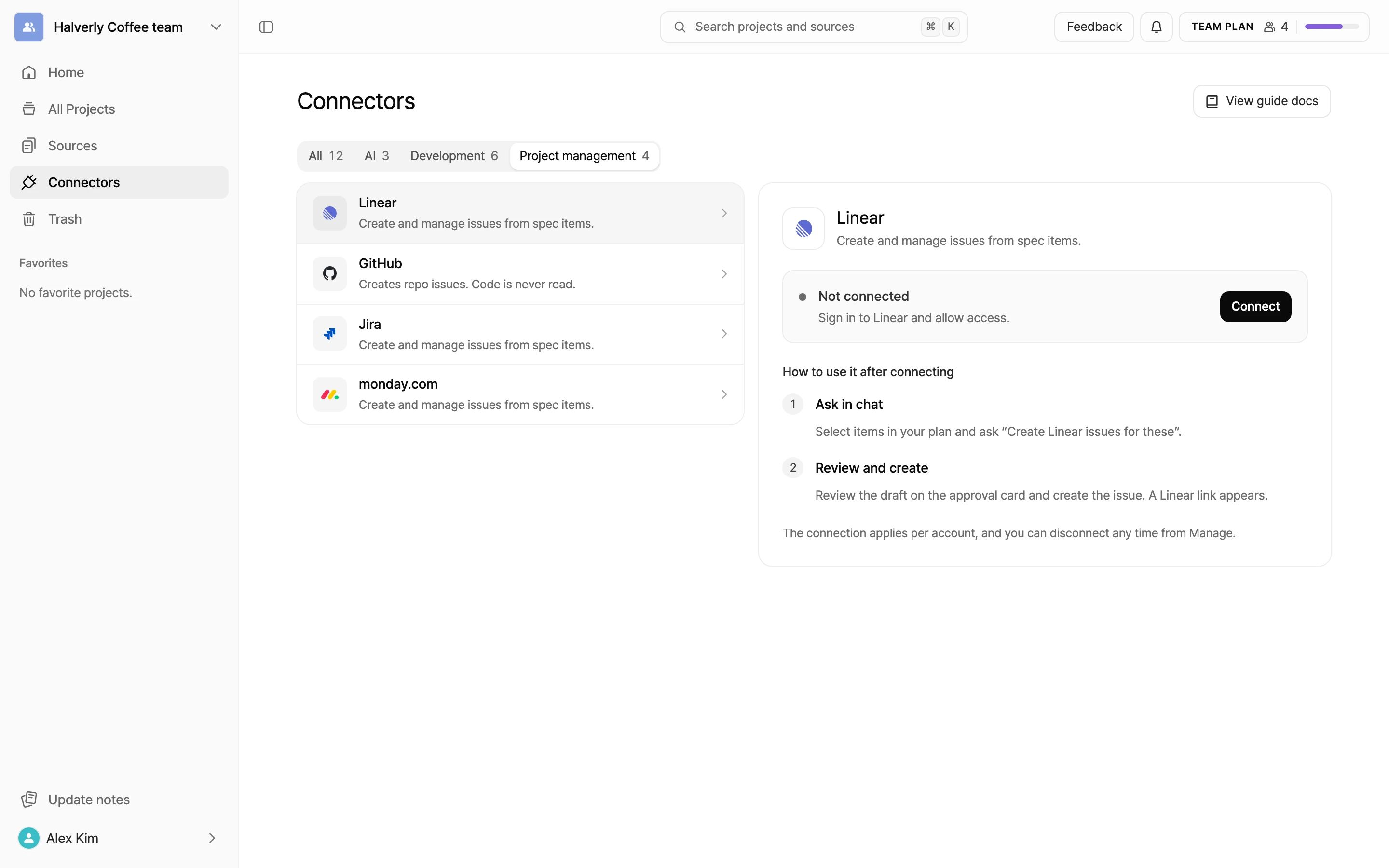
Connected trackers show Connected.
Connect Linear
- Select Linear and click Connect.
- Sign in to Linear and allow access.
- Back in Manyfast, you see Connected and the connected account.
Connect GitHub
GitHub is used only to create issues in the repositories you register. Your code is never read. Instead of signing in, you connect GitHub with a token you create.
- Select GitHub and click Get token to open GitHub's new token page. Click Token setup to see these steps on screen too.
- Under Resource owner, pick the personal account or organization that owns the repository.
- Under Repository access, choose Only select repositories and pick the repositories you'll create issues in.
- Set Permissions > Repository permissions > Issues to Read and write.
- Click Generate token at the bottom of the page and copy the token.
- Back in Manyfast, paste the repository addresses into Target repositories (for example,
https://github.com/acme/web). Separate multiple repositories with commas. You can register up to 20. - Paste the token into Access token and click Connect.
- Organization repositories may need approval from an organization owner.
- Repositories Manyfast can't reach aren't registered, and the screen lists which ones were left out. Check the repository names and the token's Repository access selection.
- To change only the repository list after connecting, click Edit repositories. Your token stays as it is. The AI can't create issues in repositories that aren't on the list.
Connect Jira
- Select Jira and click Connect.
- Sign in with your Atlassian account and allow access. The Atlassian consent screen may mention that the app hasn't been reviewed yet.
- Back in Manyfast, you see Connected.
- If you belong to several Jira sites, the first site is connected automatically. To use another one, pick it in Site to create issues in and click Save.
Manyfast requests permission to read and write Jira issues, look up users so it can set assignees, and keep the connection alive with offline access. Your token is stored encrypted for your account only.
Connect monday.com
To connect monday.com, the Manyfast app must be installed on your team's monday account. Installation happens once per account, and only a monday admin can do it.
- Select monday.com and click Connect first.
- If monday stops you because the app isn't installed, click Install app. monday's install screen opens in a new tab.
- After the install finishes, come back to Manyfast and click Connect again.
- Items are created on the board and in the group you pick, and status can only use labels that already exist on that board.
- Manyfast can't tell whether a board is open to your whole team or shared with guests. If the content shouldn't be visible outside your team, check the board's sharing setting in monday first.
Create issues from Chat
- In the editor's Chat, pick the spec items to turn into issues and ask with the tracker's name, for example "Create Linear issues for these".
- The AI shows an approval card with the issue drafts. Review them. For GitHub, also check which registered repository is used. For Jira, check the project key. For monday.com, check the board and group.
- Click Create issues to create them in your tracker. Links to the new issues appear on the card. To skip, click Reject.
You can also ask the AI to find and read existing issues, or to update an issue or add a comment. Updates and comments also go through an approval card before they're applied.
Manage connections
- Click Disconnect to open a confirmation window. Once disconnected, you can't create or update issues from Chat.
- Disconnecting GitHub deletes the saved token. To reconnect, create a new token.
- Linear, Jira, and monday.com take you through the consent screen again when you reconnect.
- If authorization expires or is revoked, you see Please reconnect. Click Reconnect to sign in again. For GitHub, create a new token and enter it again.