Export and connect
Export your spec
Download your PRD, features, user flow, or wireframe as Excel, Markdown, image, and other files.
Export your spec as a file when you need to hand it to someone outside your team or keep working on it in another tool. Each document offers its own set of formats, and you can check the result in a preview before you download.
Open export
You can start an export from two places. Both lead to the same preview window.
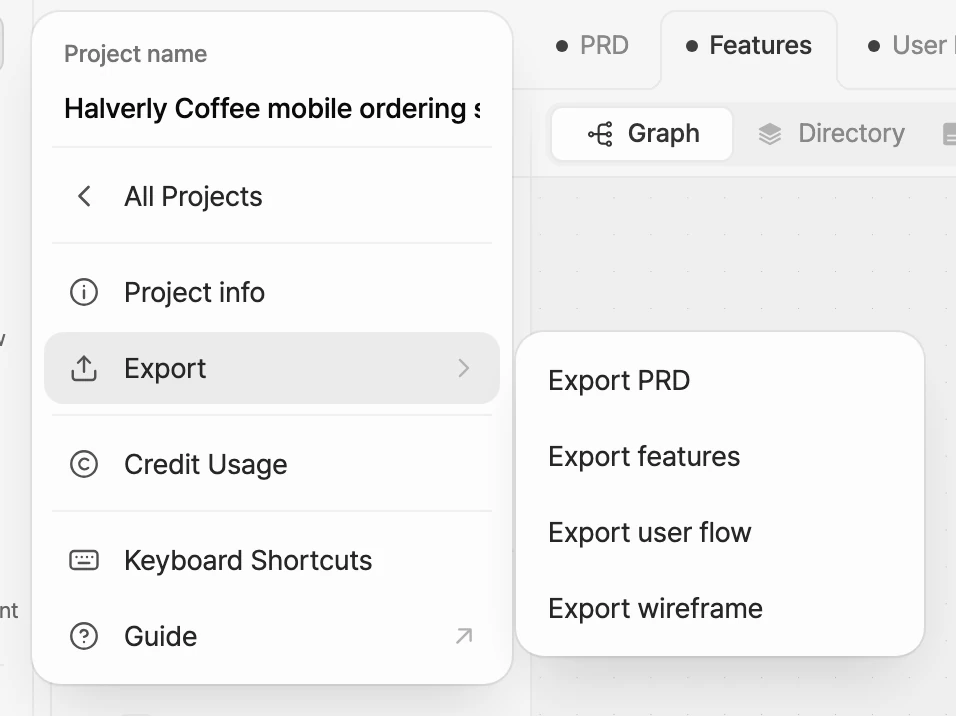
From the project menu
- Click the Manyfast logo at the top left of the editor to open the project menu.
- Click Export. A submenu opens to the right.
- Choose Export PRD, Export features, Export user flow, or Export wireframe.
From the share window
- Click Share at the top right of the editor.
- Open the Export tab.
- Click the PRD, Feature Spec, User Flow, or Wireframe card. Each card lists the formats it supports.
Pick a format and download
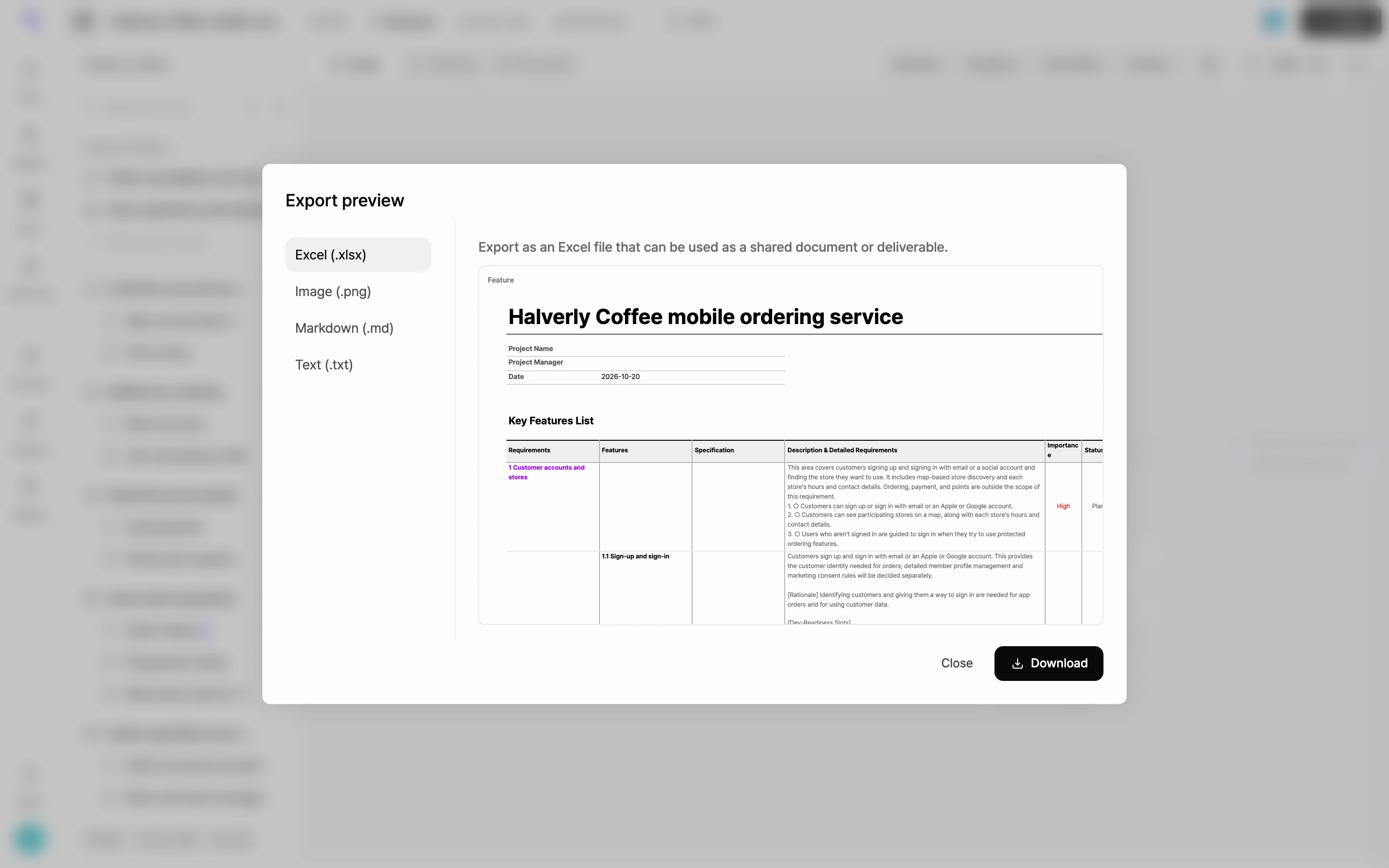
- In the Export preview window, pick a format on the left.
- Check the preview on the right. For large documents the preview may show only part of it, but the downloaded file includes everything.
- When you export features or a user flow as an image, turn on Show comment pins to include comment locations in the picture.
- Click Download.
Formats by document
When the window opens, the first format in each row is selected.
| Document | Available formats |
|---|---|
| PRD | Markdown (.md), Text (.txt), Excel (.xlsx) |
| Features | Excel (.xlsx), Image (.png), Markdown (.md), Text (.txt) |
| User flow | Image (.png), Mermaid (.md) |
| Wireframe | Image (.png), HTML (.html), Export to Figma |
Each format suits a different job.
- Excel (.xlsx): A spreadsheet you can share as a document or deliverable. The preview shows each sheet as a table.
- Image (.png): Captures the canvas exactly as you see it, including colors, filters, and property display. Good for attaching to documents.
- Markdown (.md): Paste it straight into editors and collaboration tools.
- Text (.txt): A plain file for quick copy and paste or record keeping.
- Mermaid (.md): A user flow diagram that renders in places like GitHub and Notion.
- HTML (.html): The whole wireframe as one file you can open in a browser. Page navigation and overlay clicks work.
- Export to Figma: Brings the wireframe into Figma as an editable design. See Bring wireframes into Figma.
Only completed wireframe pages are exported. An image export creates one picture per page and downloads them together as a single .zip file. If the user flow is empty, Download stays disabled.
Check your remaining exports
On the Starter plan, Remaining exports appears under the Export submenu and under the Export tab in the share window.
- Each downloaded file counts as one export. Getting a code to export a wireframe to Figma also counts as one.
- When you run out, you see You've used all your exports and the export options are disabled.
- Click that line to open the billing window and choose a plan.