Export and connect
Bring wireframes into Figma
Import your wireframe into Figma with the plugin and turn it into an editable design.
Move a wireframe you built in Manyfast into a Figma design file and keep designing from there. Get a code in Manyfast, paste it into the Manyfast Wireframe to Figma plugin in Figma, and the screens are built for you.
Before you start
- Your wireframe needs at least one completed page. Only completed pages come into Figma.
- You need a Figma design file to work in. The plugin runs in Figma design files.
- You'll use the Manyfast Wireframe to Figma plugin from the Figma Community. If it's your first time, start with Find the plugin below.
Find the plugin
Open the Manyfast Wireframe to Figma plugin page to go straight to it. To find it yourself in the Figma Community:
- Type
Manyfastin the Figma Community search box. - Select the Plugins tab above the results.
- Choose Manyfast Wireframe to Figma. Check that it's made by Manyfast inc.
- On the plugin page, open the plugin in the Figma design file where you want the wireframe.
Get a code in Manyfast
- Open the wireframe you want to export in the Wireframe tab.
- Click the Manyfast logo at the top left of the editor to open the project menu, then choose Export > Export wireframe. You can also click Wireframe in the Export tab of the share window.
- In the Export preview window, pick Export to Figma on the left and click Download.
- When the Export to Figma window opens, click Copy to copy the code.
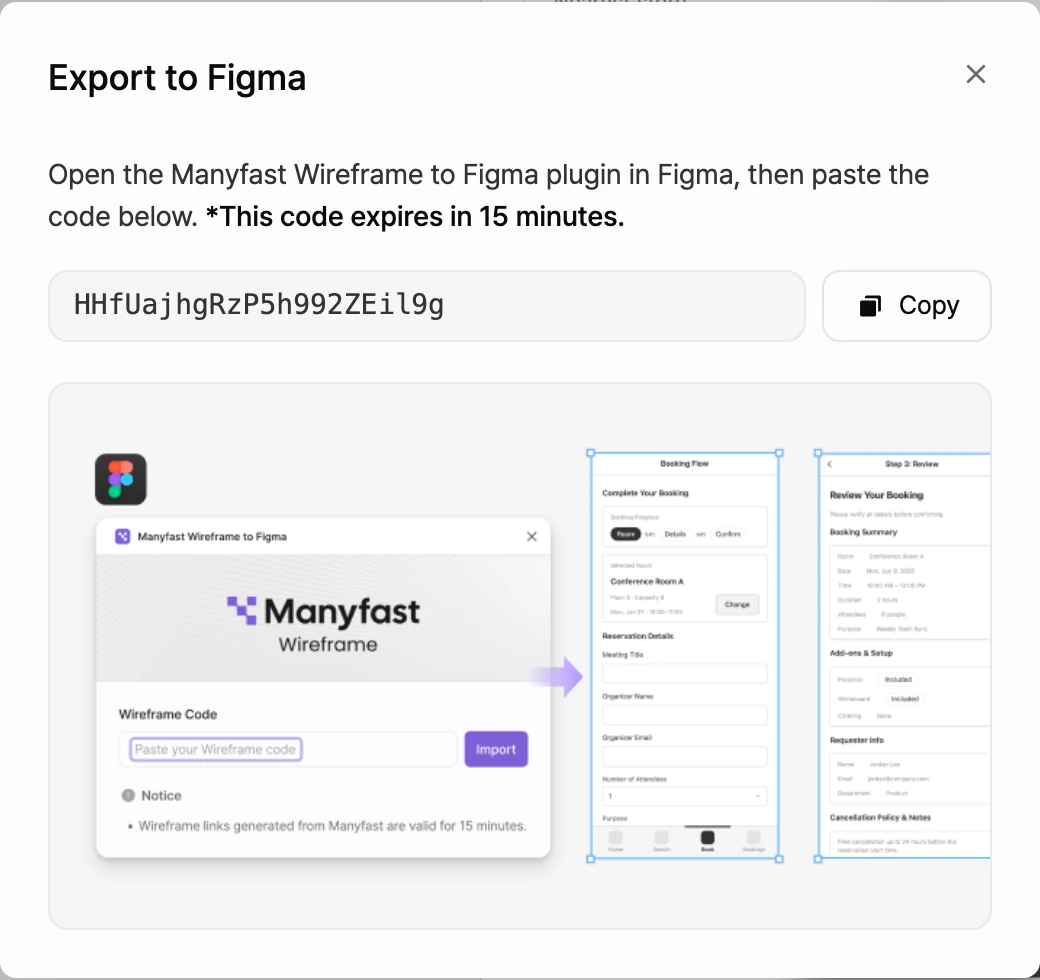
Import in Figma
- In Figma, open the design file where you want the wireframe.
- Run the Manyfast Wireframe to Figma plugin. If it's your first time, see Find the plugin.
- Paste the code into the Wireframe Code field.
- Click Import. The plugin shows its progress while it fetches the data from Manyfast and builds the screens.
- When you see Import complete, you're done. The plugin also shows how many pages it created. To bring in another wireframe, click Import another.
Each import adds a new page to your Figma file, with a frame for each wireframe screen and the components the screens share. Earlier imports stay as they are.
Polish the imported screens
The import gives you the structure to start designing from. Apply color, type, and spacing in Figma. Components in Figma may look different from the original wireframe.
If the import fails
If the plugin shows one of these messages, here's what to do.
| Plugin message | What to do |
|---|---|
| This code has expired. Reissue it from Manyfast. | The code expired or was only partly copied. You may also see this after using the same code several times. Get a new code in Manyfast. |
| This code is invalid. Please double-check it. | The wireframe the code points to couldn't be loaded. Open the wireframe again in Manyfast and get a new code. |
| Enter a Wireframe code. | The Wireframe Code field is empty. Paste the code and click Import again. |
| Couldn't reach Manyfast. Check your connection and try again. | Check your internet connection and try again. |