Plans and account
Pay for a plan and manage your subscription
Pay for or change your plan, and manage seats, payment method, receipts, and cancellation in Payment Management.
You pay for and change plans in the plans window. You manage seats, payment method, receipts, and cancellation for your current subscription in Payment Management. For what each plan includes, see Compare plans. For prices, see Pricing.
Open the plans window
Open the plans window from any of these places:
- The Upgrade your plan banner at the bottom of the sidebar (Starter groups)
- The group name at the top of the sidebar > Upgrade Plan (owners and admins)
- The plan badge button in the top bar > Upgrade (Starter groups)
- The editor's project menu > Upgrade Plan (groups not on Team)
- Payment Management > Change Plan
Tour the plans window
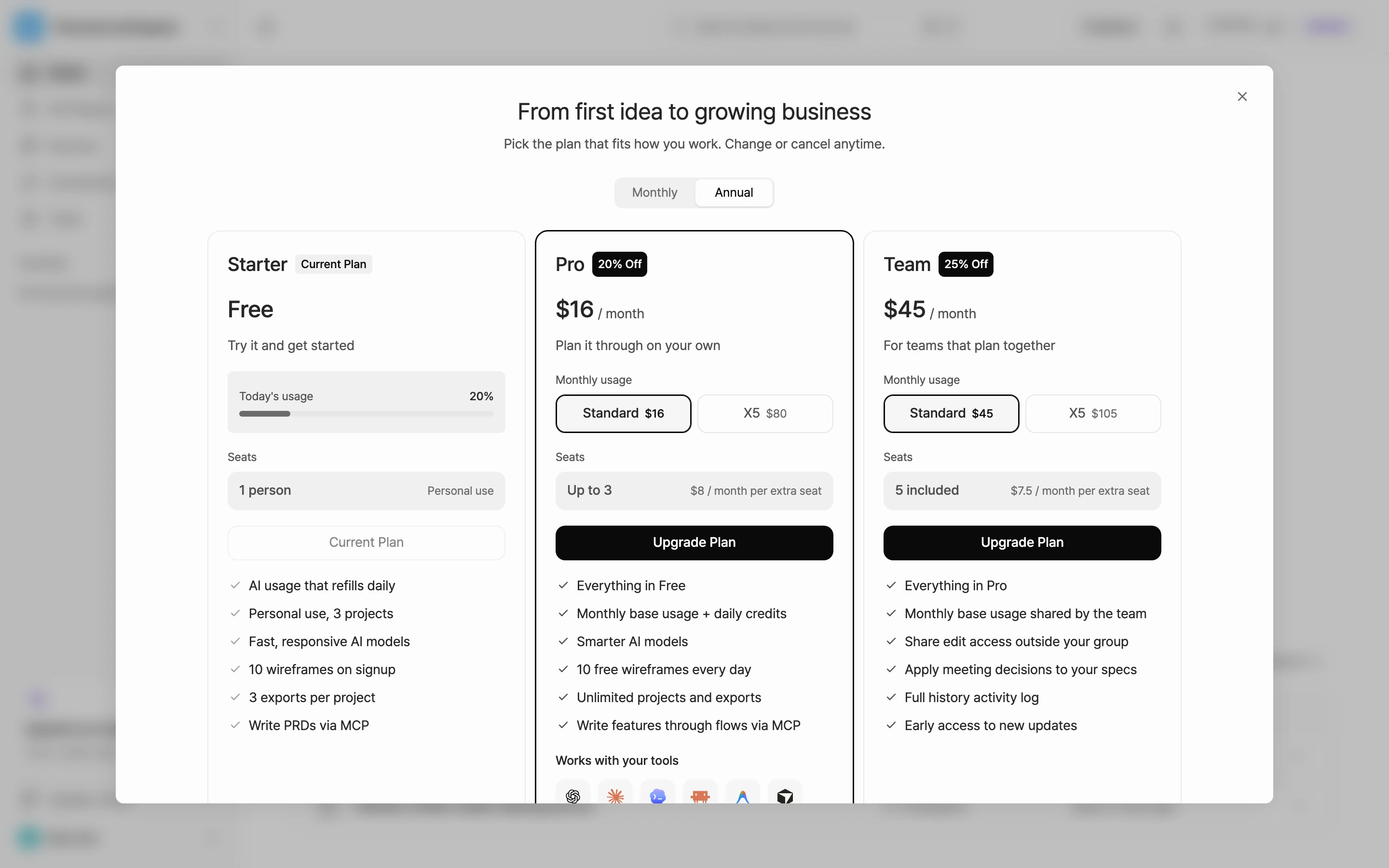
The plans window is titled From first idea to growing business.
- Monthly and Annual: Choose your billing cycle. Annual is selected at first, and the Pro and Team cards show their discount when Annual is selected, except a card marked Current Plan.
- Plan cards: Each card shows the price, usage, Seats, a button, and a feature list. If your group is on Starter, the Starter card shows Today's usage. On the Pro and Team cards, you can pick Standard or X5 under Monthly usage. For details, see Choose 5x usage (X5).
- Promotion code: If your group is on Starter, the Pro and Team cards show a Do you have a promotion code? field.
- Coupons and partner plans: Below the cards are Apply coupon code and Partner & Education Plan. Only the group owner sees them.
- Contact Us: If you have billing questions, select Contact Us at the bottom of the window.
Pay for the first time
- Open the plans window.
- Choose Monthly or Annual billing.
- On the card you want, choose the Monthly usage.
- If you have a promotion code, enter it in the field on the card and select Register.
- Select Upgrade Plan on the card.
- Review the payment details and select Confirm and Pay. On Pro and Team, you can also choose how many seats you need here.
- Finish paying in the checkout window.
Once payment is done, your new plan takes effect right away and its monthly credits are granted right away.
Change your plan
If you already have a subscription, pick a different card in the plans window.
- Move up: Select Upgrade Plan, then Confirm and Pay. You're charged the difference between your current and new plan right away, and the new plan takes effect right away.
- Move down: Select Downgrade Plan, then Confirm Plan Change, and submit what disappointed you. The change takes effect on your next billing date. Until then, you keep your current plan's features and credits.
- Switch from Pro to Team: Select the button on the Team card to open a window where you choose your seat count. Choose the seats, then pay.
Payment Management
Open Payment Management from any of these places:
- The group name at the top of the sidebar > Payment Management
- The plan badge button in the top bar > Payment Management
- The group name at the top of the sidebar > Manage Group > Payment Management
Only the group owner and admins see these entries.
Current plan
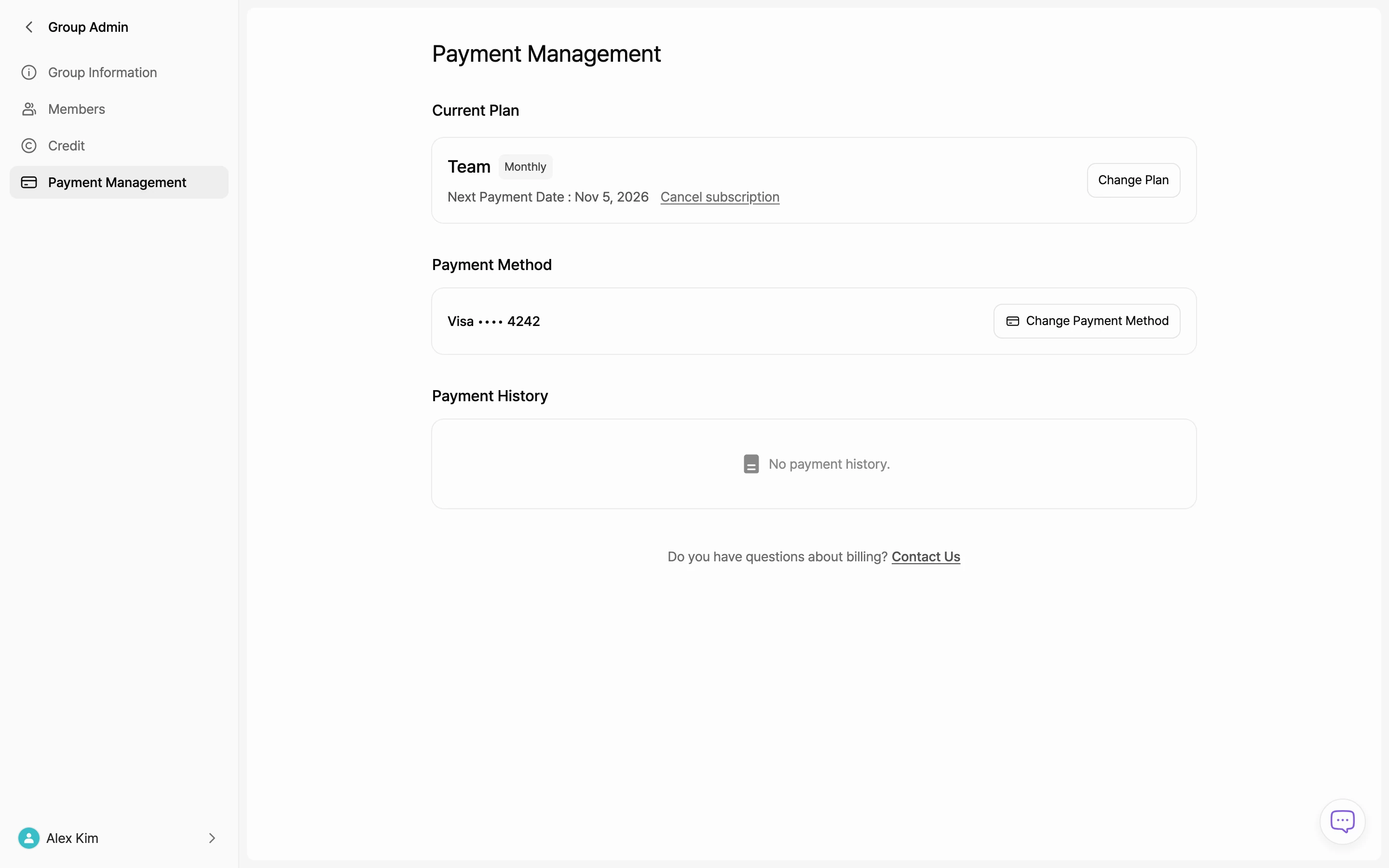
You see your plan name, whether it's Monthly or Annual, and the Next Payment Date. To change plans, select Change Plan to open the plans window.
Manage seats
If your group pays for Pro or Team, the seat breakdown (Plan base and Extra seats) appears below the plan card.
- Select Manage seats.
- Use Decrease seats and Increase seats to set the total number of seats you need. The new charge is calculated right away.
- If you added seats, select Pay now. If you removed seats, select Apply change.
- Review the details in the confirmation window and continue.
- When you add seats, you're charged right away for the days left until your next billing date.
- When you remove seats, they stay until your next billing date. From then on, the seat count and price go down together. There's no refund for the current cycle.
- Pro has a cap on how many seats you can add. If you need more people than that, switch to Team.
To invite members, see Invite members.
Change your payment method
- Under Payment Method, select Change Payment Method.
- Change your payment method on the payment page that opens in a new tab.
- Close that tab, and Payment Management updates.
Your new payment method applies from your next payment.
Payment history and receipts
Under Payment History, check the date, product, amount, and status, and download the Receipt. Select More to load older payments.
Contact us
If you have billing questions, select Contact Us next to Do you have questions about billing? at the bottom of the page.
Coupons and partner plans
Apply a coupon code
If a partner gave you a Pro or Team coupon, you can redeem it from the plans window.
- In the plans window, under Apply coupon code, select Redeem coupon.
- Enter your code in Coupon code and select Check coupon.
- Check the plan and access period (one month from today).
- Select the button that starts the coupon's plan for one month. The button shows the plan name.
Apply for a partner or education plan
If you belong to a school or partner company, you can apply for a special plan.
- In the plans window, under Partner & Education Plan, select Apply.
- Enter your name, affiliation, partner code, and the email where we can reach you.
- Select Apply.
Our team reviews your application and then applies the plan. If you're already on a partner plan, contact support to change plans.
Cancel your subscription
Cancelling moves your group down to Starter, the free plan.
- In Payment Management, under Current Plan, select Cancel subscription.
- In the Couldn't find the feature you need? window, select I'd still like to cancel.
- In the What was disappointing? window, pick at least one reason and select Submit.
You keep your current plan until the period you paid for ends, then switch to Starter on your next billing date.
Cancel a scheduled downgrade
To undo a scheduled downgrade or cancellation, select Cancel Scheduled Change in the Downgrade Plan box in Payment Management. Your current plan continues.