Get started
Manyfast at a glance
A quick tour of groups, projects, the four spec documents, and how AI suggests changes that you approve.
Manyfast is a tool for writing product specs. Start from a one-line idea or files you already have, then build a PRD, feature spec, user flow, and wireframes in a single project while AI and your teammates work on the same spec. This page explains the terms and structure used throughout the guide.
Groups and projects
- A group is a shared workspace. Each group has its own projects, Sources, members, plan, and credits. One account can belong to several groups, and you switch between them at the top of the sidebar. See Create and manage groups.
- A project is one complete spec. Create one project per product, and keep all four documents inside it.
- Projects live in All Projects in the sidebar, where you can sort them into folders. See Organize projects and folders.
The four documents in a spec
When you open a project, the editor shows four tabs across the top: PRD, Features, User Flow, and Wireframe. Each document builds on the one before it.
| Document | What it holds |
|---|---|
| PRD | Describes the product. It has Overview, Problem & Solution, Target & Scenario, Success & Risks, and Project Basics (category, user roles, devices). |
| Features | Breaks what you'll build into three levels: requirements, features, and specifications. |
| User Flow | A diagram of how users move between screens, built from your feature spec. |
| Wireframe | Screen mockups built from your user flow. You need a user flow before you can create wireframes. |
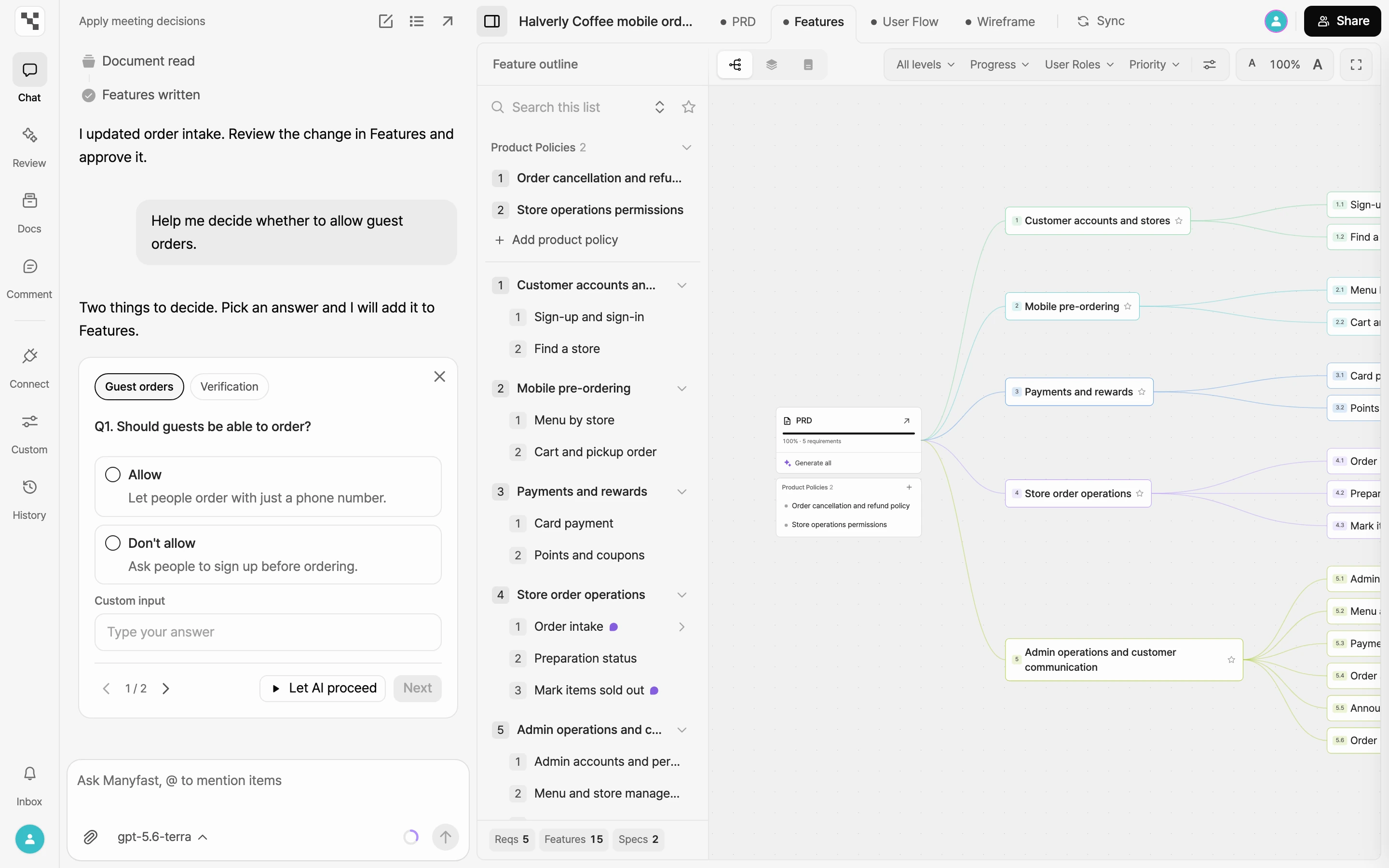
Three levels of the feature spec
- Requirement: a broad area that groups related features. Example: booking management
- Feature: one capability users interact with. Example: request a booking
- Specification: one behavior inside a feature. Example: pick a booking time
Features and specifications also have Dev-Readiness Slots, where you write down what a developer would otherwise ask about, such as preconditions, exceptions, and permissions. Learn more in Fill in dev-readiness slots.
Three ways to view the feature spec
You can switch the same feature spec between three View options.
- Graph: see the whole structure, from requirements down to specifications, laid out on one canvas.
- Directory: pick an item from a list and edit its details on the right.
- Document: read and edit from top to bottom like a document.
See Feature spec views for when to use each one.
Product policies
Decisions that span many features, such as pricing, security, or data retention, go into Product Policy pages. Policies live inside the Features tab, and you can link each one to the requirements and features it affects. See Organize product policies.
AI suggests, you approve
AI in Manyfast never overwrites your spec directly. It proposes changes, and you decide what goes in.
- Open Chat in the editor's left rail and ask AI to do something. Example: "Add a feature for canceling a booking."
- What AI writes shows up in your spec as suggestions labeled New, Modified, or Delete. Only what fills a blank PRD for the first time is saved right away, without a suggestion.
- Review each suggestion and choose Approve or Reject. Only approved suggestions stay in your spec.
Learn more in Plan with chat and Review AI suggestions. You can also run a Review that checks your spec for gaps from several angles. See Get a plan review.
Sources and files
- Sources in the sidebar is a library your whole group shares. Save the context behind your plans there, such as meeting notes and interviews, as individual sources.
- AI pulls decisions out of a source, and you link the ones you choose to a project and apply them to the spec. See Keep sources in Sources and Apply decisions to your spec.
- Files that belong to a single project, like PDF, Word, or Excel files, go in the Files tab of the editor's Docs panel. AI reads them and uses them in your planning. See Upload project files.
Work together and take it further
- Edit together: Invite teammates to your group to edit the same spec at the same time and discuss it in comments. See Invite members, Edit together in real time, and Comments and notifications.
- Share: Show your spec to people outside the group with a read-only link. See Share with a link.
- Export: Download your spec as files for reports or other tools. See Export your spec.
- Connect AI tools: Use Connectors in the sidebar to connect Manyfast to AI tools like Claude and Cursor. Those tools can then read your spec, edit it, and build from it. See Connect AI tools.